
Audit log
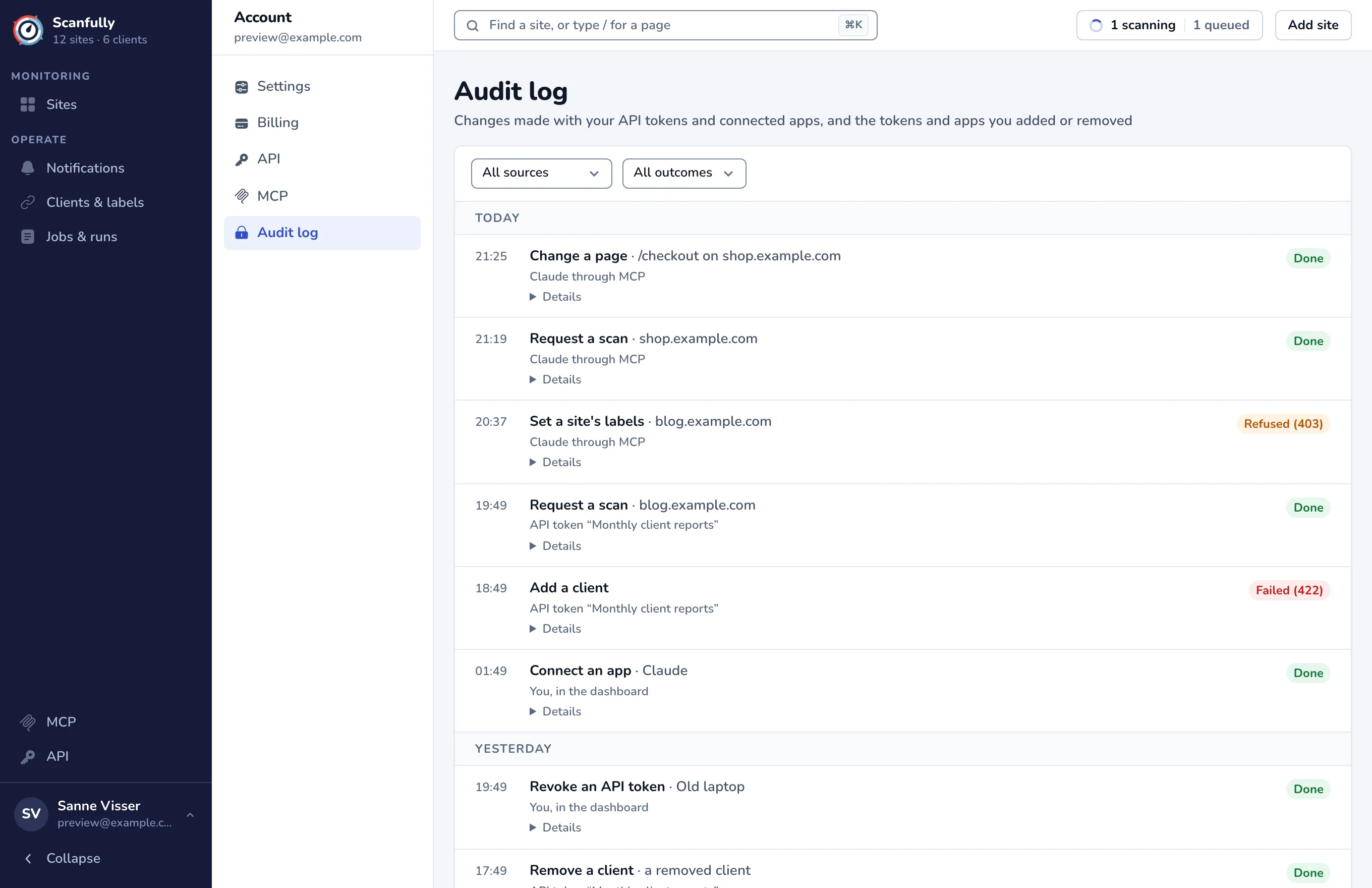
The Audit log shows what was done to your account through the API and connected apps: every change made with one of your API tokens or by an app connected through MCP, including changes that failed or were refused, and every token and app you created, revoked, connected or disconnected. Use it to check what an AI assistant or integration did, or to spot a token you do not recognize.
Open it from the account menu: Audit log.
Reading through the API does not create entries. Changes you make yourself in the dashboard are not listed either, apart from creating and revoking tokens and connecting and disconnecting apps.
What an entry shows
Section titled “What an entry shows”Entries are newest first, grouped by day (Today, Yesterday, then the date), with the time in your timezone. Each entry shows:
- What was done, such as Change a page, Request a scan, Set a site’s labels, Add a client, Create an API token or Connect an app, followed by what it was done to: a site, a page on a site, a client, a label, a token or an app. Once that is deleted, the entry says, for example, a removed client.
- Who did it: You, in the dashboard, API token “Monthly client reports” (the token’s name), or an app such as Claude through MCP.
- The outcome: Done, Failed or Refused, with the HTTP status code when there is one. Refused means the token or app did not have the permission, or was no longer allowed to do it.
Click Details under an entry to see the request behind it: the Access it had, the Token hint, the IP Address, the User agent and the Request id. Give the request id to support if you ask about an entry.
Filter the log
Section titled “Filter the log”Use the two menus above the list:
- All sources, or only Dashboard, API tokens or Connected apps.
- All outcomes, or only Done, Failed or Refused.
Use Newer and Older under the list to page through it. The footer says how long entries are kept: a year.
If you see something you do not recognize
Section titled “If you see something you do not recognize”- Open Details to see which token or app it came from, and the address it came from.
- Revoke the token on the API page, or disconnect the app on the MCP page. Both stop working at once.
- Contact support with the request id if you need help.