
How to solve slow Time to First Byte (TTFB)
Have you ever clicked on a website, only to sit there waiting for the first bit of content to load? It’s frustrating, and your visitors feel the same way. That’s where Time to First Byte (TTFB) comes in. It measures the time it takes for a browser to receive the first byte of data from a server after making an HTTP request. A slow TTFB means users start their experience waiting, and that’s bad for engagement, SEO, and conversions.
In this guide, we’ll break down what TTFB is, why it matters for WordPress, and, and of course, how to fix it.
What Is TTFB and Why Should You Care?
Section titled “What Is TTFB and Why Should You Care?”TTFB measures three crucial steps:
- Request Sent: The browser sends a request to the server.
- Processing: The server processes the request and prepares a response.
- Response Received: The browser receives the first byte of data.
A high TTFB can tank your site’s performance. Search engines like Google consider TTFB as a ranking factor. If your WordPress site takes too long to start delivering content, it’ll hurt your SEO rankings and frustrate users.
Ideal TTFB Benchmarks:
- Excellent: < 200ms
- Good: 200-500ms
- Needs Improvement: 500ms to 1s
- Poor: > 1s
Google recommends aiming for a TTFB under 200ms. Faster response times can lead to better crawl rates and higher rankings.
In Scanfully, TTFB is the Server response phase of each performance check. Scanfully counts up to 300 ms as fast and above 500 ms as slow.
Common Causes of High TTFB
Section titled “Common Causes of High TTFB”Several factors can contribute to a high TTFB:
- Server Performance Issues: Cheap hosting often comes with slower servers.
- Poor Caching: Without caching, your server works harder on every request.
- Heavy Plugins or Themes: Overloaded WordPress installations slow down processing.
- Database Bottlenecks: Slow database queries can delay the response time.
- Content Delivery Network (CDN) Misconfiguration: Without a properly configured CDN, users far from your server experience slower load times.
- Complex Server-Side Code: Overly complicated code can increase processing time.
- Third-Party API Calls: External requests delay your server response.
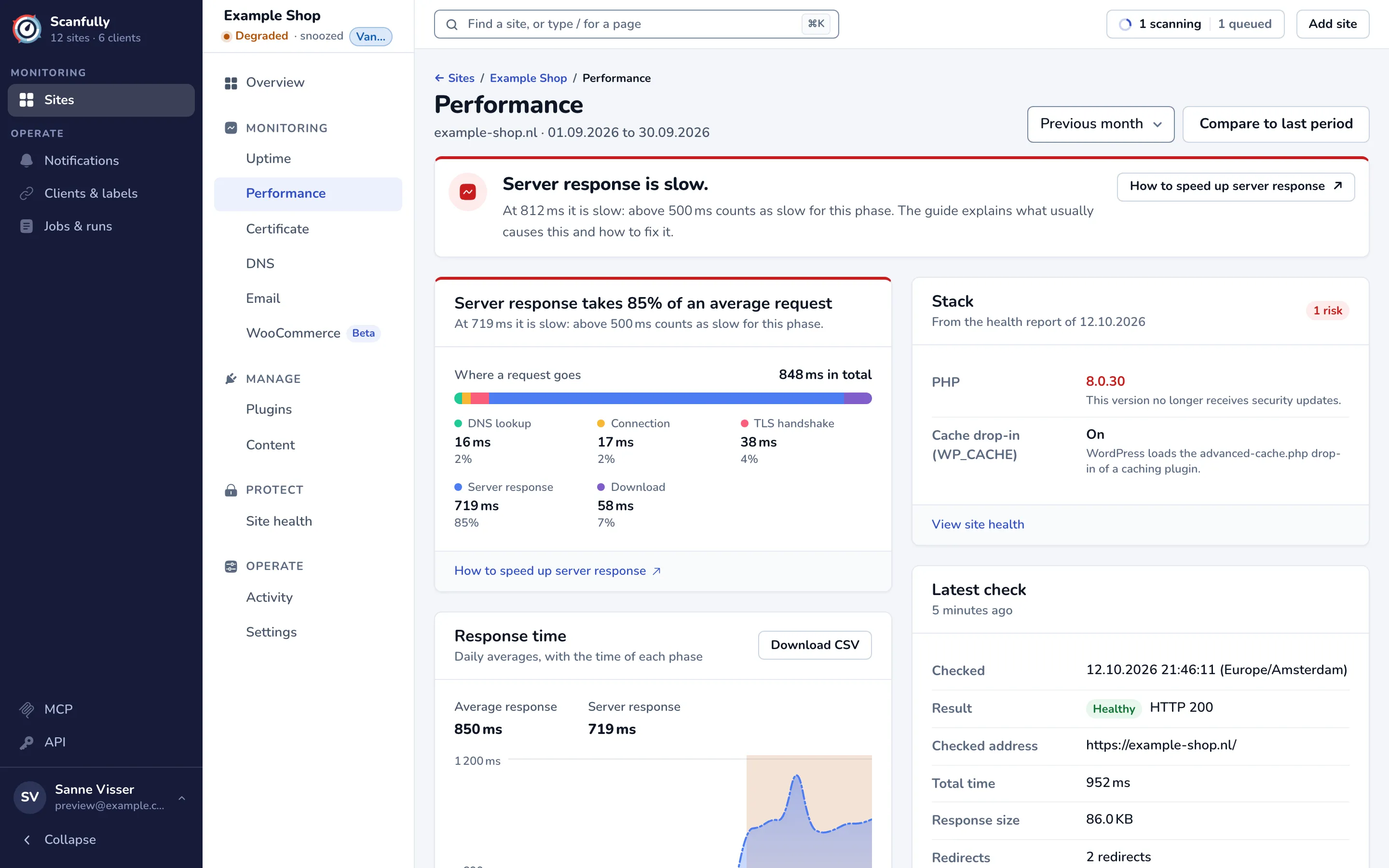
The Performance screen in Scanfully
How to Reduce TTFB on Your WordPress Site
Section titled “How to Reduce TTFB on Your WordPress Site”Here’s how you can bring your TTFB down to speed:
1. Choose High-Performance Hosting
Section titled “1. Choose High-Performance Hosting”Cheap hosting might save money upfront but costs you in speed and reliability. Opt for a managed WordPress hosting provider like Servebolt, Kinsta, or WP Engine for better server resources and optimized environments.
2. Enable Caching
Section titled “2. Enable Caching”Caching stores static versions of your pages and serves them to visitors faster. Solutions like NitroPack or Cloudflare’s APO, or plugins like WP Rocket can significantly reduce server processing time. Some hosts have a static cache solution built in.
Cache Aggressively
Section titled “Cache Aggressively”Caching is like giving your site a performance-enhancing boost. It stores static versions of your content, reducing the load on the server and improving TTFB significantly. Make sure to configure them properly for optimal results.
Keep Your Server Close
Section titled “Keep Your Server Close”Ensure your server’s location is geographically close to your target audience. The greater the distance between the server and the user, the longer the data takes to travel.
3. Optimize Your Database
Section titled “3. Optimize Your Database”Cleaning up post revisions, optimizing options, and transient options can help speed things up. Plugins like WP-Optimize help streamline database performance. Additionally, optimizing database queries and ensuring proper indexing will significantly reduce processing time.
4. Use a CDN
Section titled “4. Use a CDN”A CDN reduces latency by serving content from servers closer to your visitors. Services like Cloudflare or Bunny CDN can help improve TTFB by reducing physical distance.
5. Optimize WordPress Themes and Plugins
Section titled “5. Optimize WordPress Themes and Plugins”Deactivate and remove unused plugins and switch to lightweight themes like GeneratePress or Ollie. Avoid plugins that generate heavy server-side processing.
Slim Down Themes and Plugins
Section titled “Slim Down Themes and Plugins”Themes and plugins can add unnecessary bloat. Choose a lightweight theme and keep plugins to a minimum. Always opt for quality over quantity, and ensure that the ones you do use are well-coded and maintained.
Update Regularly
Section titled “Update Regularly”Keeping WordPress, themes, and plugins up to date ensures that you benefit from the latest performance improvements. Developers often optimize for speed in their updates, which can have a positive impact on your TTFB.
6. Minimize External HTTP Requests
Section titled “6. Minimize External HTTP Requests”Limit external API calls and reduce the number of embedded scripts and widgets. Sounds simple, but it’s not.
Every time a visitor loads your site, their browser has to request not only your server’s content, but also any third-party services you’ve integrated. These external requests can dramatically slow down Time to First Byte (TTFB) because your server waits for a response from those third-party services before fully delivering the page.
External API Calls
Section titled “External API Calls”An API call happens when your site communicates with an external service for data. Examples include:
- Fetching data from social media feeds (like Twitter or Instagram).
- Pulling in data from marketing tools (like HubSpot or Mailchimp).
- Connecting to payment gateways (like Stripe or PayPal).
- If the external server responds slowly or is down, your site’s TTFB increases because your server delays sending any content until those calls are complete.
Embedded Scripts and Widgets
Section titled “Embedded Scripts and Widgets”These are third-party elements embedded directly into your site’s HTML. This would be your YouTube video embeds, Live chat widgets and most certainly external analytics tools (like Google Analytics or Hotjar).
Each script adds extra weight to your page load and increases the time it takes for your server to respond. Even if the widget itself doesn’t seem heavy, it might be loading other scripts in the background.
Self-Host Scripts Whenever Possible
Section titled “Self-Host Scripts Whenever Possible”Instead of pulling scripts from external servers, download them and host them locally. For instance, you can host Google Fonts locally instead of using their CDN, or self-host analytics scripts when feasible, by using a plugin like CAOS for Google Analytics.
Defer or Asynchronously Load Scripts
Section titled “Defer or Asynchronously Load Scripts”Defer non-essential scripts so they load after the page has rendered. Again, an excellent use-case for Perfmatters. Optimizing this prevents these scripts from blocking the initial page load and reduces TTFB.
7. Regular Site Health Monitoring
Section titled “7. Regular Site Health Monitoring”The only way to stay on top of your TTFB is to be monitoring for it. That’s the only way you can catch slowdowns early. Scanfully checks your site every 15 minutes and shows the Server response time on the Performance screen. When it steps up and stays up, a note under the chart says when, and lists the plugin, theme and WordPress updates of just before.
Speed Matters
Section titled “Speed Matters”Reducing your WordPress site’s TTFB isn’t just a technical tweak; it’s a game-changer for user experience and SEO. With better hosting, smart caching, minimized external requests, and regular health checks using tools like Scanfully, you’ll keep your site running fast and visitors happy.
Now’s the time to test your site’s TTFB and take action!