
WooCommerce
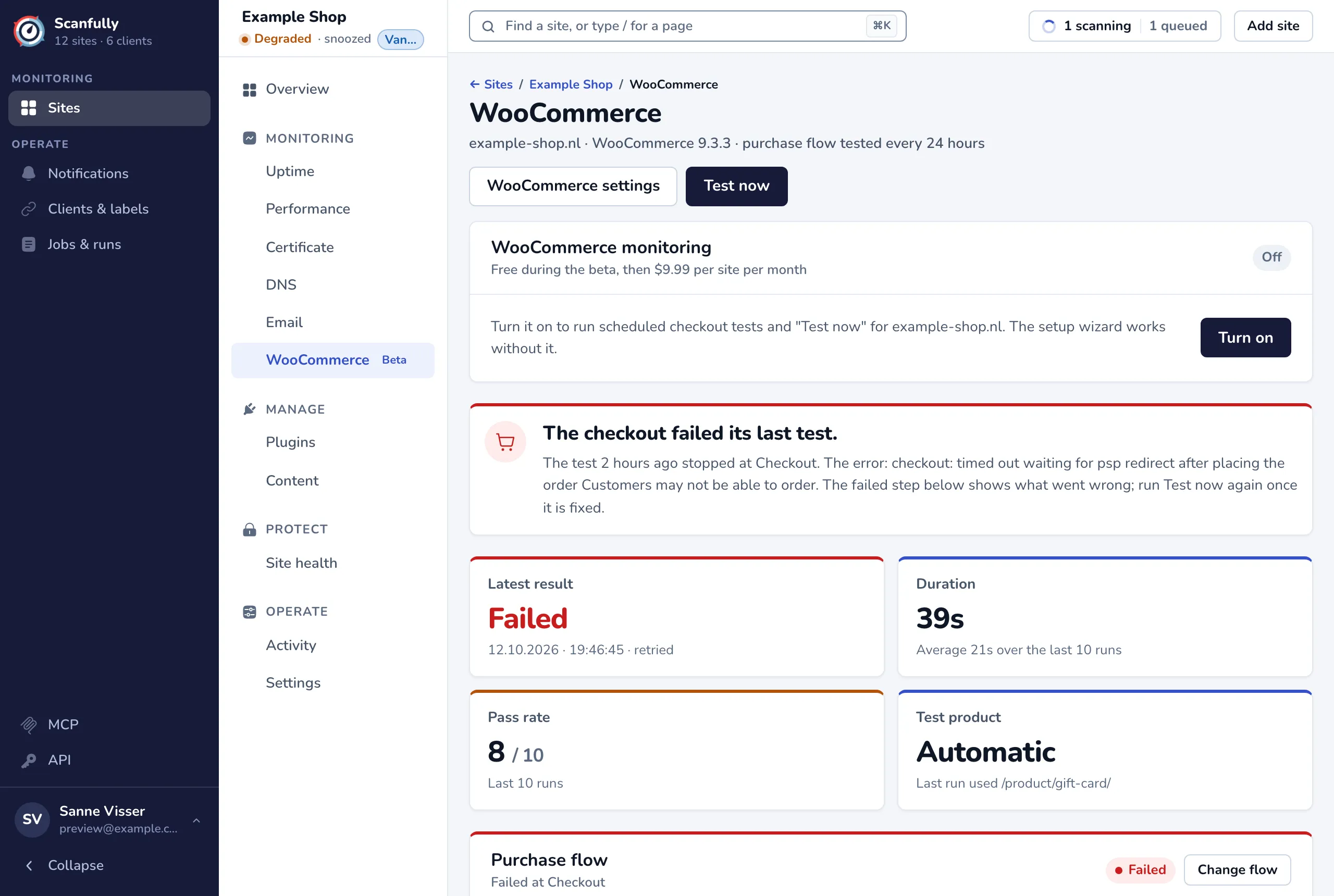
The WooCommerce screen shows whether customers can still order in your shop. Scanfully runs a checkout test: it adds a product to the cart, opens the cart and the checkout, fills in the billing details and places a test order that stops at the payment step. Nothing is ever paid. Each run is kept in a history, with a screenshot when a run fails.
Open it from WooCommerce under Monitoring in the site menu.
What you need
Section titled “What you need”- The Scanfully plugin on the site, active and up to date. The checkout test runs through the plugin, and the plugin reports the WooCommerce version, the shop’s cart and checkout pages and its products.
- WooCommerce installed and active, and a product the test can buy.
- A billing address for the test orders: your shop’s store address in WooCommerce, or custom details in the WooCommerce settings.
- WooCommerce monitoring turned on for the site (see below). You can set up the purchase flow without it.
The header
Section titled “The header”Under the title you see the domain, the installed WooCommerce version (with “inactive” when WooCommerce is installed but not active) and how often the purchase flow is tested.
- WooCommerce settings opens the settings for the testing interval, the test product and the billing details.
- Test now starts a checkout test right away. It shows once a purchase flow is set up. You can start one test every 5 minutes per site.
When a test you started finishes, a message tells you whether it passed or failed and the new run shows on the screen. If no result comes back in time, the test may still be running: check the test history a few minutes later.
WooCommerce monitoring
Section titled “WooCommerce monitoring”The WooCommerce monitoring panel turns the checkout tests on or off for this site. It shows the price per site per month and whether monitoring is On or Off. During the beta it is free.
- Turn on starts scheduled tests and lets you use Test now. Scanfully asks you to confirm any charge first.
- Turn off stops the scheduled tests. Your test history is kept. When the add-on was paid, there is no refund: it stays paid until the end of the month, and you can turn it on again on any site that month at no charge.
When a payment is overdue, monitoring is paused and you can’t turn the add-on on until the payment is made on the billing page.
The headline and result cards
Section titled “The headline and result cards”The headline sums up the latest run in one sentence:
- The checkout works. The last test passed.
- The checkout failed its last test. It names the step where the test stopped and the error. Customers may not be able to order, so check the failed step below.
- The checkout has not been tested yet. No run has finished yet. With Manual only as the interval, tests only run when you click Test now.
- A checkout test is running. The result shows when it finishes, usually within a few minutes.
Below it, four cards show:
- Latest result: Passed or Failed, with the time of the run, and “retried” when the test needed a second attempt.
- Duration: how long the last run took, and the average over the last runs.
- Pass rate: how many of the last runs (up to 10) passed.
- Test product: the product the test buys. Automatic means Scanfully picks the first eligible product; the card then shows which product the last run used.
Purchase flow
Section titled “Purchase flow”The Purchase flow panel shows the steps of your flow as they went on the last run, with a check or a cross for every check inside a step. The steps are:
- Adding a product: how the product gets into the cart, for example from the product page.
- Cart: the cart page is checked, for example that it contains the product, shows a total and has a checkout button.
- Checkout: the checkout page is opened, the billing fields are filled in, required checkboxes are ticked and the order is placed.
- Payment step: marked Stops here on purpose. The test stops when it reaches your payment provider, so nothing is paid.
Each step shows how long it took and how the flow runs it (such as Full check or Place a test order). A step that failed has a View screenshot button when a screenshot was taken: it shows the page as Scanfully saw it when the test failed.
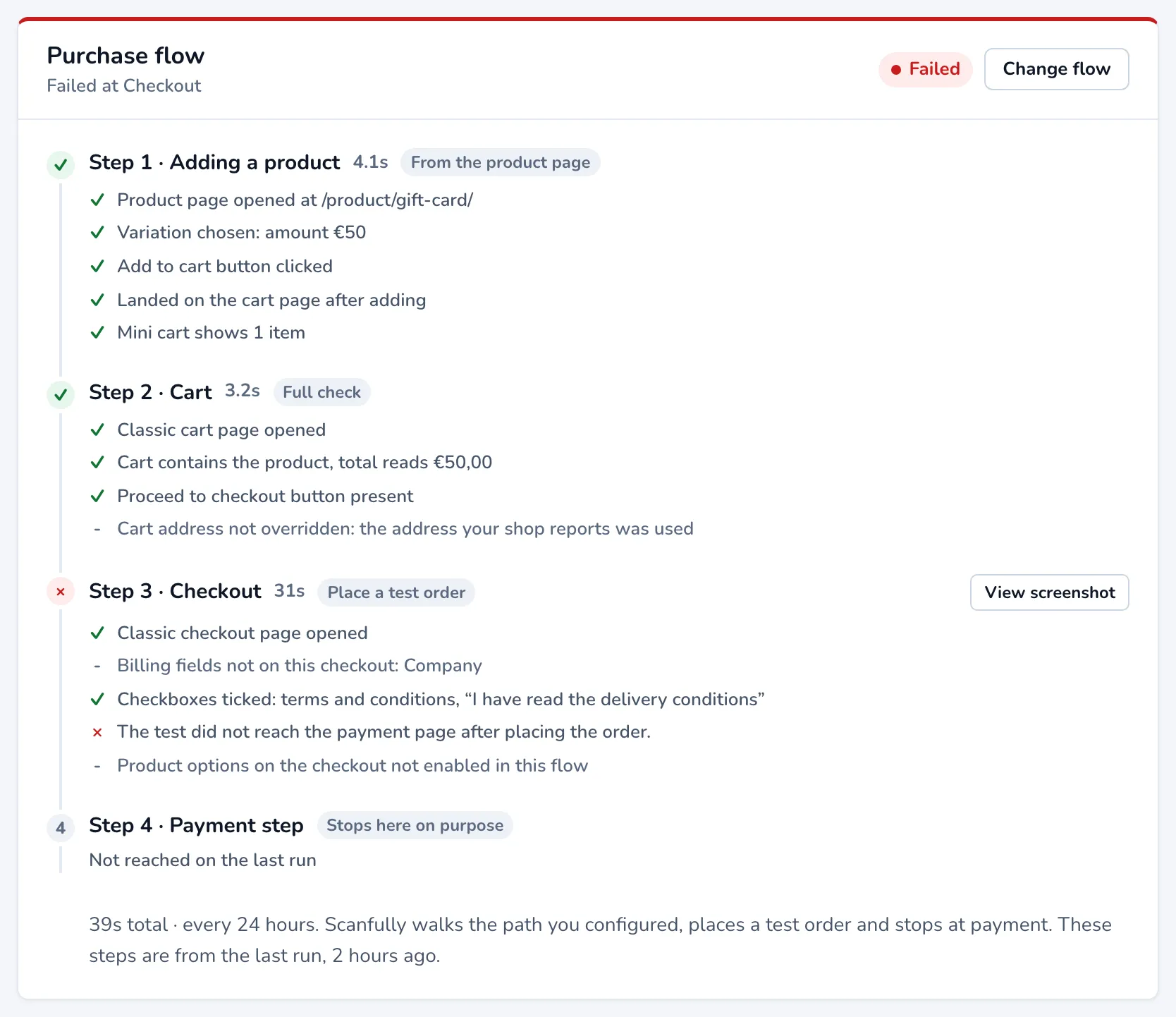
Change flow opens the purchase flow wizard. Before a flow is set up, the panel shows Set up your purchase flow with a Configure flow button instead: without a flow, checkout tests can’t run. See Set up the purchase flow.
Store checks and Configuration
Section titled “Store checks and Configuration”Under the purchase flow, two panels sum up what the test relies on.
Store checks shows what the Scanfully plugin sees on the shop:
- whether WooCommerce is active, and how many products are published;
- whether a test product could be found;
- whether the checkout page was reached on the last run;
- that test orders are cancelled and removed. The plugin cancels each test order when the check ends and deletes it later.
Configuration shows what the flow was told to do: the steps configured, where it stops (the payment step, or the checkout before an order is placed), the test product, the billing address, the frequency and any extra checkboxes.
Test history
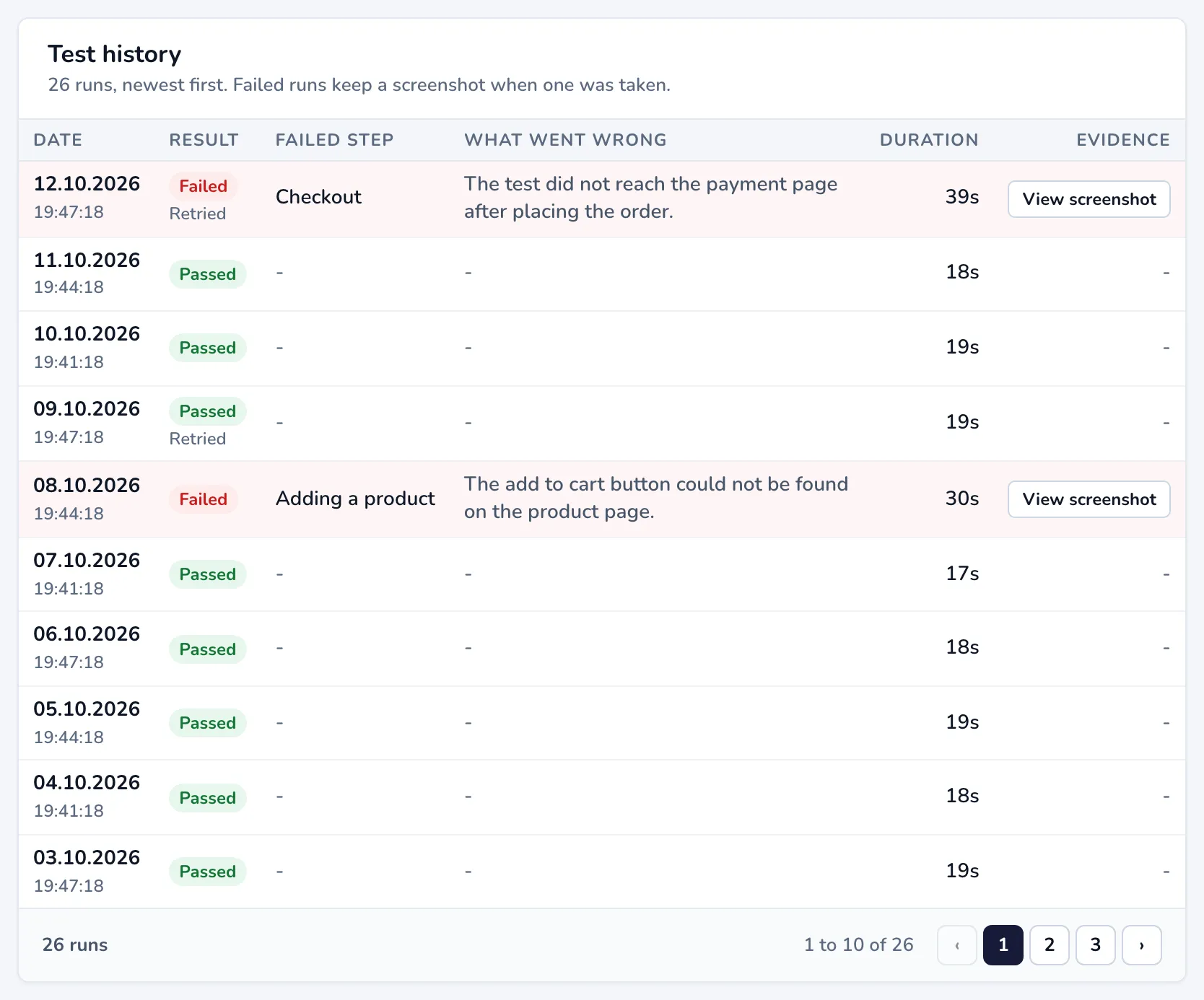
Section titled “Test history”The Test history table lists every run, newest first, 10 at a time:
- Date and time of the run.
- Result: Passed or Failed, with Retried when the test needed another attempt.
- Failed step and What went wrong for a failed run.
- Duration of the run.
- Evidence: View screenshot when a failed run kept a screenshot.
When a test can’t start
Section titled “When a test can’t start”If Test now can’t start a test, a message says why. The most common reasons:
- WooCommerce monitoring is off for the site: turn it on in the WooCommerce monitoring panel.
- The Scanfully plugin did not confirm the test, or has not reported a WooCommerce checkout yet: check that the plugin is active and up to date.
- WooCommerce is not active, or its version is too old for checkout tests.
- No product the test can buy: make a product available for sale, or change the flow so it does not start from a product page.
- No billing details: the shop has no usable store address and no custom details are set. Add them in the WooCommerce settings.
- The saved purchase flow cannot run on this shop: use Change flow to adjust the steps and test them.
- You can start one test every 5 minutes: wait and try again.
Get notified
Section titled “Get notified”To hear about it when the checkout breaks, turn on the Broken checkout flow event in a notification. See Notifications.