
Account settings
Settings holds the preferences that apply to your whole Scanfully account: how dates and times are shown, which timezone they are in, and how the dashboard looks. It also shows your clients and labels at a glance, and the notification settings that apply to every notification.
To open it, click your name at the bottom of the menu and choose Account. The account pages have their own menu: Settings, Billing, API, MCP and Audit log.
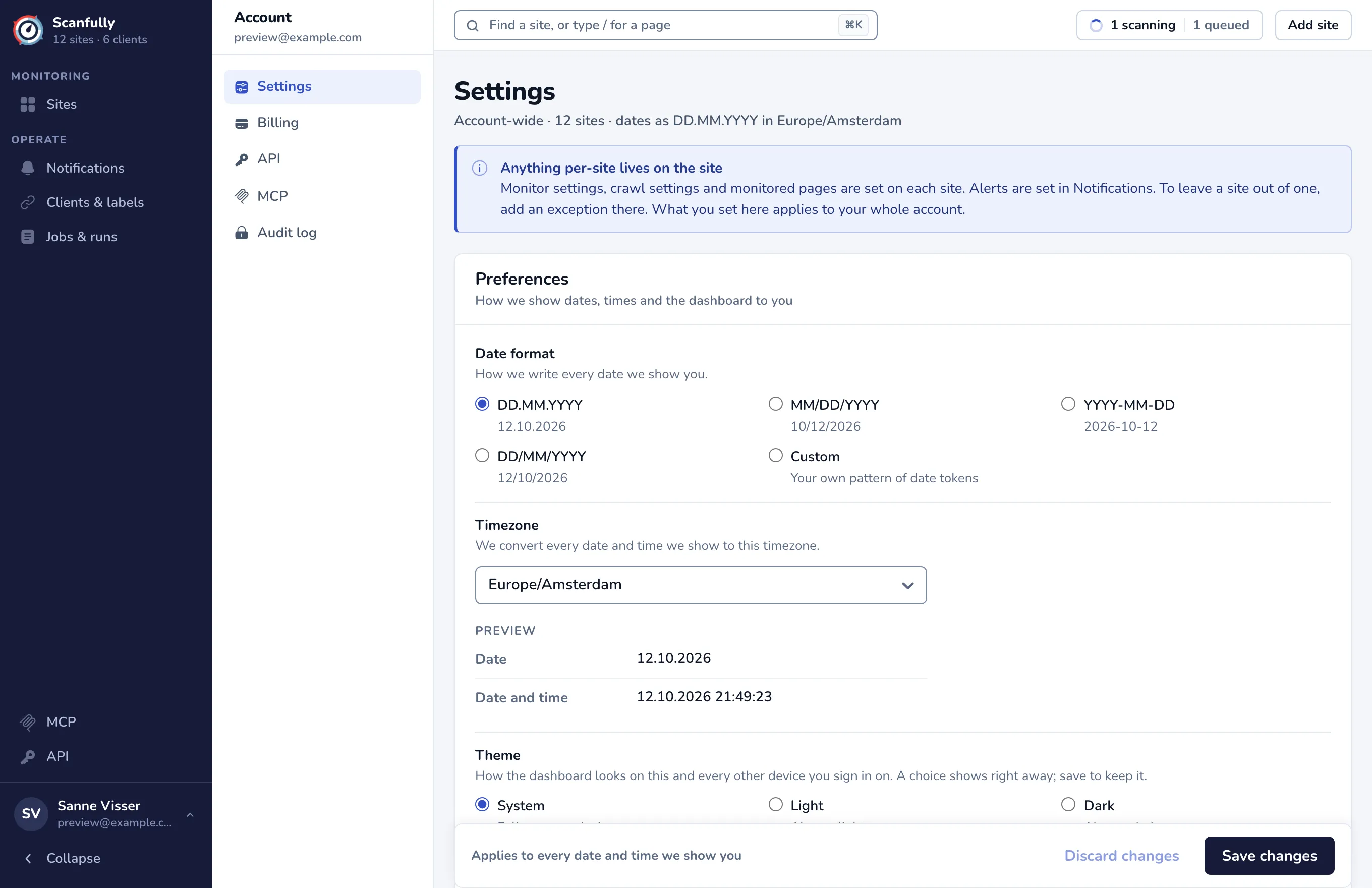
Anything that belongs to one site is set on that site, not here: monitor settings, crawl settings and monitored pages are in each site’s settings, and alerts are set in Notifications.
Preferences
Section titled “Preferences”Date format
Section titled “Date format”Choose how every date in the dashboard is written. Each option shows today’s date in that format:
- DD.MM.YYYY (the default)
- MM/DD/YYYY
- YYYY-MM-DD
- DD/MM/YYYY
- Custom: your own pattern of date tokens. Type it in Custom format, for example
YYYY/MM/DD. YYYY is the year, MM the month and DD the day; you can also use HH, mm and ss for the time. A pattern without any date tokens is refused.
Timezone
Section titled “Timezone”Scanfully converts every date and time it shows you to this timezone. Start typing to search the list. Under the field, Preview shows the current date, and the date and time, in the format and timezone you chose.
The timezone is also used for the times of the daily digest and quiet hours, and email notifications show their times in it, with the timezone name after them.
Choose System (follows your device), Light or Dark. The dashboard switches as soon as you pick one, so you can see it; save to keep it. The theme applies on every device you sign in on.
Saving
Section titled “Saving”Click Save changes at the bottom of the page. Discard changes puts back what was saved. If you leave the page without saving, your saved preferences stay.
For a step-by-step version, see How to set your date format and timezone.
Clients and labels
Section titled “Clients and labels”This panel shows how many clients and labels you have, and your largest clients with their number of sites. Show sites opens the sites list filtered to that client. Click Manage clients and labels (with many clients the button says, for example, Manage all 6 clients) to go to Clients & labels.
Notifications
Section titled “Notifications”The Notifications panel holds the settings that apply to every notification:
- Daily digest: one email a day with an overview of your sites, or a way to let warnings and info wait for that email. Choose the time under Sends at, and turn on Also on quiet days to get it on days with nothing to report too. Goes to lists the addresses that receive it: every address on an active notification with email. Preview shows the digest, and Send me one now sends you a test.
- Quiet hours: hold warnings and notices overnight and send them when the quiet hours end. Downtime and urgent alerts never wait.
A notification set to Never hold this one back skips both. These switches save as soon as you change them. Who gets which alert is set in Notifications.