
DNS
Scanfully looks up the DNS records of your site at five public resolvers every 30 minutes. The DNS screen shows what they found, runs a few checks on it, and marks the records that changed. A change you did not expect in an important record can break your mail, your certificate or the site itself, so this is where you catch it.
To open it, choose a site and click DNS under Monitoring in the site menu.
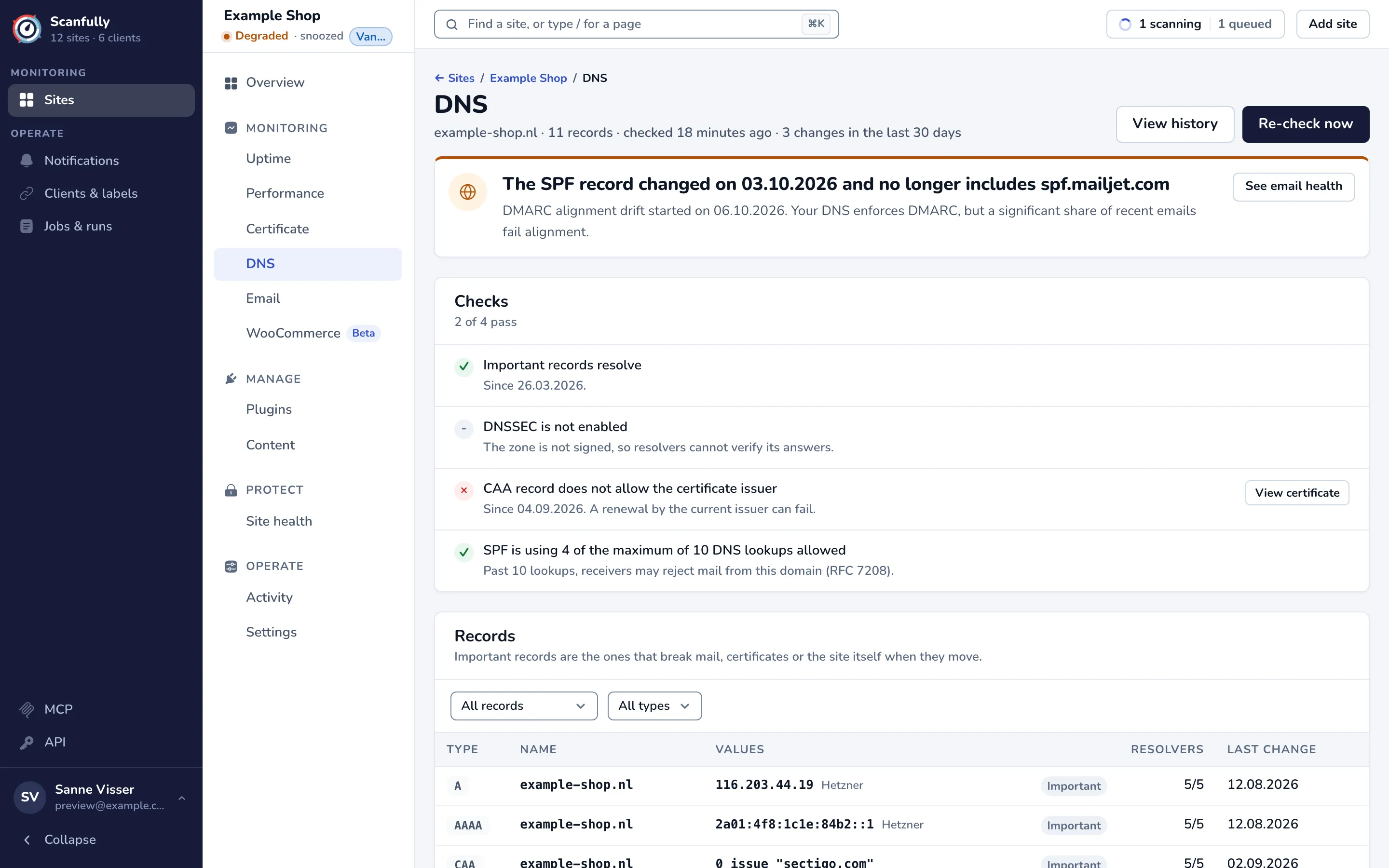
The subtitle shows the domain, the number of records, when they were last checked and how many changes were confirmed in the last 30 days.
- View history opens the DNS history, every confirmed change.
- Re-check now queues a new DNS check right away. The results appear when it finishes. If you just asked for one, a message says how long to wait before you can ask again.
The headline
Section titled “The headline”The panel at the top tells you the most important thing first:
- The site does not resolve at all, because a wildcard record of the parent domain no longer covers it (see Wildcard findings).
- An email record changed around the time the authentication of your test mail started to drift, for example The SPF record changed on a date and no longer includes a sender. See email health opens the Email screen.
- The important records could not be looked up, changed recently, or are unchanged.
Checks
Section titled “Checks”The Checks panel says how many of its checks pass:
- Important records resolve: every important record gets an answer. When one changed, the check says Important records changed and links to the history; when the lookups failed, Important records could not be looked up.
- DNSSEC: DNSSEC is valid, DNSSEC signatures do not verify (resolvers that validate DNSSEC may refuse to answer for your domain), DNSSEC could not be validated (tried again on the next check), or DNSSEC is not enabled.
- CAA: whether the CAA record allows the authority that issued your certificate. A mismatch means the next renewal can fail; View certificate opens the Certificate screen.
- SPF: how many DNS lookups your SPF record needs. Receivers may reject mail when SPF needs more than 10 (RFC 7208). When the domain has no SPF record, the check says No SPF record found.
Records
Section titled “Records”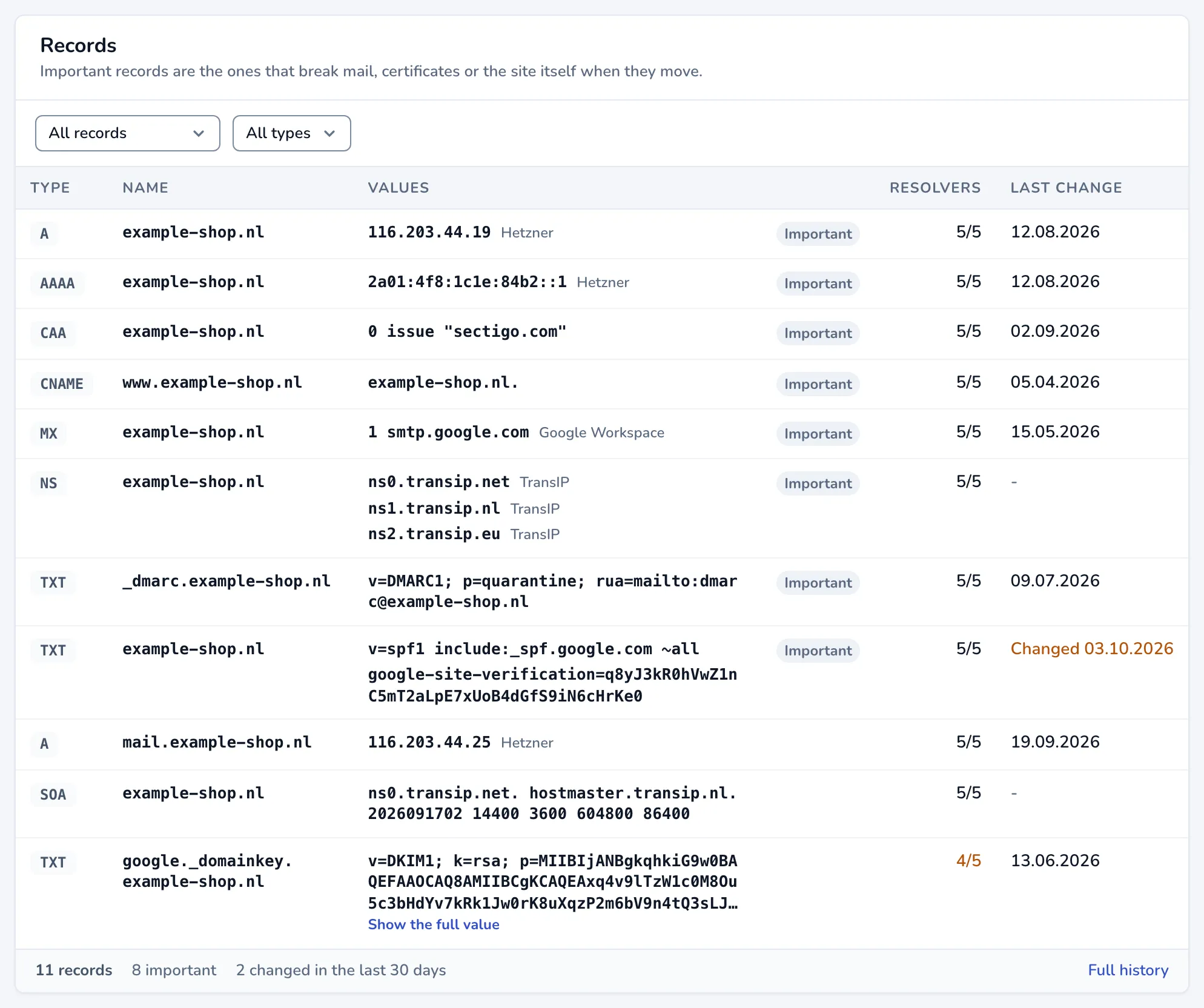
The Records table lists every record of the site, one row per name and type:
- Type and Name of the record. A record that comes from the parent zone says how, for example that DMARC falls back to the organizational domain.
- Values: every value, with the provider Scanfully recognises in it (such as a host or mail provider). A long value, such as a DKIM key, stops after three lines; Show the full value opens it. When a lookup did not answer normally, the cell says so, for example No record (NXDOMAIN) or Lookup: timed out.
- Important: the records that break mail, certificates or the site itself when they change: for example the A, AAAA, MX, NS, CAA and TXT records of the domain (the TXT records hold SPF) and the DMARC record.
- Resolvers: how many of the five resolvers gave the same answer, for example 5/5. A figure such as 4/5 in orange means the resolvers disagree, usually because a change is still spreading.
- Last change: the date of the last confirmed change. A recent change to an important record shows as Changed with the date, in orange.
Filter the table with the two menus above it: All records, Important only or Informational only, and All types or one record type. The footer counts the records, the important ones and the ones changed in the last 30 days; Full history opens the DNS history.
Parent zone
Section titled “Parent zone”When your site is on a subdomain, a second table, Parent zone, lists records of the parent domain. They are not on your site directly but affect it, for example a DMARC record or CAA records higher up.
Pending changes
Section titled “Pending changes”Pending changes appears when Scanfully has seen new values that are not yet confirmed across the resolvers. Each row shows the new values, the state (Pending or Rolling out), how many resolvers agree, and when it was first seen. Once the resolvers agree, the change moves to the history.
Wildcard findings
Section titled “Wildcard findings”When the parent domain has a wildcard record (*.example.com), two findings can appear above the checks:
- Site resolves via a parent wildcard: the A or AAAA records of your site are the ones of the parent’s wildcard. Any change to that wildcard silently moves your site.
- Wildcard masked: site has no A/AAAA and will not resolve: your site has other records of its own, so the wildcard no longer applies to it, and it has no A or AAAA record. Add an A or AAAA record for the site, or remove the records that mask the wildcard if the wildcard should serve it.