
Notifications
Notifications belong to your account, not to a single site. A notification is a set of events, one or more channels (email, Slack, Discord or Pushover) and the sites it covers. You set one up once, and it keeps working for the sites you add later when you choose them by client, by label or as all sites.
Open Notifications under Operate in the main menu.
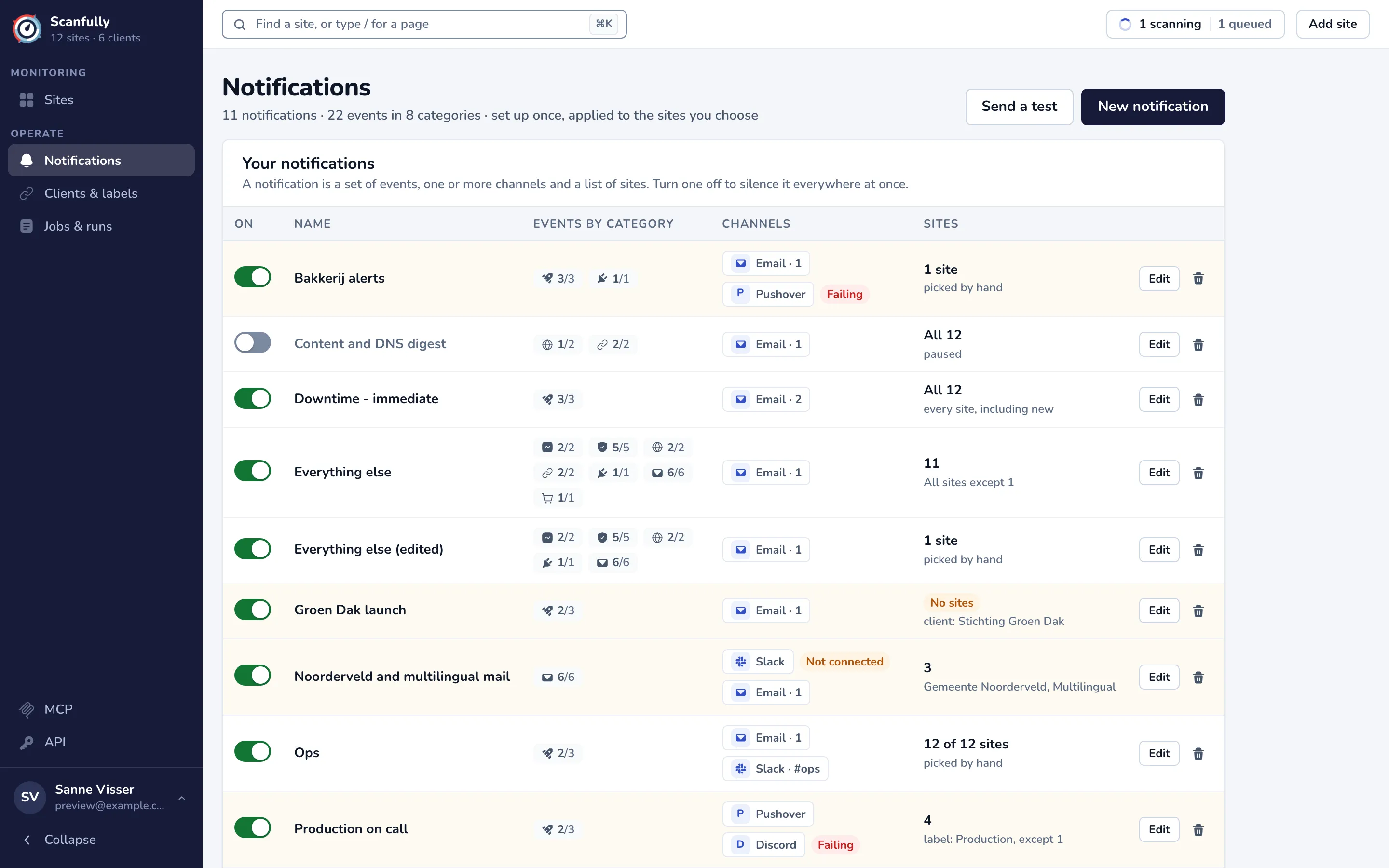
The notifications you start with
Section titled “The notifications you start with”A new account starts with two notifications, both covering all your sites and emailing your account email:
- Downtime - immediate: the Uptime events (site down, site degraded and site recovered), set to go out right away.
- Everything else: every other event.
Change, pause or delete them like any other notification. Nothing is sent for an event that no notification includes.
Your notifications
Section titled “Your notifications”The list shows ten notifications per page, with these columns:
- On: the switch. Turn a notification off to silence it everywhere at once; its setup is kept. Turn it on again to resume.
- Name: opens the notification.
- Events by category: one chip per category the notification listens to, with how many of that category’s events are on (for example 2/3 for Uptime).
- Channels: one chip per switched-on channel, such as Email · 2 (two addresses) or Slack · #ops. A channel that needs attention shows Not connected (a Slack channel that was never connected), Needs setup or Failing (the last message did not arrive).
- Sites: how many sites it covers and how: every site, including new, All sites except 1, the client or label it follows, picked by hand, or only sites added from now on. No sites means it covers nothing right now.
A row is highlighted when a switched-on notification needs attention: it covers no sites, or one of its channels is not set up or failing.
Use Edit to open a notification and the bin icon to delete it. Deleting stops its messages for every site it covers and cannot be undone. To create one, click New notification (see Create a notification).
When you come to this screen from a site, the list shows only the notifications that cover that site, with a Covering chip at the top. Remove the chip to see all of them again.
Send a test
Section titled “Send a test”Send a test sends a test of one notification to every channel it has switched on, right away and past every hold, with “Test:” at the start of the subject. Choose the notification and click Send test. The dialog then lists each destination with Sent, Failed and the reason, or Skipped when the channel is not set up yet. You can also test a paused notification.
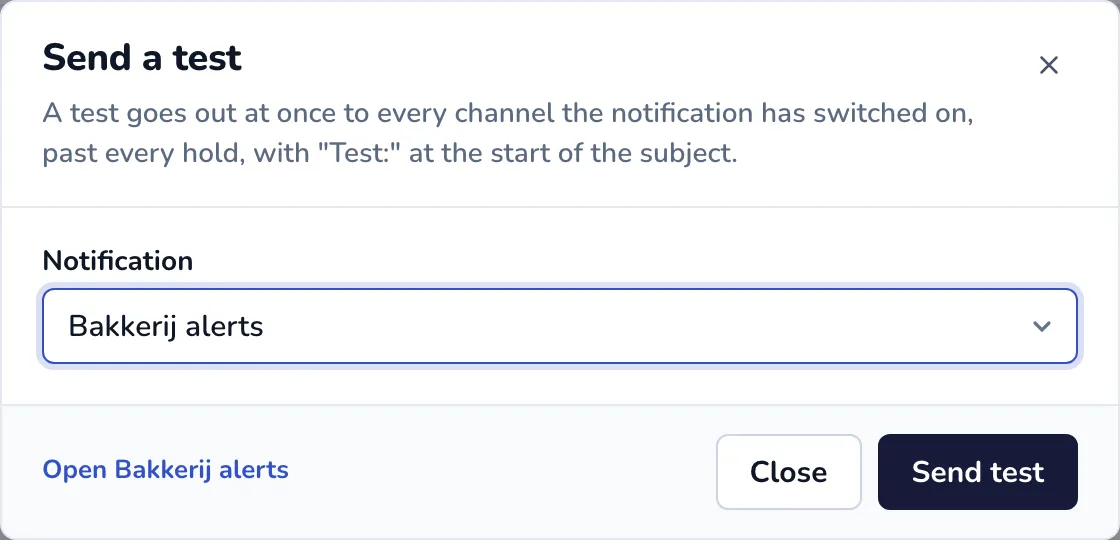
You can send 5 tests a minute and 20 a day, and one address gets at most 10 test emails a day.
Snoozed now
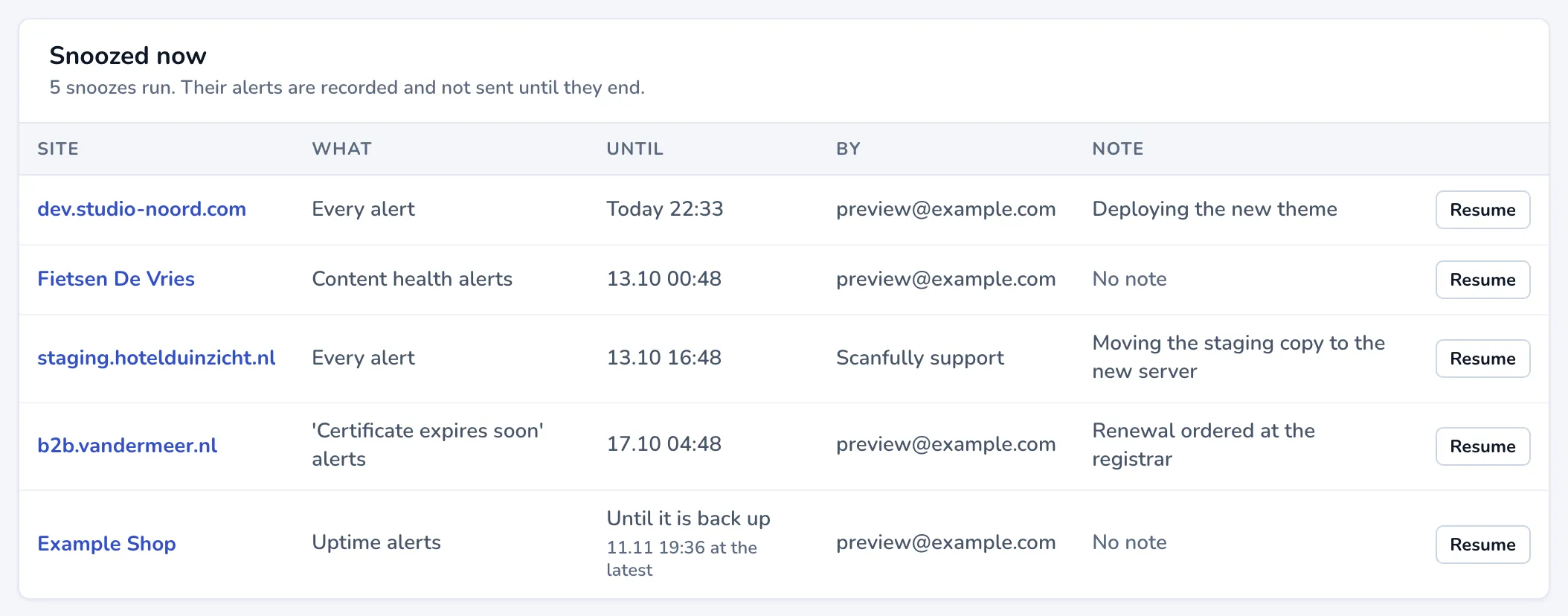
Section titled “Snoozed now”While a snooze runs, Snoozed now lists every running snooze with its site, what it silences, until when, who made it and the note. Resume ends a snooze early. See Snooze alerts.
Event categories
Section titled “Event categories”Event categories lists the categories of events (Uptime, Performance, Certificates, DNS, Content health, Plugin health, Email health and, for stores in the WooCommerce beta, WooCommerce), how many events each has, and how many of your notifications use each one. Nothing listens to this yet means no notification sends alerts for that category.
Get fewer alerts
Section titled “Get fewer alerts”These settings apply to every notification, except a notification set to Never hold this one back. Each switch shows how many messages it saved you in the last 30 days, or how many it would have saved while it is off.
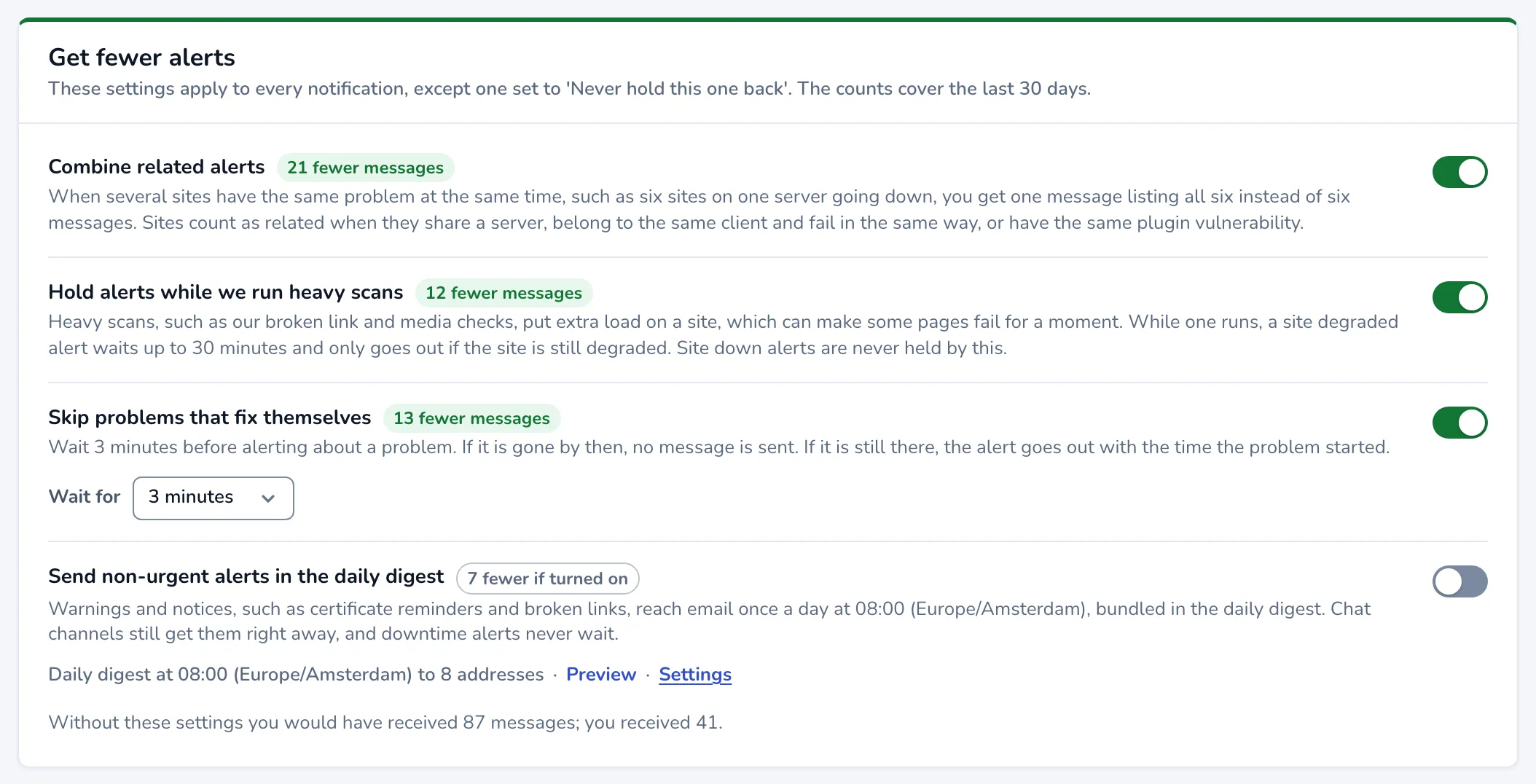
- Combine related alerts: when several sites have the same problem at the same time, such as six sites on one server going down, you get one message listing all six instead of six messages. Sites count as related when they share a server, belong to the same client and fail in the same way, or have the same plugin vulnerability.
- Hold alerts while we run heavy scans: while a broken link or media scan runs on a site, a site degraded alert waits up to 30 minutes and only goes out if the site is still degraded. Site down alerts are never held by this.
- Skip problems that fix themselves: Scanfully waits a few minutes before alerting about a problem (choose the minutes under Wait for). If the problem is gone by then, no message is sent. If it is still there, the alert goes out with the time the problem started.
- Send non-urgent alerts in the daily digest: warnings and notices, such as certificate reminders and broken links, reach email once a day in the daily digest instead of right away. Chat channels still get them right away, and downtime alerts never wait. When the digest is on, the line below names its time and who gets it, with Preview and a link to its Settings.
Changes save as soon as you make them. The line at the bottom compares how many messages you would have received without these settings with how many you received.
Quiet hours and the digest time
Section titled “Quiet hours and the digest time”Quiet hours and the daily digest settings are in Account settings, under Notifications. With quiet hours on, warnings and notices wait until the quiet hours end; urgent alerts and downtime never wait. Both use your account’s timezone. If you never chose a timezone and the digest is on, a banner on this screen tells you when the digest arrives and links to Choose your timezone.
Recently sent
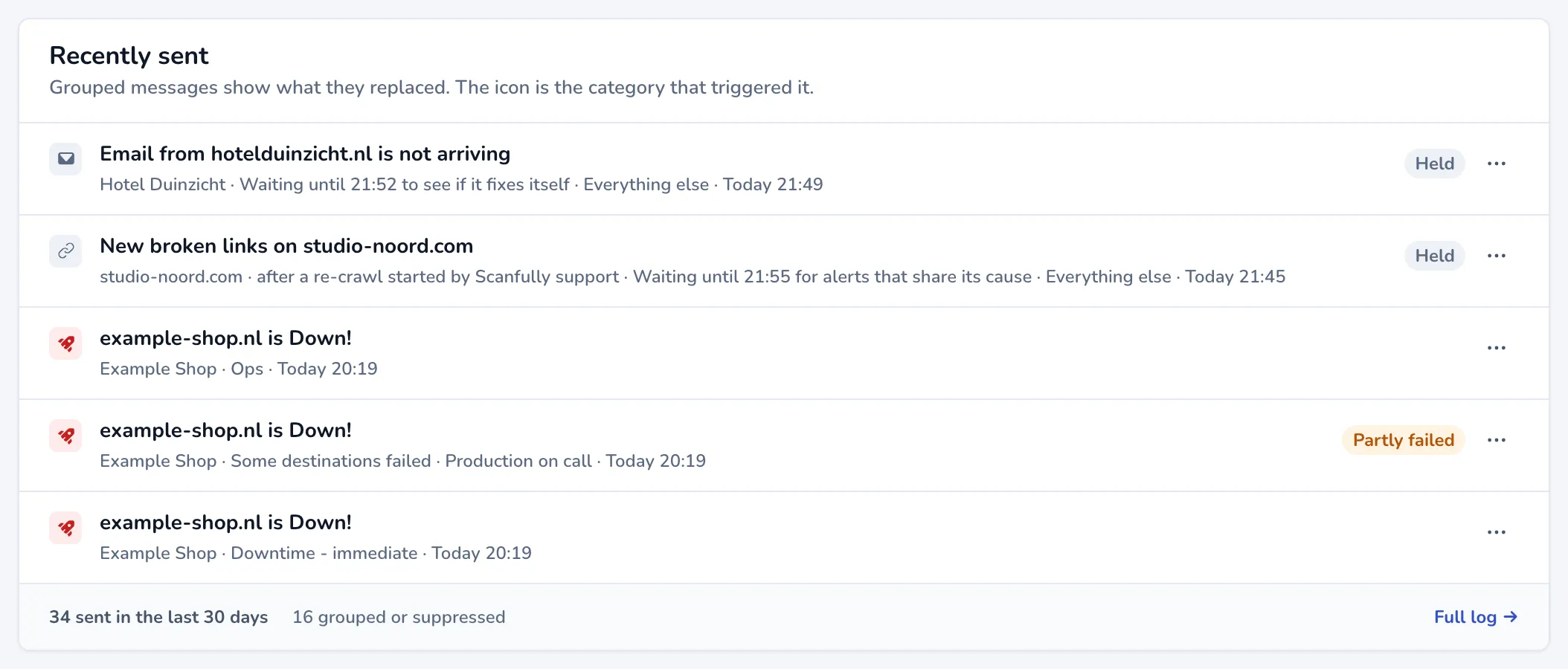
Section titled “Recently sent”Recently sent shows the five latest alerts and digests, each with an icon for the category that triggered it, the site, the notification and the time. A badge shows when an alert was Held, Partly failed or went out grouped (for example 8 grouped). The menu of an alert about sites lets you snooze those sites. The footer shows how many messages went out in the last 30 days and how many were grouped or suppressed; Full log opens the notification log.
On the site screens
Section titled “On the site screens”A site has no notification settings of its own. Some site screens, such as the uptime monitor settings, show which notifications cover the site (Covered by and the notification’s name) with a way to open each one, or a New notification button when none covers it.