
Billing
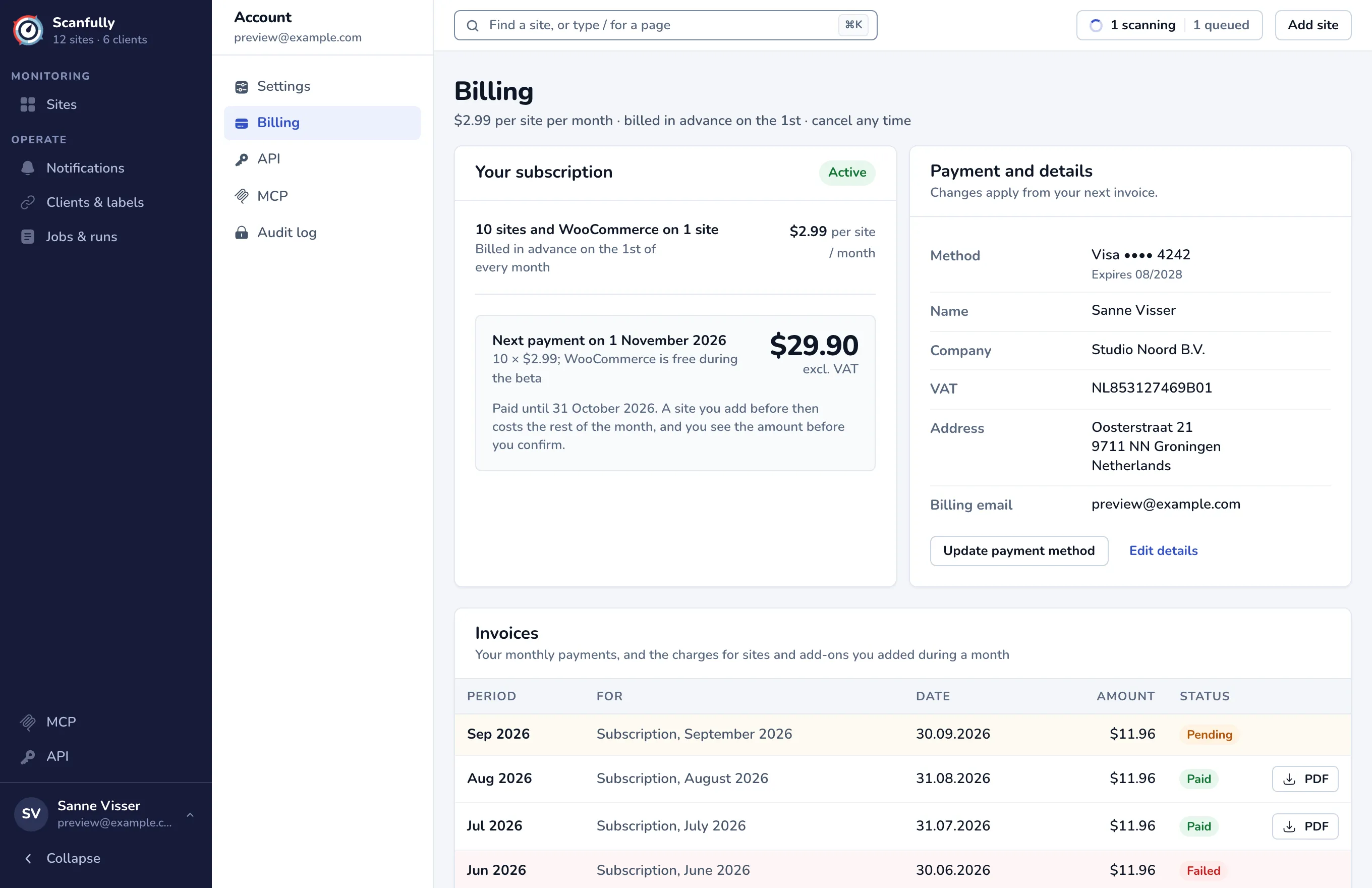
Billing shows your subscription, your payment method and billing details, and your invoices. Open it from the account menu, or click your name at the bottom of the menu and choose Billing.
Scanfully charges one price per site per month. The page header shows your price, for example $2.99 per site per month, with cancel any time. Prices are in US dollars, before VAT.
How billing works
Section titled “How billing works”From 1 November 2026, Scanfully bills in advance:
- On the 1st of every month you pay for the month ahead, for every site and paid add-on.
- A site you add during a month costs the rest of that month. Before you confirm, Scanfully shows what you pay today and what your monthly total becomes from the next 1st. Very small amounts are not charged on their own but added to the next monthly payment.
- Removing a site is not refunded. The site stays paid until the end of the month, and you can add another site in its place that month at no charge. From the next 1st, you are no longer billed for it.
- The WooCommerce add-on is priced per site. While it is in beta it is free, and the page says so.
Until billing in advance starts, the header says prorated to the day: you pay for the days each site was active, and the card is charged on the last day of the month.
Your subscription
Section titled “Your subscription”This panel shows the number of sites (and WooCommerce add-ons) you pay for, your price per site, and a status pill: Active, Payment due or Paused.
- Next payment on shows the date of the next monthly payment and its amount before VAT, with how it adds up (for example 10 × $2.99).
- Paid until shows the last day your current month is paid for.
- While monitoring is paused, the panel says Not billed while paused instead.
Before billing in advance starts, the panel shows Total next invoice instead: an estimate of the sites times your price, the number of days until the next payment, and a bar that shows how far the month is.
Payment and details
Section titled “Payment and details”This panel lists what your invoices carry: Method (your card and when it expires), Name, Company, VAT, Address and Billing email. Invoices are emailed to the address you sign in with. Changes apply from your next invoice.
Update your card
Section titled “Update your card”- Click Update payment method. Stripe opens a page to enter the new card.
- Save the card on Stripe’s page. Scanfully confirms it with Stripe and brings you back to Billing with the message Payment method updated.
If a payment was open, Scanfully charges it to the new card right away and says so.
Change your billing details
Section titled “Change your billing details”- Click Edit details (or Add billing details if there are none yet).
- Fill in First name, Last name, Street address, Postal code, City and Country. Company name and VAT number are optional. A VAT number starts with the country code, for example NL123456789B01, and Scanfully checks that it is valid.
- Click Save billing details.
Scanfully adds VAT for EU countries. A company with a valid VAT number can reverse charge it.
Open payments
Section titled “Open payments”When a payment fails, an Open payments panel appears at the top of the page, and a banner across the dashboard says Your payment did not go through. Each open payment shows what it is for, why it failed, when Scanfully tries again, and its amount.
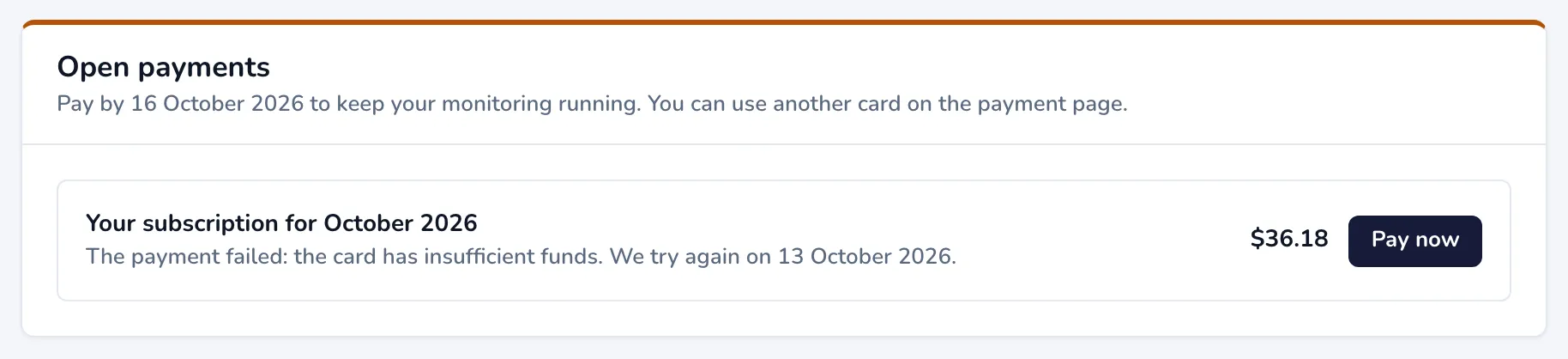
Click Pay now to pay it on Stripe’s payment page. You can use another card there; that card is then used for your next payments. Pay by the date in the panel to keep monitoring running: if a payment stays unpaid for 7 days, monitoring pauses.
While monitoring is paused, the panel is called Monitoring is paused. Scanfully stops checking your sites and sending alerts, but keeps your sites and history. Click Pay and resume to pay and start monitoring again right away. You pay the rest of that month, and you are not billed for the months monitoring was paused.
Invoices
Section titled “Invoices”The Invoices table lists your monthly payments and the charges for sites and add-ons you added during a month: Period, For, Date, Amount and Status (Paid, Pending, Failed, Refunded or Not charged). Click PDF to download an invoice. See also Where can I find my invoices.
Upgrade from a trial
Section titled “Upgrade from a trial”During a trial, Billing opens the upgrade page instead. You can also reach it with Upgrade account on the trial banner.
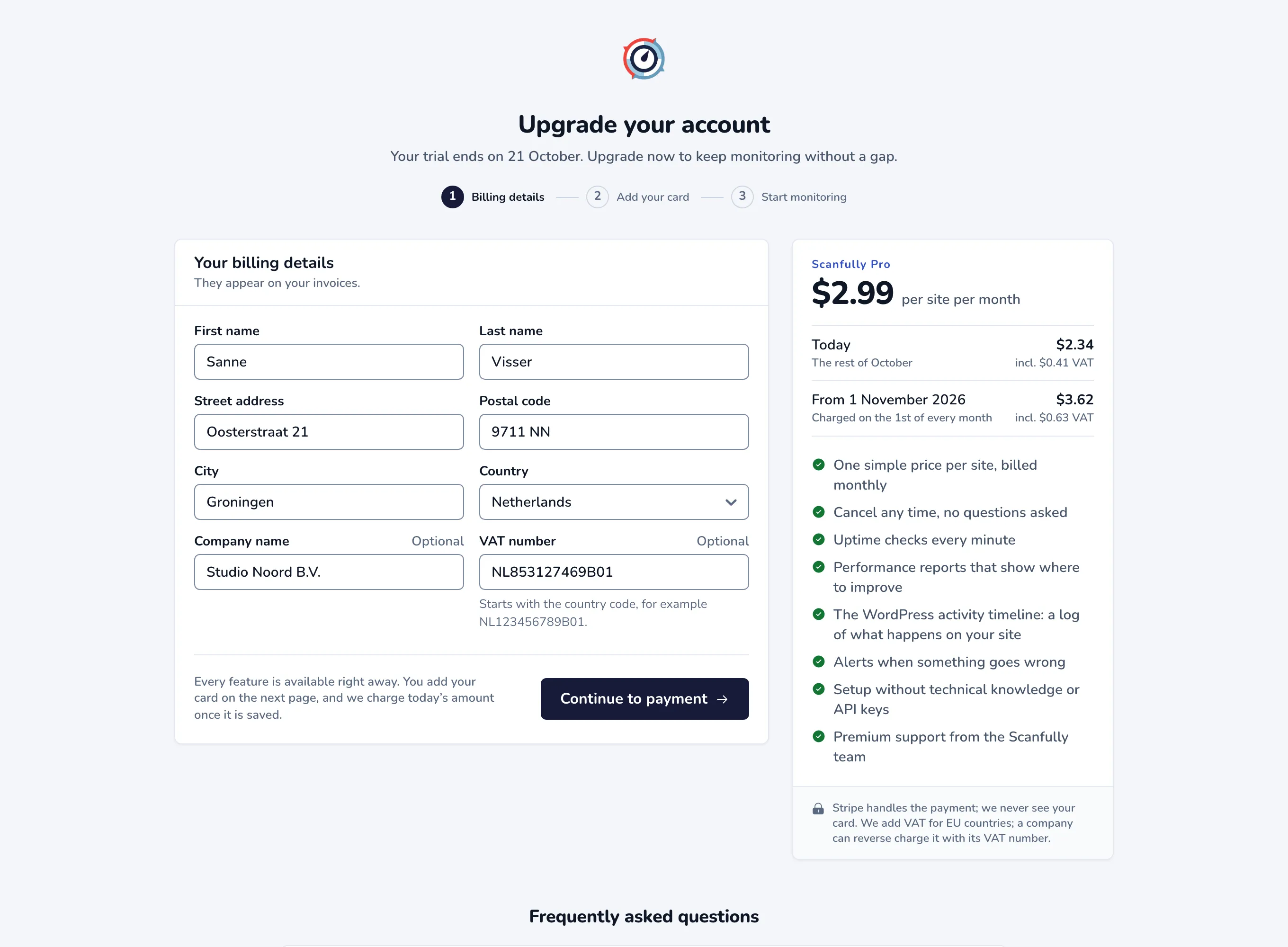
- Fill in Your billing details. They appear on your invoices.
- Check the summary on the right: the price per site, what you pay Today (the rest of the month) and the monthly amount from the next 1st.
- Click Continue to payment. Stripe opens a checkout page where you add your card.
- After Stripe, Scanfully confirms the payment (Connecting your credit card) and takes you to Billing, which says Your account is upgraded.
Every feature is available right away. If you leave Stripe’s page without finishing, you return to Billing and nothing is charged. If Scanfully cannot confirm the session with Stripe, use Go to billing to try again, or contact support.
Cancel
Section titled “Cancel”To stop paying for a site, delete it in its site settings. To close your account completely, email support@scanfully.com.