
Crawl settings
The crawl settings decide what Scanfully checks when it crawls your site for broken links and broken media: where it starts, how deep it goes, which media types it checks, which pages it leaves out and which known false positives it never reports. One set of settings covers both the links crawl and the media crawl.
To open them, go to the site’s Content screen and click Crawl settings, or Edit crawl rules in the Crawl coverage panel.
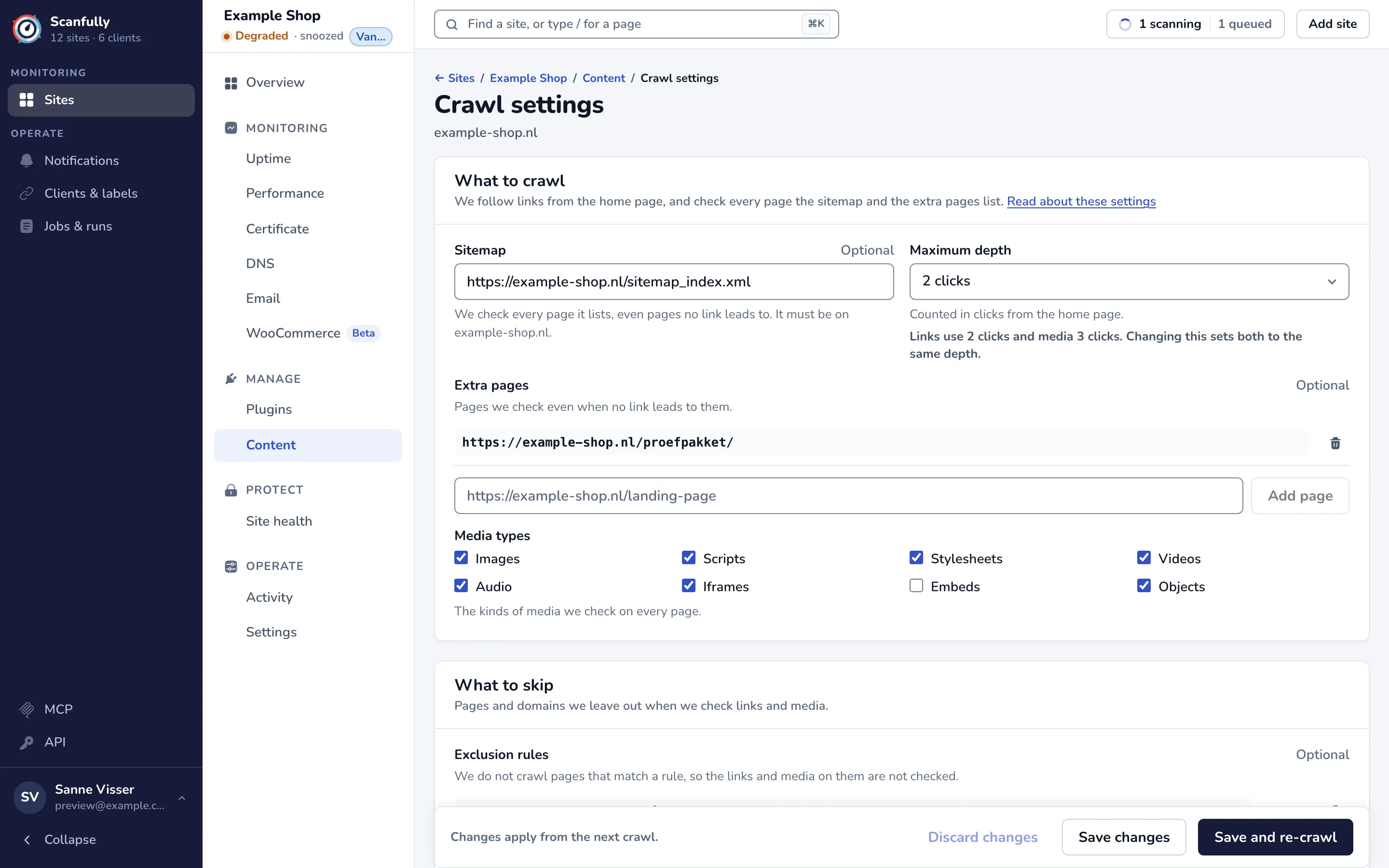
What to crawl
Section titled “What to crawl”Scanfully starts at your home page and follows the links it finds there. It also checks every page in your sitemap and every page on your extra pages list.
Sitemap
Section titled “Sitemap”The address of your XML sitemap, for example https://example.com/sitemap.xml. Scanfully checks every page the sitemap lists, even pages no link leads to. A sitemap index that points to other sitemaps works too.
The sitemap must be on your site’s own domain. For a new site, Scanfully uses the WordPress default, wp-sitemap.xml; if your SEO plugin has its own sitemap, it usually redirects there, but you can enter its address here. The field is optional: leave it empty to crawl only what links and your extra pages lead to.
Maximum depth
Section titled “Maximum depth”How far Scanfully follows links, counted in clicks from the home page: 1 click, 2 clicks or 3 clicks.
- With 1 click, Scanfully follows the links on your home page.
- With 2 clicks, it also follows the links on those pages.
- With 3 clicks, it goes one step further.
A larger depth covers more of a big site but makes the crawl take longer. Pages in your sitemap and on your extra pages list are checked whatever the depth.
Extra pages
Section titled “Extra pages”Pages Scanfully checks even when no link leads to them, such as landing pages for a campaign, or older articles you no longer link to. Enter the full address of each page, for example https://example.com/landing-page, and click Add page.
Media types
Section titled “Media types”The kinds of media Scanfully checks on every page: Images, Scripts, Stylesheets, Videos, Audio, Iframes, Embeds and Objects. All are on for a new site. Turn a type off when it is not relevant to your site or keeps failing on purpose. At least one type must stay on. Each type is checked on its own: turning off Videos stops video checks even while Audio stays on. See What broken media means for the HTML elements each type covers.
These only affect the media crawl. The links crawl always checks the links on your pages.
What to skip
Section titled “What to skip”Exclusion rules
Section titled “Exclusion rules”Pages that match an exclusion rule are not checked, so the links and media on them are not reported. Use this for pages such as the cart, thank-you pages, test pages or search results.
Add a full address, a part of an address, or a pattern with a * wildcard, and click Add rule. Next to each rule, Contains or Wildcard tells you how it matches. See How wildcard ignore patterns work.
Known false positives
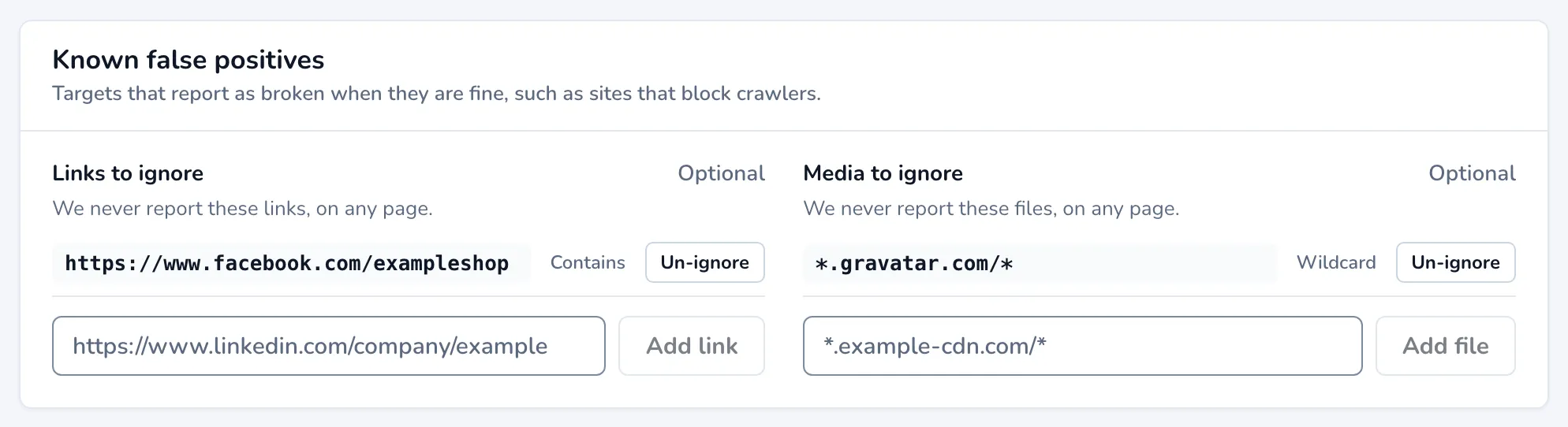
Section titled “Known false positives”Some targets report as broken while they work fine in a browser, usually because the other site blocks crawlers. List them here so Scanfully never reports them, on any page.
- Links to ignore: links Scanfully never reports. Click Add link to add one.
- Media to ignore: media files Scanfully never reports. Click Add file to add one. To ignore everything from one external host, use a pattern such as
*.example-cdn.com/*.
Both lists accept full addresses, parts of addresses and * wildcards, and show Contains or Wildcard next to each entry. Un-ignore removes an entry.
An ignored target disappears from the Content screen, from shared reports and from notifications as soon as you save; you don’t need to wait for a crawl. When you un-ignore it, it comes back if the last crawl still found it broken.
Tell me when new breakage appears
Section titled “Tell me when new breakage appears”This section shows which of your notifications cover broken links and media on this site, with an Open button for each. Notifications are set once for the whole account; when none covers this site, new breakage shows on the Content screen but nobody is told. See Notifications.
Add and remove entries
Section titled “Add and remove entries”The lists (extra pages, exclusion rules, links and media to ignore) work the same way:
- Type an entry and press Enter, or click the add button next to the field.
- Paste several lines at once to add each line as an entry.
- Remove an entry with its delete icon, or Un-ignore for the false positives.
Changes to the lists are saved with the rest of the page.
Save your changes
Section titled “Save your changes”The bar at the bottom of the page says Unsaved changes while you have changes, and Changes apply from the next crawl. otherwise.
- Discard changes: go back to the saved settings.
- Save changes: save, and use the settings from the next crawl.
- Save and re-crawl: save and ask for a new crawl straight away. You can ask for one crawl an hour; see Scan timing and manual re-crawls.
The current report stays visible until a new crawl finishes.