
Set up Pushover notifications
Pushover sends real-time notifications to your Android phone, iPhone, iPad and desktop. To use it with Scanfully you need two keys: the API token of a Pushover application, and your user key.
Create a Pushover application
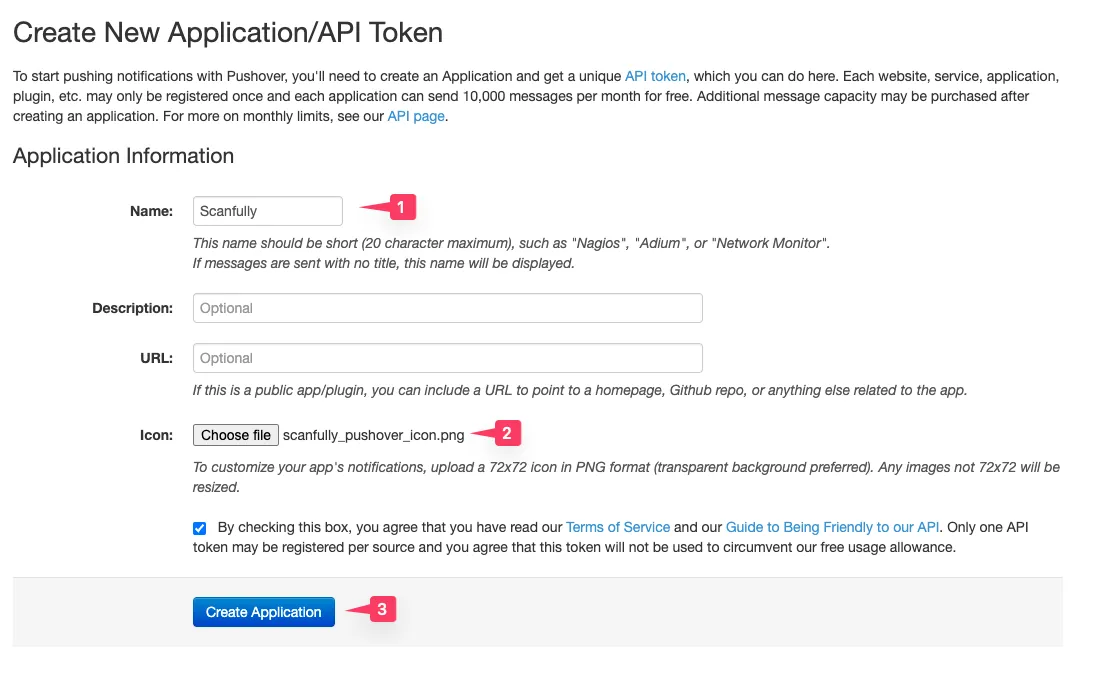
Section titled “Create a Pushover application”Register a Pushover application and sign in to Pushover if asked. On the new application screen:
- Enter Scanfully as the Name.
- Download the Scanfully logo and upload it as the Icon.
- Accept Pushover’s terms and click Create Application.

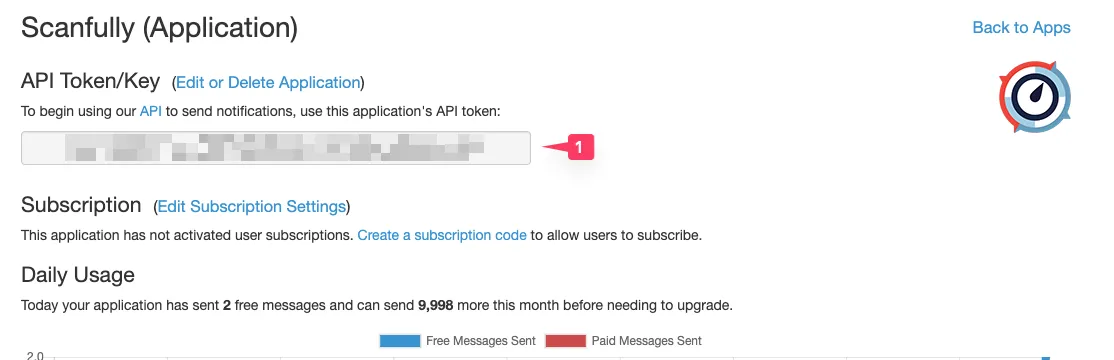
Pushover then shows the application, with its API Token/Key (1). Copy it.
Get your user key
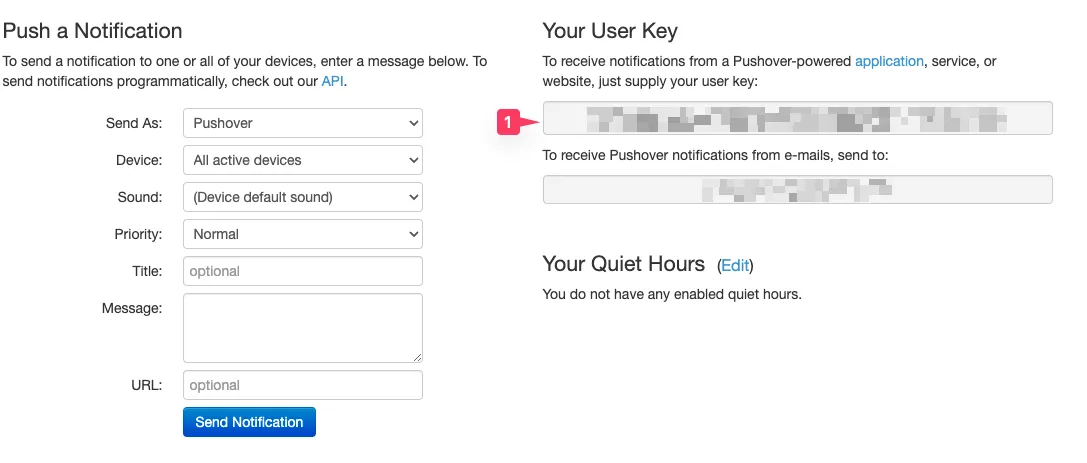
Section titled “Get your user key”Open your Pushover dashboard. Your User Key (1) is at the top right. Copy it. You can also use a Pushover group key here, to reach a group of people.
Add Pushover to a notification
Section titled “Add Pushover to a notification”- Go to Notifications and open the notification, or click New notification.
- Under 2. Where it goes, click Pushover under Add another.
- Paste the application’s token into Pushover API token and your key into Pushover user key. Both are 30 letters and digits.
- Click Save notification.
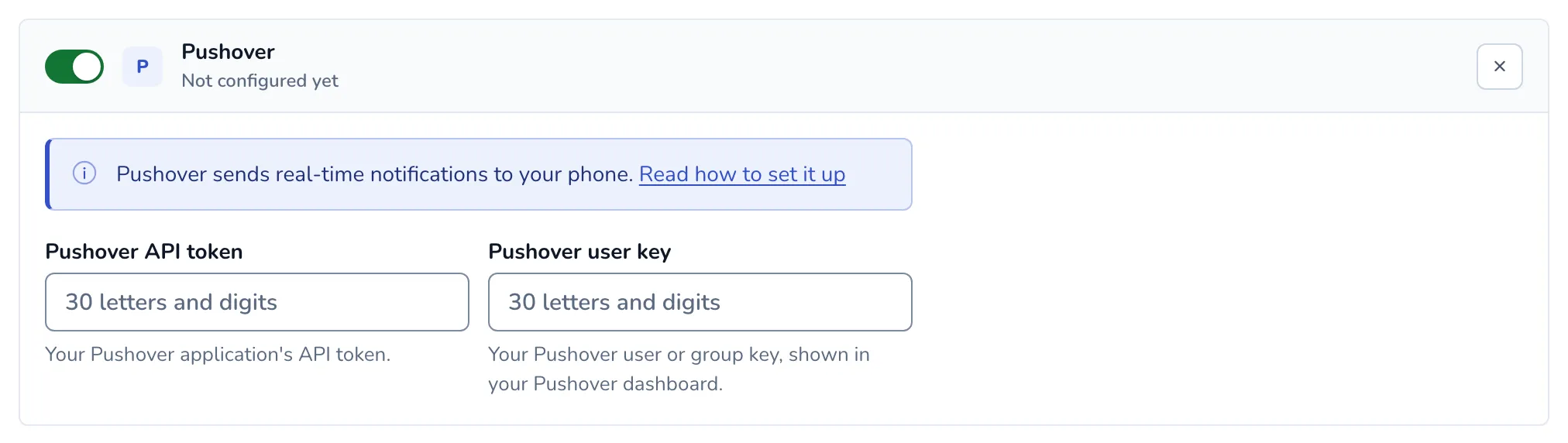
After you save, the keys are never shown again; each field says “Saved, ends in” and its last four characters. To change a key, type a new one. To check that messages arrive, click Send a test in the editor or on the Notifications screen (during the trial, save first).
Urgent alerts and warnings arrive with normal priority, informational alerts as quiet notifications. Each message ends with links to snooze the site (see Snooze alerts).
Pushover apps
Section titled “Pushover apps”To receive the notifications on your phone or tablet, install the Pushover app: