
Snooze alerts
A snooze stops the messages about a site for a while, for every notification that covers it. Checks keep running and everything is recorded, so nothing is lost: when the snooze ends, you hear once about anything still open or missed.
Snooze a site when you know it will have problems, for example during a hosting migration, or when you already know about an outage and do not need more messages.
Where you can snooze
Section titled “Where you can snooze”- The snooze links in alert messages: an alert email ends with “Snooze alerts for example-shop.nl: 1 hour · 4 hours · 1 day · 1 week · more options”, and Slack, Discord and Pushover messages carry short snooze links too. A link opens the Snooze alerts page in the dashboard (after you sign in) with that length already chosen.
- Snooze alerts at the top of a site’s overview and downtime screens, and Snooze certificate alerts on the certificate screen.
- Snooze alerts… in the menu of a site in the sites list.
- Snooze alerts for this site in the uptime monitor settings.
- The menu of an alert in Recently sent and in the notification log.
They all open the same form. Opening a snooze link changes nothing on its own: the site is only snoozed when you click the snooze button.
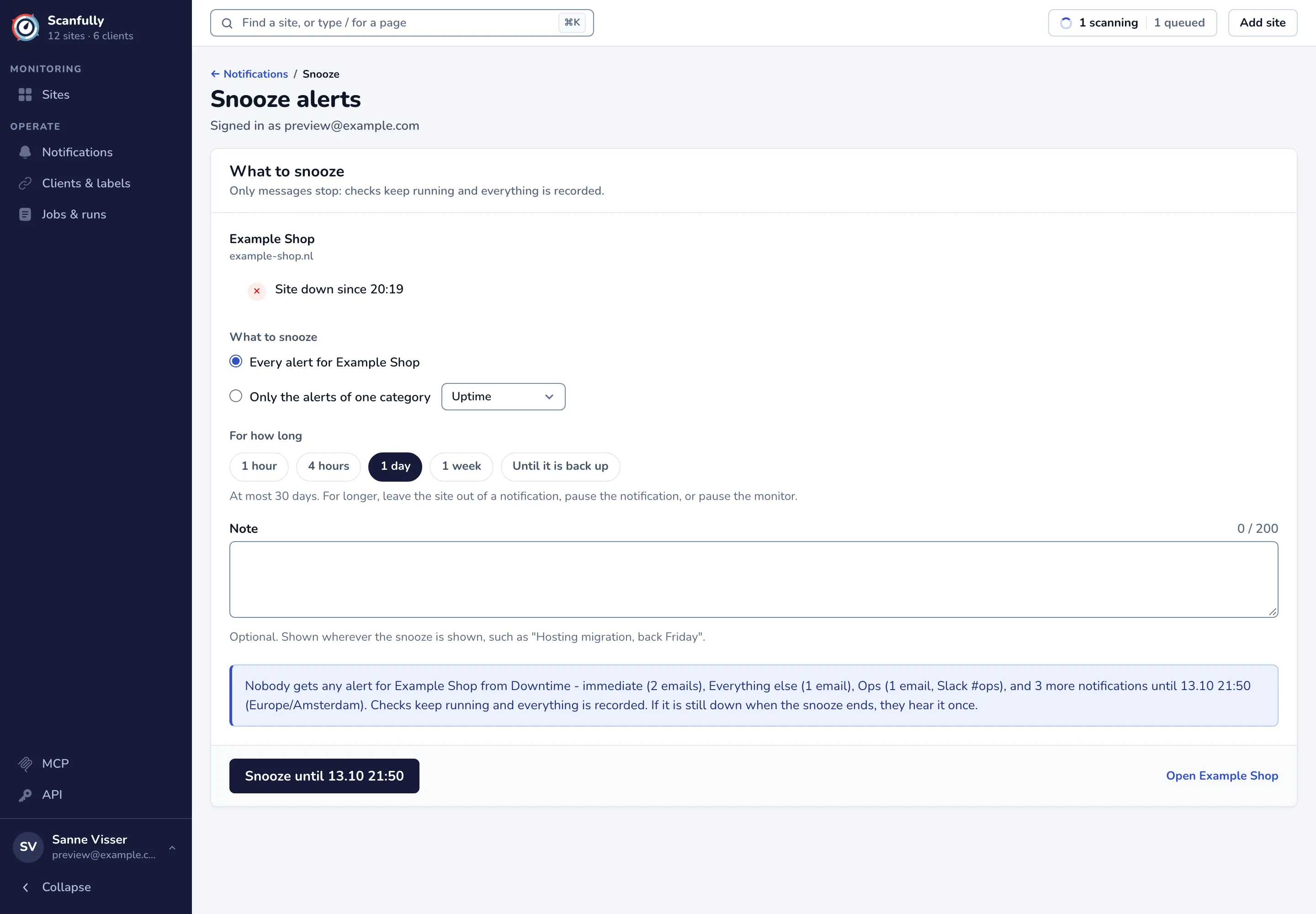
Snooze a site
Section titled “Snooze a site”- Check the site, or tick the sites when the alert was about several. The form shows what is open on each site right now, such as “Site down since 20:19”.
- Under What to snooze, choose Every alert for the site, Only the alerts of one category (pick the category), or only one event when you came from an alert about it.
- Under For how long, choose 1 hour, 4 hours, 1 day or 1 week. While a problem is open, you can also choose to snooze until it recovers, such as Until it is back up or Until the certificate is fixed; such a snooze ends after 30 days at the latest.
- Optionally add a Note of up to 200 characters, such as “Hosting migration, back Friday”. It is shown wherever the snooze is shown.
- Read the summary of what the snooze does: which notifications stop sending, until when, and what happens when it ends.
- Click the button, for example Snooze until 13.10 21:50.
A snooze lasts at most 30 days. For longer, leave the site out of a notification, pause the notification, or pause the monitor.
While a snooze runs
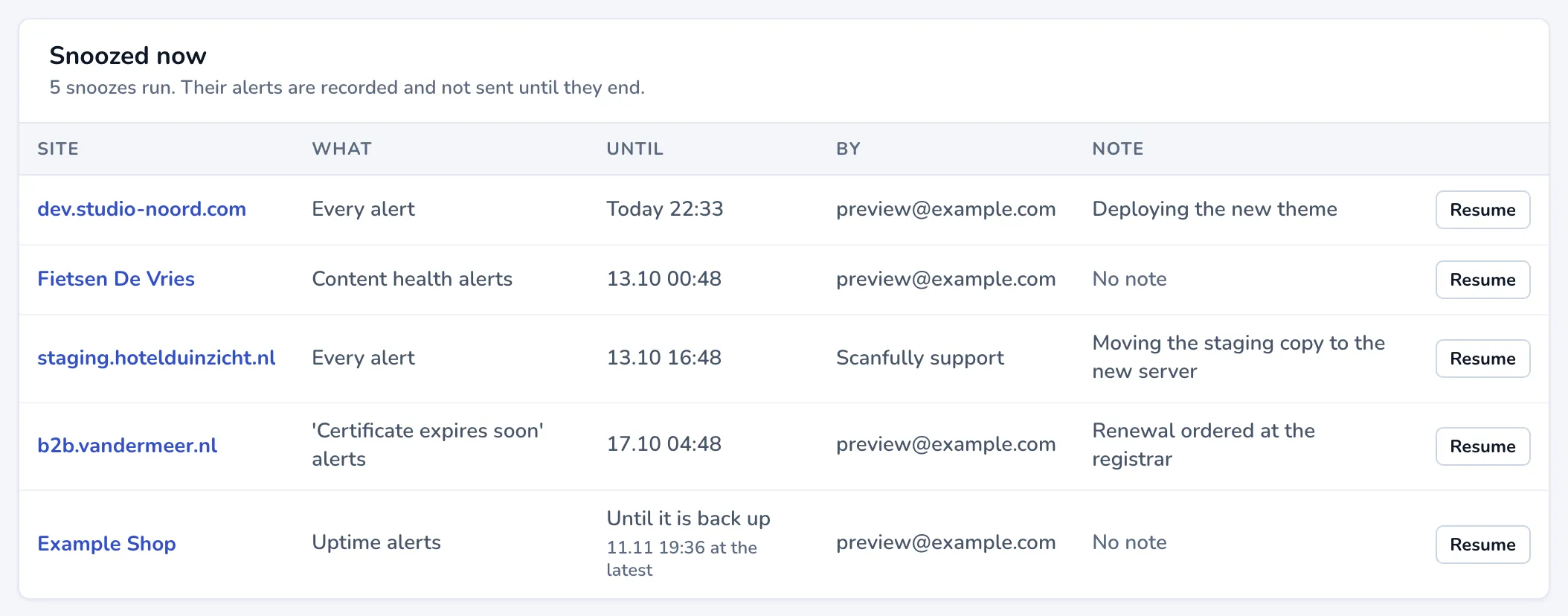
Section titled “While a snooze runs”The site shows that its alerts are snoozed, and the Notifications screen lists every running snooze under Snoozed now, with who made it and the note.
Alerts that a snooze holds back show in the notification log as suppressed, with who snoozed and until when.
Change or resume a snooze
Section titled “Change or resume a snooze”On the site screens and in the sites list, the snooze button becomes a menu with Change snooze and Resume alerts. Changing a snooze moves its end and its note; to silence something else, resume it and snooze again.
Resume alerts (or Resume in Snoozed now and the log) ends the snooze now. The confirmation says what happens: when a problem is still open, such as the site still being down, one “still down” or “still open” alert goes to the destinations of the notifications that cover it. Otherwise alerts simply go out again from now.
When a snooze ends
Section titled “When a snooze ends”When a snooze ends by itself, the notifications that cover the site send one message about anything still open or missed. If the site is still down, they hear it once. That message has a “Snooze again” link.