
Site settings
The Site settings screen holds the settings of one site: how it is named and reached, which client and labels it has, which pages are monitored for uptime and which extra headers Scanfully sends. It is also where you disconnect a site.
Open it from Settings under Operate in the site menu. Under the title you see the domain, the WordPress environment (when the Scanfully plugin reports it) and the number of monitored pages.
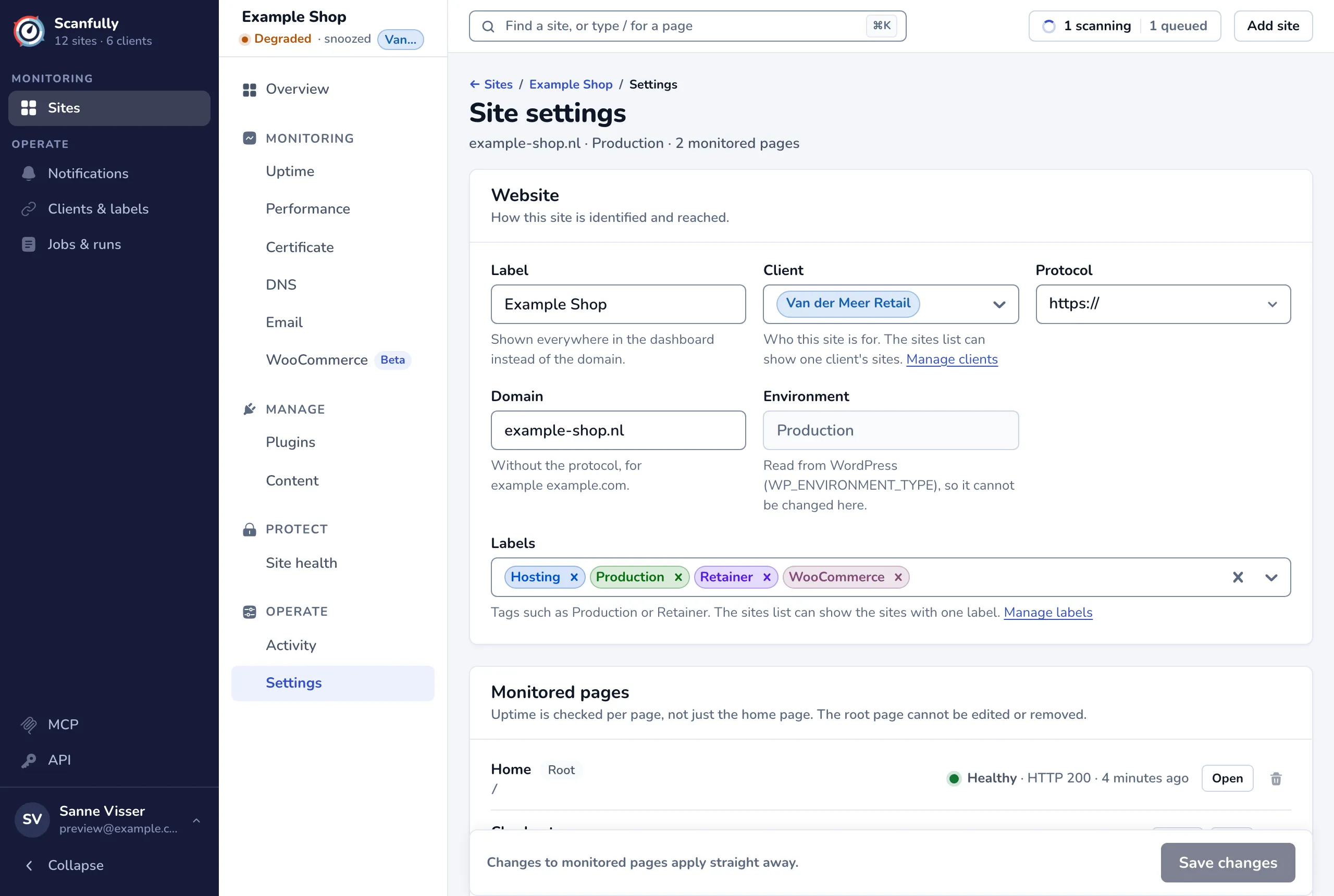
Website
Section titled “Website”- Label: the name shown everywhere in the dashboard instead of the domain.
- Client: who this site is for. A site has one client or No client. Manage clients opens your clients; see Clients & labels.
- Protocol:
https://orhttp://. - Domain: the domain without the protocol, for example
example.com. - Environment: read from WordPress (
WP_ENVIRONMENT_TYPE): Production, Staging, Development or Local. You can’t change it here; change it in WordPress. - Labels: tags such as Production or Retainer. A site can have up to 50 labels. Manage labels opens your labels.
Monitored pages
Section titled “Monitored pages”Uptime is checked per page, not just the home page. The Monitored pages panel lists the pages Scanfully checks on this site, each with its label, its path, the result of its latest check (such as “Healthy · HTTP 200 · 4 minutes ago”) and these buttons:
- Open opens the uptime of that page.
- Edit changes the page’s path or label.
- The bin button removes the page. Scanfully stops checking it and it leaves the uptime reports. You can’t undo this.
The Root page is the site’s own address. It can’t be edited or removed.
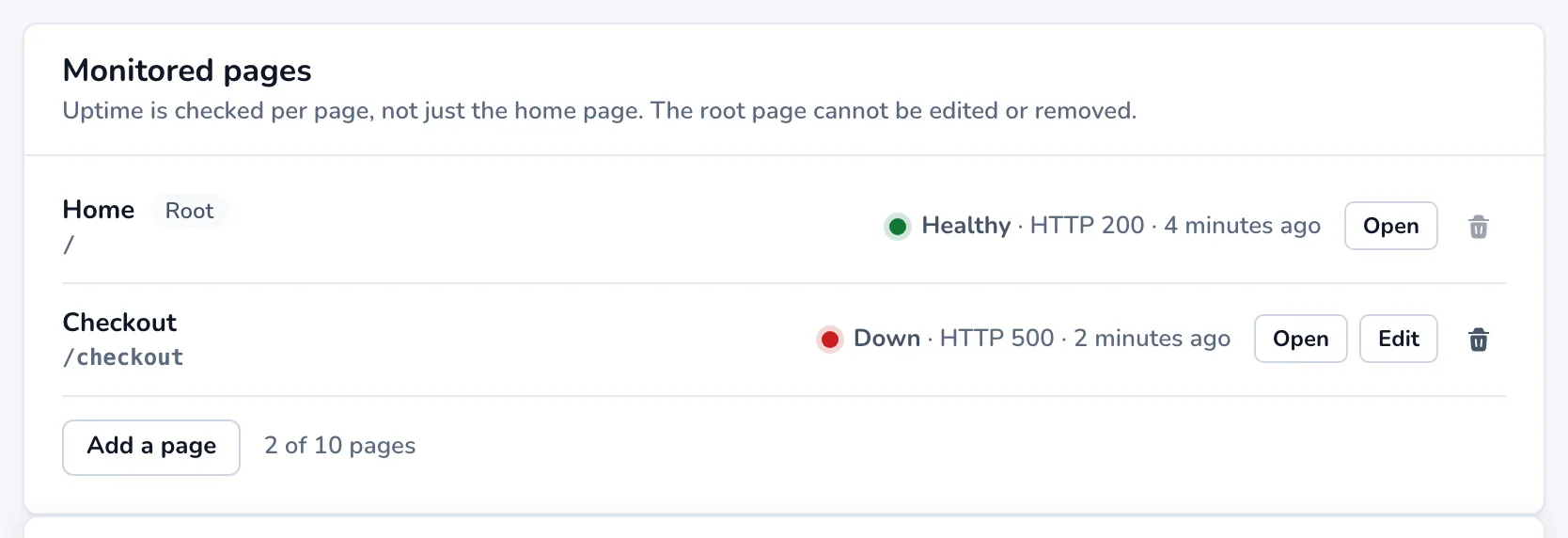
A site can have up to 10 monitored pages. To add one:
- Click Add a page.
- Enter the Path of the page on your domain, for example
/checkout. A pasted URL is shortened to its path. - Enter a Label, which the dashboard shows instead of the path.
- Click Add a page.
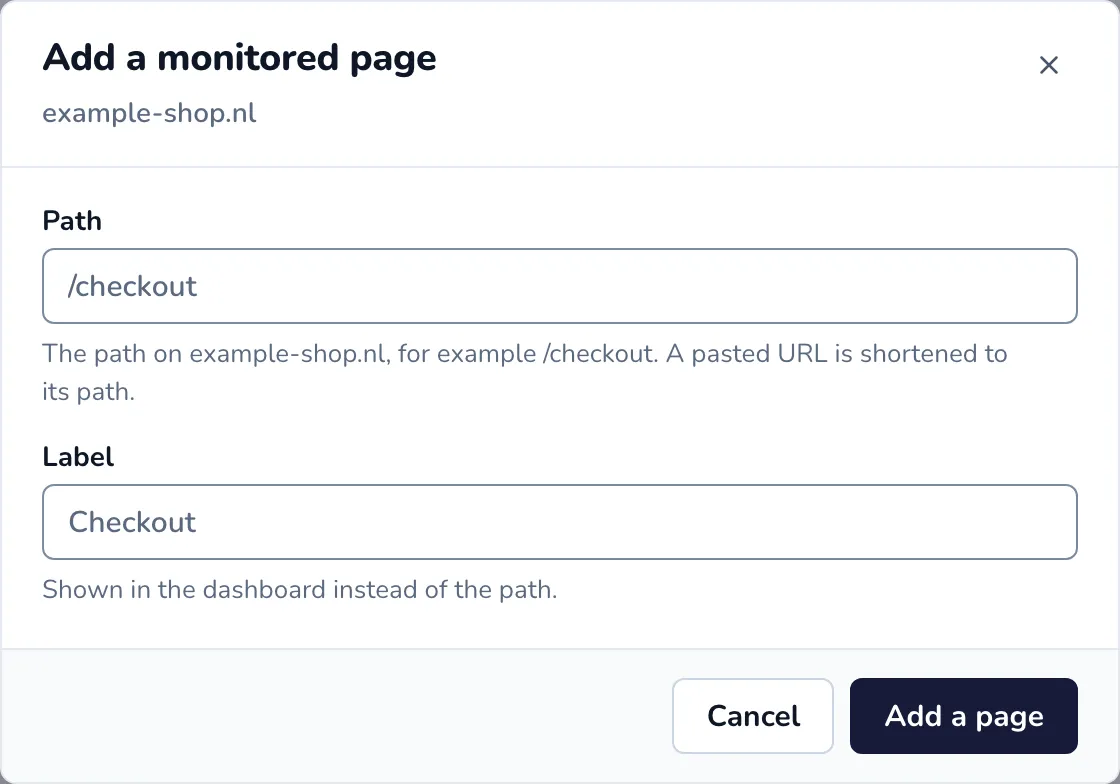
Changes to monitored pages apply straight away; you don’t need Save changes for them.
Request headers
Section titled “Request headers”Scanfully can send up to 5 extra HTTP headers with every request it makes to the site, for a firewall or proxy that expects them. See How to use custom request headers.
Save your changes
Section titled “Save your changes”Changes to the website details, the client, the labels and the request headers are saved together. The bar at the bottom says You have unsaved changes; click Save changes to save them, or Discard changes to undo them.
Disconnect a site
Section titled “Disconnect a site”The Danger zone at the bottom removes the site from your account. Scanfully stops all its checks and deletes the site with all its history. You can’t undo this: adding the same site again starts a new site without the old history.
- Click Disconnect this site.
- Read the warning and type the site’s domain to confirm.
- Click Disconnect site.
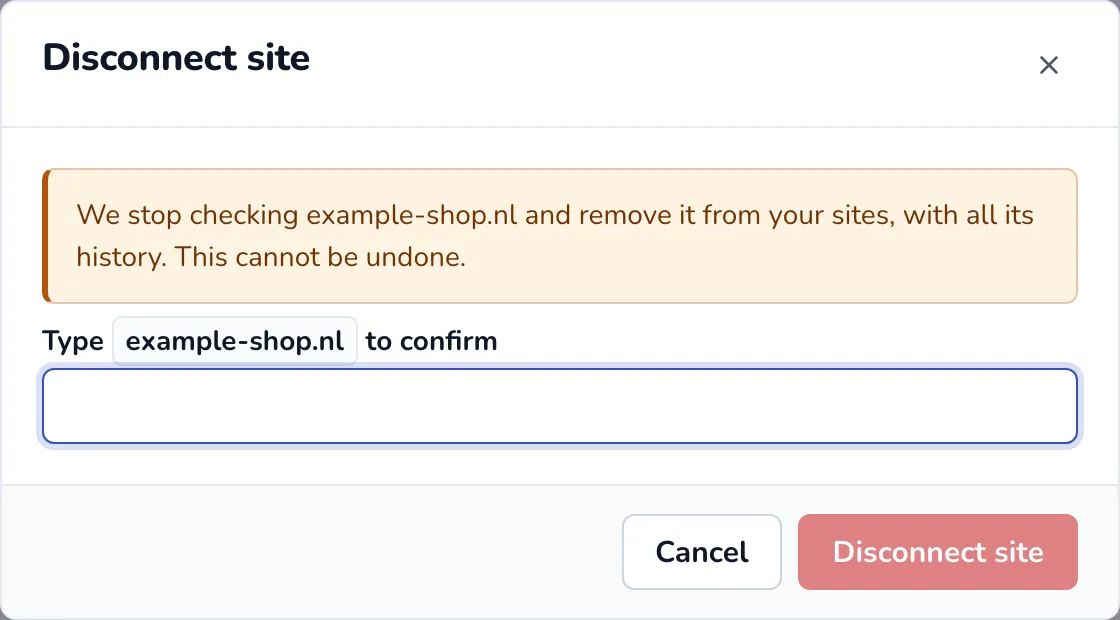
On a paid plan, the dialog also says what happens to the payment for the site. See Billing.