
Content
The Content screen shows the links and media on your site that no longer work. Scanfully crawls your site from the outside, like a visitor, and reports every link and every image, video, document, script or other file that answers with a 4xx or 5xx HTTP status code, or does not answer at all.
Broken links and broken media are the same problem: a reference on one of your pages points at something that does not resolve. So the screen lists them together, and groups them by the target they point at rather than by page. When ten pages link to the same deleted page, you see one target with ten references, and fixing that one target fixes all ten pages.
To open it, choose a site and then Content in the site menu, under Manage.
What the screen shows
Section titled “What the screen shows”Header
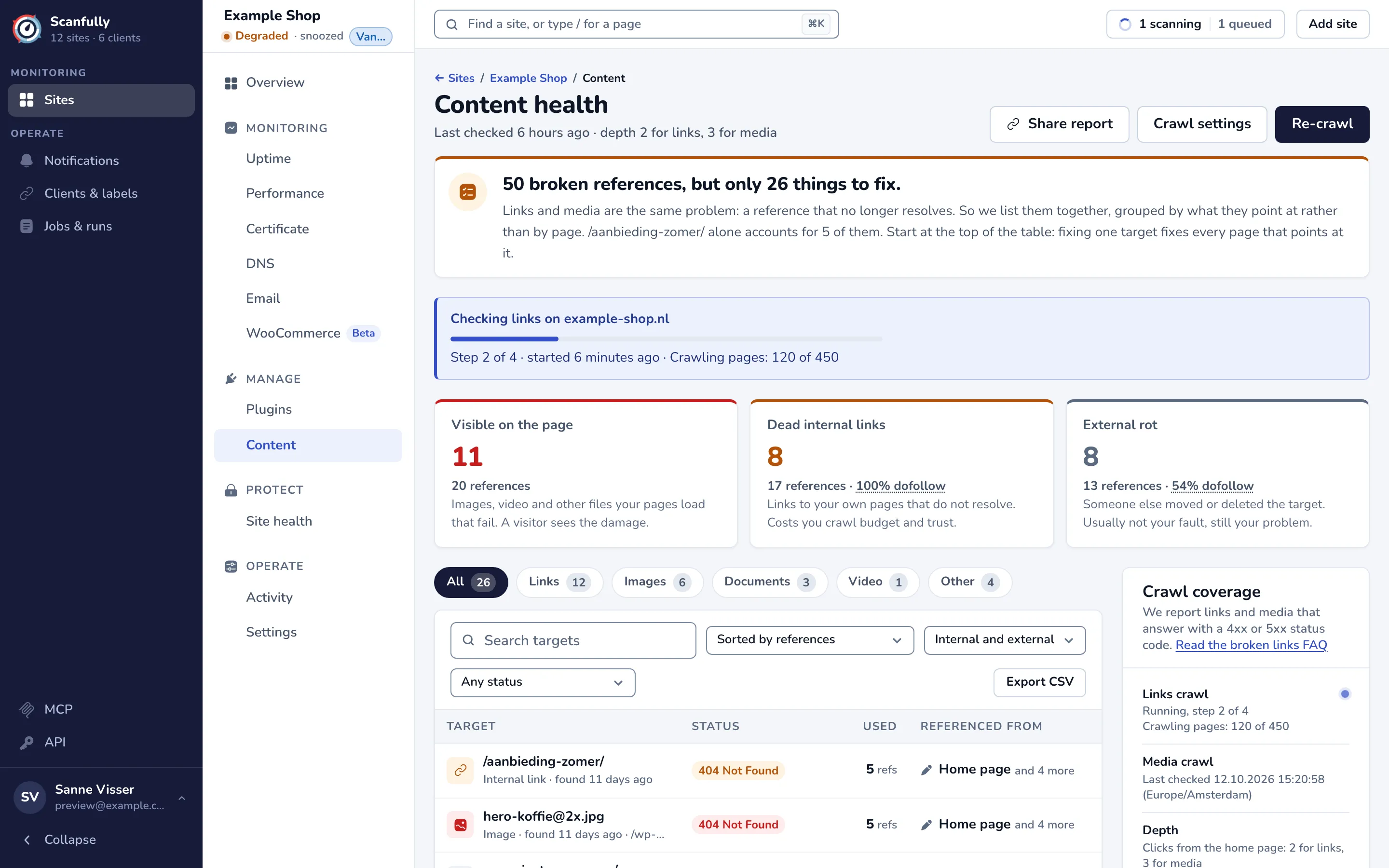
Section titled “Header”The page is titled Content health. The line under the title says when the last crawl finished, how long it took and the crawl depth, for example “Crawled 6 hours ago · took 11m · depth 3”. When the links and the media crawl use a different depth, it shows both.
The buttons on the right:
- Share report: create a public link to the broken links or broken media report, for a client or a colleague without a Scanfully account. See Share a broken links or media report.
- Crawl settings: open the crawl settings, where you choose what Scanfully crawls and what it skips.
- Re-crawl: ask for a new crawl of links and media right away. See Scan timing and manual re-crawls.
Headline
Section titled “Headline”The headline sums up the report, for example “50 broken references, but only 26 things to fix.” It names the target that accounts for the most references and reminds you to start at the top of the table. When the last crawl found nothing, it says No broken links or media.
Crawl progress
Section titled “Crawl progress”While a crawl runs, a banner such as “Checking links on example.com” shows its progress bar, the step it is on, when it started and how many pages it has crawled. A crawl that waits its turn shows as “A links crawl is queued”. The banner updates by itself; you don’t need to reload the page.
Category tiles
Section titled “Category tiles”Three tiles count the targets to fix, each with the number of references behind them:
- Visible on the page: images, video and other files your pages load that fail. A visitor sees the damage, so these come first.
- Dead internal links: links to your own pages that do not resolve.
- External rot: links to other sites whose target moved or disappeared.
The link tiles also show the dofollow share: the part of those links without a nofollow, sponsored or ugc rel attribute. Search engines follow dofollow links, so those matter most for SEO.
The tabs above the table filter it by the kind of target, each with its count:
- All: every target.
- Links: links to pages.
- Images: images.
- Documents: files such as PDF, Word, Excel, CSV or ZIP files, whether a link or an embed points at them.
- Video: video files.
- Other: scripts, stylesheets, audio and embeds such as iframes. This tab only appears when there is something in it. When it holds more than one media type, a media type filter appears next to the other filters.
Targets table
Section titled “Targets table”Each row is one broken target. The toolbar above it has:
- Search targets: searches the target address, the pages that refer to it, their page titles, and the link or alt text.
- A sort menu: Sorted by references (the default, most used first), Sorted by first found, newest, Sorted by first found, oldest, Sorted by status code and Sorted by target.
- Internal and external, Internal only or External only. Internal targets are on your own domain; external targets are on other sites.
- Any status, or one of the status codes in the report.
- Export CSV: downloads the rows in view, with every filter applied (see Export to CSV).
The columns:
- Target: the short name of the target (a file name, or the path of a page), what it is (for example Internal link, External link, Image, Script) and when it was first found. Click the name to open the target itself in a new tab.
- Status: the HTTP status the target answered with on the last check, such as 404 Not Found. A 429 Too Many Requests shows as a warning rather than a failure: it means the other site turned the crawler away, not that the target is gone.
- Used: how many references point at it.
- Referenced from: the first page that refers to it, and “and 3 more” when there are others. The pencil opens that page in the WordPress editor (see Fixing broken links and media).
The table shows ten targets at a time. The footer counts the targets and references, and when filters are on it shows how many of them match.
Target details
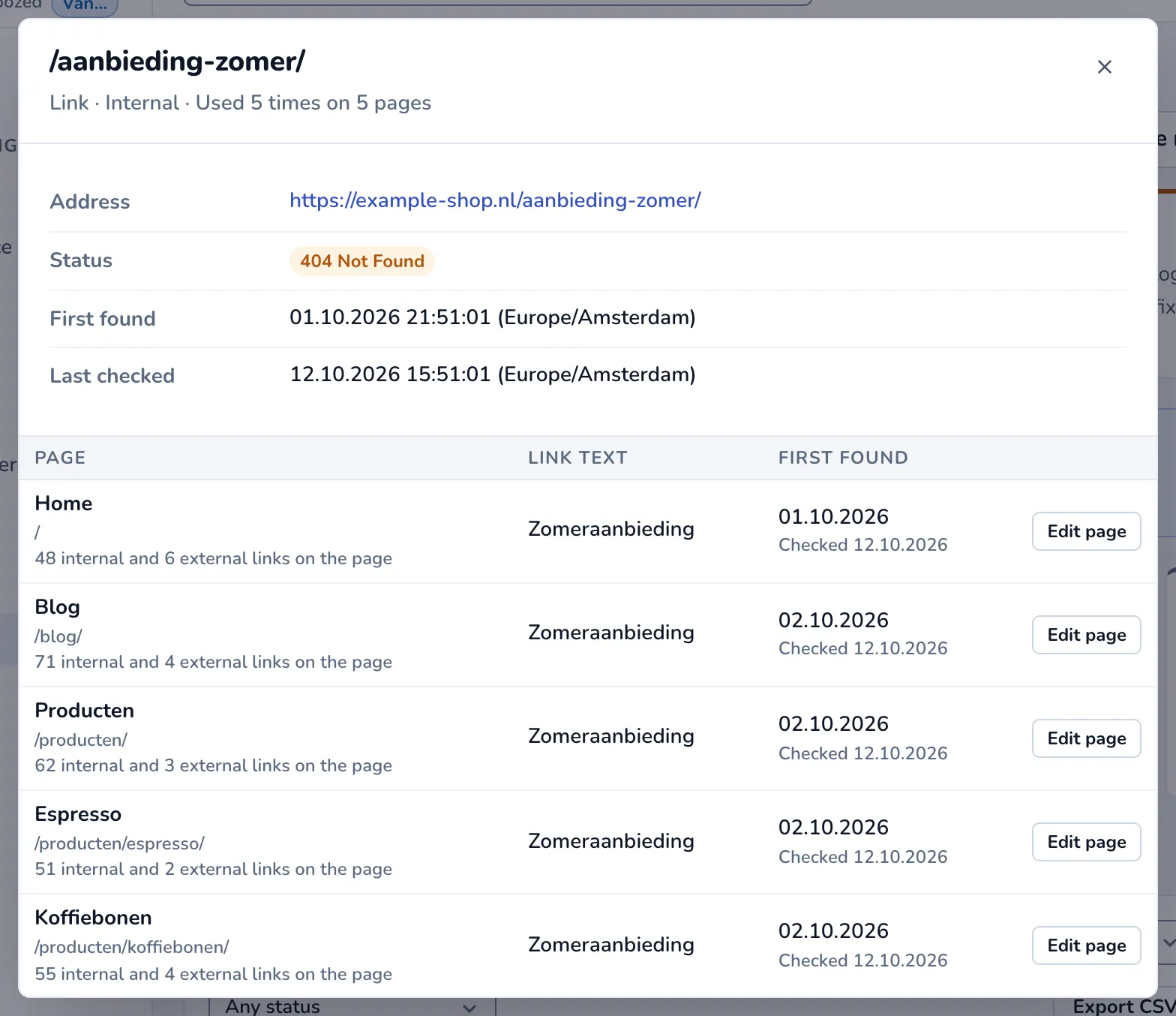
Section titled “Target details”Click a row, the Used count or “and 3 more” to open the details of a target. The dialog shows its full address, its status, when Scanfully first found it and when it last checked it. Below that, a table lists every page that refers to the target, with:
- Page: the page title and path, and for links, how many internal and external links that page has.
- Link text or Alt text: the text of the link, or the alt text of the image. Where it helps, the HTML element (such as
<img>) and therelattribute are shown too. - Status: only when the pages got different answers.
- First found: when the reference was first found broken, and the date it was last checked.
- Edit page: opens that page in the WordPress editor.
More about these dates in Where a broken target was found and when.
Crawl coverage
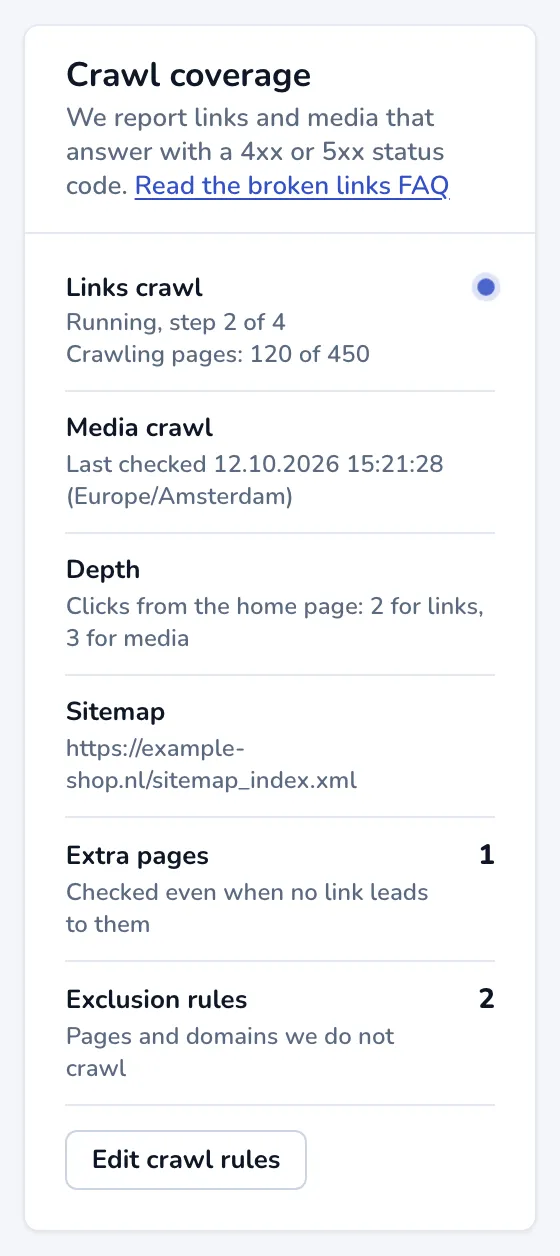
Section titled “Crawl coverage”The Crawl coverage panel, next to or below the table, sums up what the crawls covered:
- Links crawl and Media crawl: whether each crawl is running, queued, finished (and how long it took) or failed.
- Depth: how many clicks from the home page the crawl follows links.
- Sitemap: the sitemap Scanfully reads, or Not set.
- Extra pages: how many pages you added that are checked even when no link leads to them.
- Exclusion rules: how many rules keep pages out of the crawl.
Edit crawl rules opens the crawl settings.
Common tasks
Section titled “Common tasks”Work through the report
Section titled “Work through the report”- Start with the Visible on the page tile and the Images, Documents, Video and Other tabs: these are files your visitors see failing.
- Then fix Dead internal links. Choose Internal only to see just those.
- Keep the default Sorted by references order: the target at the top fixes the most pages at once.
- Open a target, then use Edit page on each page that refers to it. See Fixing broken links and media.
- When you have fixed a batch, click Re-crawl to confirm. Fixed targets leave the report once a crawl finds them working.
Export to CSV
Section titled “Export to CSV”- Set the tab, filters, search and sort you want.
- Click Export CSV.
The file has one row per reference, in the order shown, with the columns Target, Kind, HTTP status, Referring page, Page title, Link or alt text, First found (UTC) and Last checked (UTC). It is built in your browser, so nothing is sent anywhere.
Hide a false positive
Section titled “Hide a false positive”Some targets work fine in a browser but turn crawlers away, so they show up as broken. Add them under Known false positives in the crawl settings. They disappear from the report as soon as you save.
When the report is empty
Section titled “When the report is empty”- No crawl yet: Scanfully has not crawled the site. Click Start the first crawl. A site you add is normally crawled straight away.
- The first crawl is running: the results appear when it finishes.
- No broken links or media: the last crawl found every link and media file working.
Related
Section titled “Related”- How Scanfully detects broken links
- What broken media means in Scanfully
- What Scanfully does not scan
- Broken links and media FAQ
- New broken links and media can also reach you as a notification. See Notifications.