
Set up Slack notifications
Scanfully posts to Slack through the Scanfully app for Slack. You connect it from a notification and pick the Slack channel to post in. Each Slack channel card in a notification posts to one Slack channel; add another card to post to a second one.
Connect Slack
Section titled “Connect Slack”-
Go to Notifications and open the notification, or click New notification.
-
Under 2. Where it goes, click Slack under Add another. The new card shows Not connected.
-
Click Connect Slack. This saves the notification first, then opens Slack.

-
In Slack, choose the workspace and the channel Scanfully may post to, and allow it.
-
Slack sends you back to Scanfully, which shows Connecting Slack for a few seconds and then opens the notification again.
The card now shows Connected with the workspace and channel. They come from the Slack connection and cannot be edited in Scanfully.
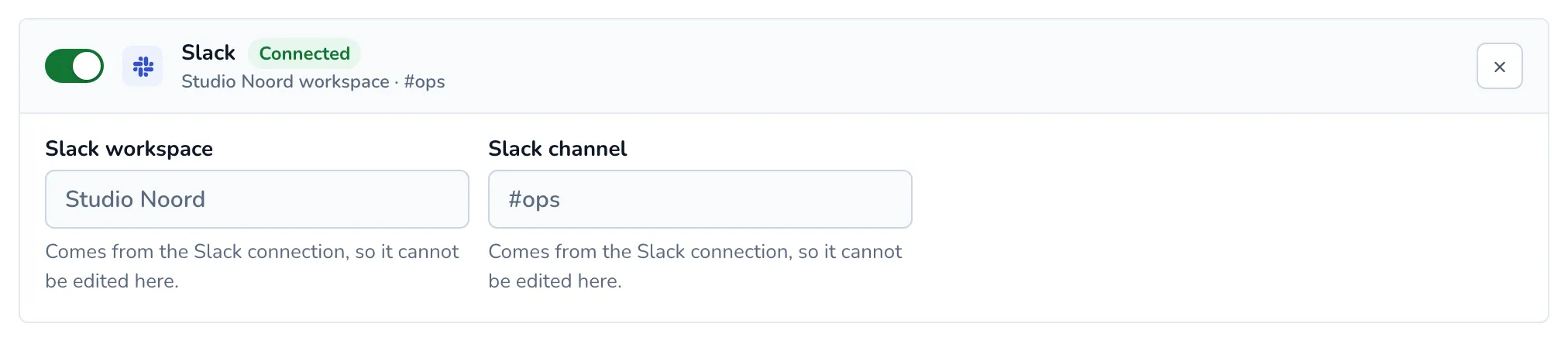
Until Slack is connected, the channel sends nothing, and the notification list shows Not connected next to it.
Post to another channel
Section titled “Post to another channel”To move the alerts to another Slack channel, remove the Slack card, add a new one and connect it to the other channel. To post to several channels, add one Slack card per channel.
When connecting fails
Section titled “When connecting fails”If you cancel in Slack, or the connection does not go through, Scanfully shows We could not connect Slack with the reason and a button to open the notification again. Click Connect Slack on the card to try again.
When messages to a connected channel stop arriving (for example because the app was removed from the channel), the card shows Failing with the last error and a Connect again button. Your account email also gets a notice, at most once a day.
What the messages look like
Section titled “What the messages look like”Each alert is posted as a message with the site and what happened, and ends with short snooze links (1 hour, 1 day, more). See Snooze alerts.