
Clients & labels
Clients and labels are two ways to group your sites:
- A client is who a site is for, such as a customer you look after sites for. A site has one client at most.
- A label is a tag such as Production, Staging or Retainer. A site can have up to 50 labels.
Both show as colored pills next to the site’s name in the Sites list, both can filter that list, and a notification can choose its sites by client or label.
Open Clients & labels under Operate in the main menu.
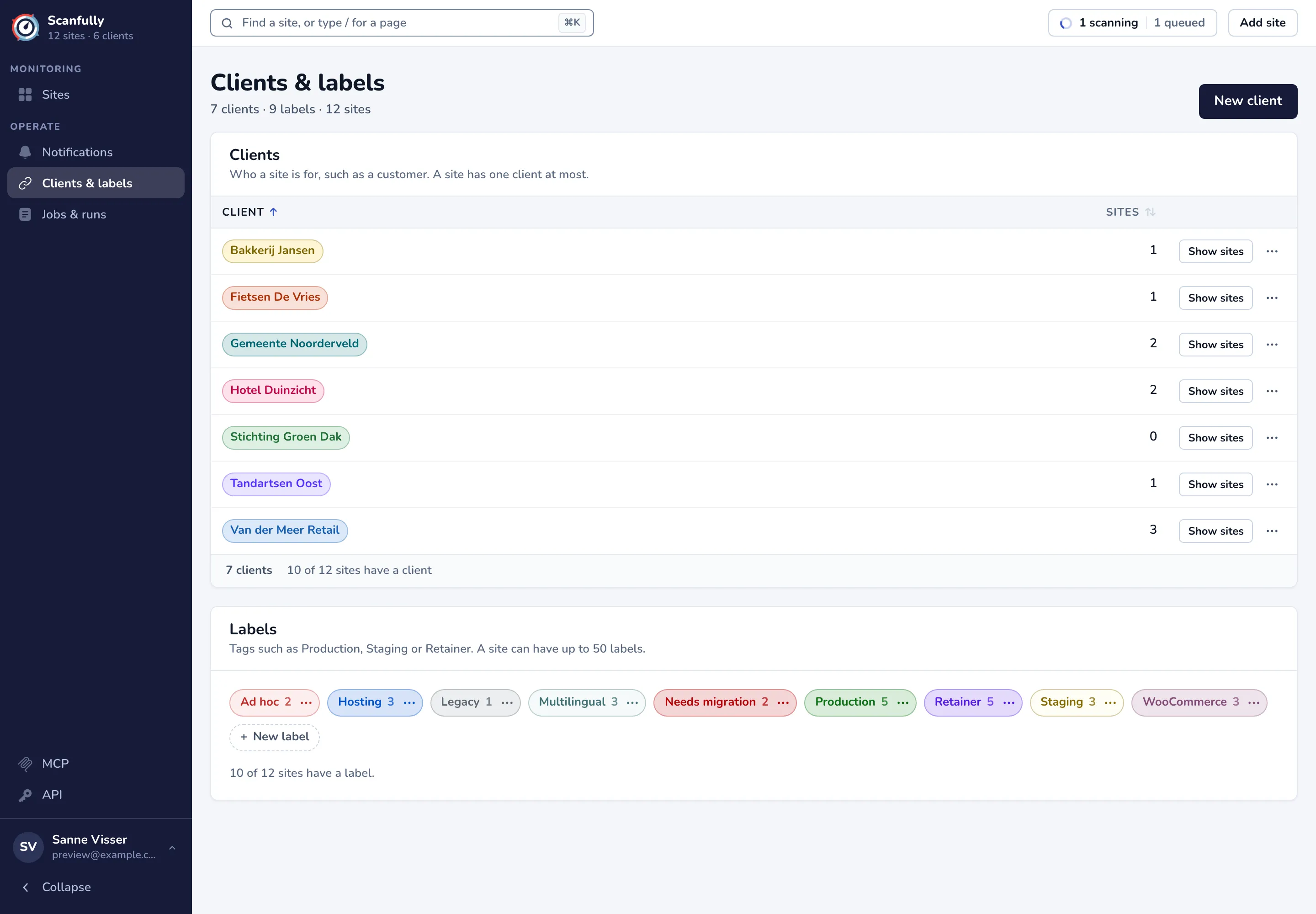
The line under the title counts your clients, labels and sites.
Clients
Section titled “Clients”The Clients table lists each client with its color and the number of sites that have it. Click the Client or Sites heading to sort. With more than 10 clients, a search field appears above the table.
- Show sites opens the Sites list filtered to that client.
- The … menu has Edit client and Delete client.
The footer counts how many of your sites have a client.
Labels
Section titled “Labels”The Labels panel shows each label as a pill in its color, with the number of sites that have it. Click a label to open the Sites list filtered to that label. The … on a label has Edit label and Delete label.
The line below the labels counts how many of your sites have a label.
Add a client or label
Section titled “Add a client or label”- Click New client at the top right, or New label in the Labels panel.
- Enter a Name of up to 80 characters. Two clients, or two labels, cannot have the same name.
- Choose a Color: type a hex value such as
#f84787, press the arrow down key in the field for preset colors, or click the color swatch to pick a random color. The preview shows how the pill will look. - Click Add client or Add label.
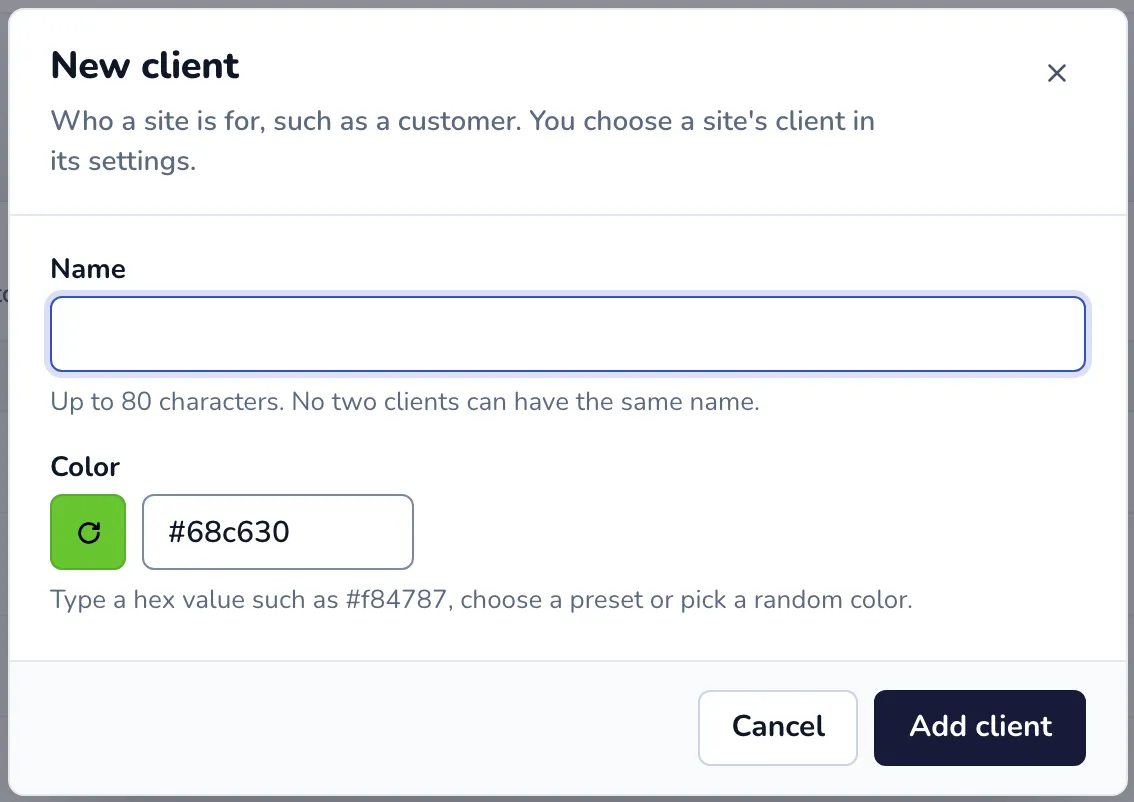
To rename a client or label or change its color, choose Edit client or Edit label in its … menu and click Save client or Save label.
Give a site its client and labels
Section titled “Give a site its client and labels”You choose a site’s client and labels in the site’s own settings:
- Open the site and go to Settings in the site menu.
- In the Website panel, choose a Client (or No client) and pick its Labels.
- Click Save changes.
See Site settings.
Filter the sites list
Section titled “Filter the sites list”On the Sites list, the Client and Labels filters show once you have clients or labels. You can choose several clients or labels at once, and No client or No labels for the sites without one. For labels, you can show the sites that have any of the chosen labels or all of them.
Use them in notifications
Section titled “Use them in notifications”A notification can cover every site, or only the sites with a certain client or label. A site you give that client or label is covered from then on, including a site you add later. See Notifications.
Delete a client or label
Section titled “Delete a client or label”Choose Delete client or Delete label in its … menu and confirm. The sites keep existing: they lose that client, or that label, and keep their other labels. You cannot undo this.
If notifications choose sites by that client or label, the confirmation names them. Those notifications stop covering these sites, and a notification that chooses sites by that client or label alone then covers no site. Check them in Notifications afterwards.