
Activity
The Activity screen is the activity log of a site. It shows what changed in WordPress, such as plugin, theme and WordPress updates, saved posts and pages, and plugins that were activated or deactivated, and who did it. It also lists what Scanfully did for the site, such as the alerts it sent.
Open it from Activity under Operate in the site menu. The WordPress events come from the Scanfully plugin, which reports them as they happen.
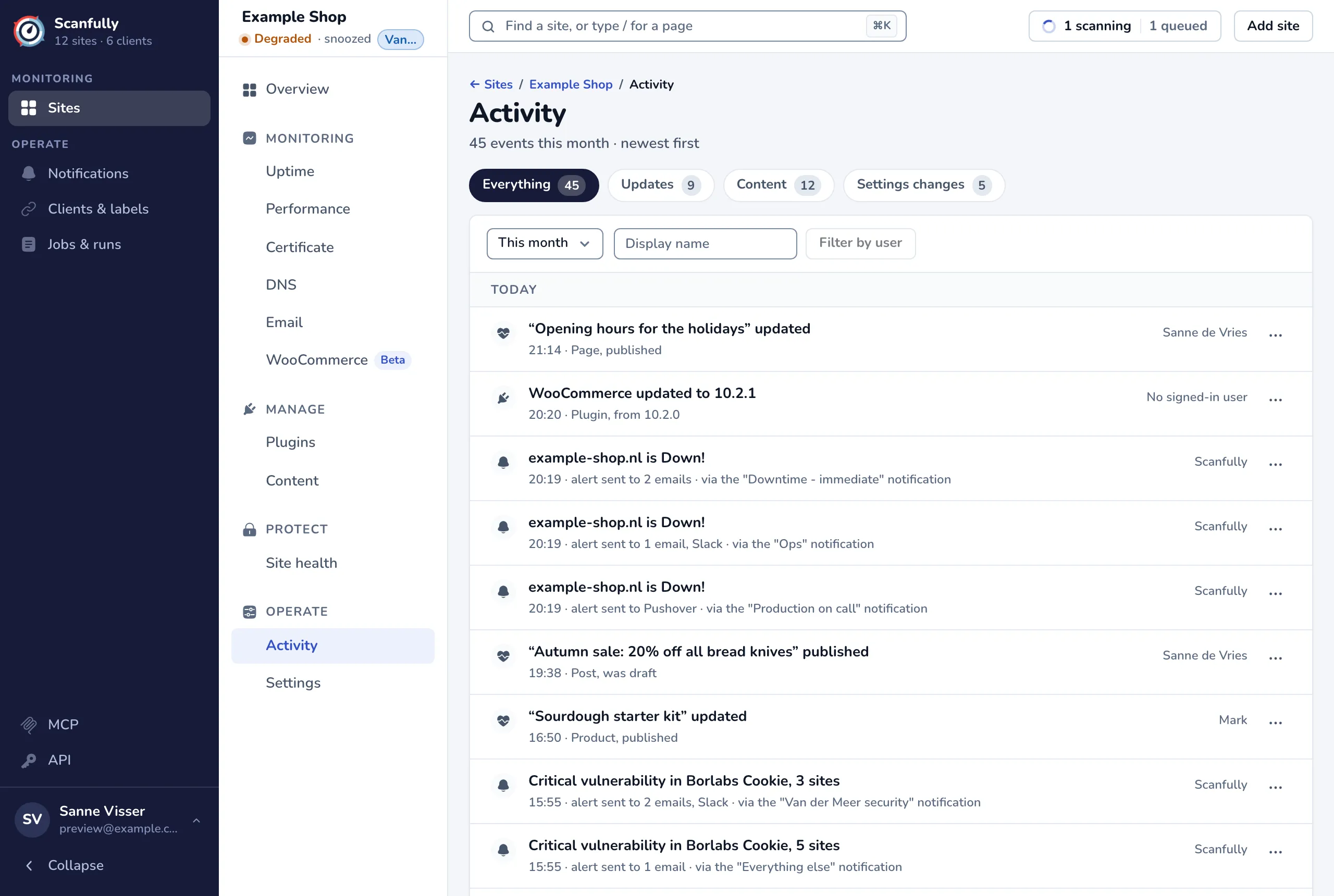
The header
Section titled “The header”Under the title you see how many events there are in the chosen period, such as “45 events this month”, and, when you filter on a user, whose events they are. The list shows the newest events first.
Event types
Section titled “Event types”The tabs above the list choose which events you see, each with its count for the chosen period:
- Everything: all events, including Scanfully’s own entries.
- Updates: plugin, theme and WordPress updates.
- Content: posts, pages and other content that was created, updated, published, set to draft, made private or moved to the trash.
- Settings changes: plugins that were activated or deactivated, and updated rewrite rules (the permalink settings).
Scanfully’s own entries only show under Everything. They record alerts that were sent (and to which channels, via which notification), alerts that were held back, alerts included in the daily digest, and snoozes that started or ended. See Notifications.
Filters
Section titled “Filters”- Period: choose All time, Today, This week, Last week, This month, Last month or Custom. The list opens on This month. With Custom you pick a start and an end date; see Filter the activity log by date.
- User: type a WordPress display name in the Display name box and click Filter by user to show only that user’s events. The name has to match the display name exactly. The filter shows as a User: chip; click its remove button to clear it.
The list
Section titled “The list”Events are grouped under Today, Earlier this month and then per month. Each event shows:
- what happened, such as “WooCommerce updated to 10.2.1” or ““Contact” updated”;
- the time (and the date for older events) and a detail line, such as “Plugin, from 10.2.0” or “Page, published”;
- who did it: the WordPress user, No signed-in user when nobody was signed in (for example an automatic update), or Scanfully for Scanfully’s own entries. Hover over a user’s name to see their WordPress user ID.
The list shows 15 events at a time. Use Show older and Show newer at the bottom to page through.
Event details
Section titled “Event details”Each event has a menu (the … button) at the end of its row:
- View event data shows the raw data the event was recorded with.
- View content changes shows the content of a post or page Before and After the save. It only shows for content events that include the content, which older versions of the Scanfully plugin send.
When the list is empty
Section titled “When the list is empty”When there are no events for your filters, the screen says so, for example “No updates this month”. Click Show all time to widen the period, or Clear the user filter when you filtered on a user.
The activity log can also be read through the Scanfully API and with MCP.