
Create a notification
A notification is built in four steps on one page: which events, where it goes, which sites, and whether it may be held back. Everything is saved at once when you click Save notification.
To start, go to Notifications and click New notification. To change an existing one, click its name or Edit in the list; the editor is the same, with Delete at the top.
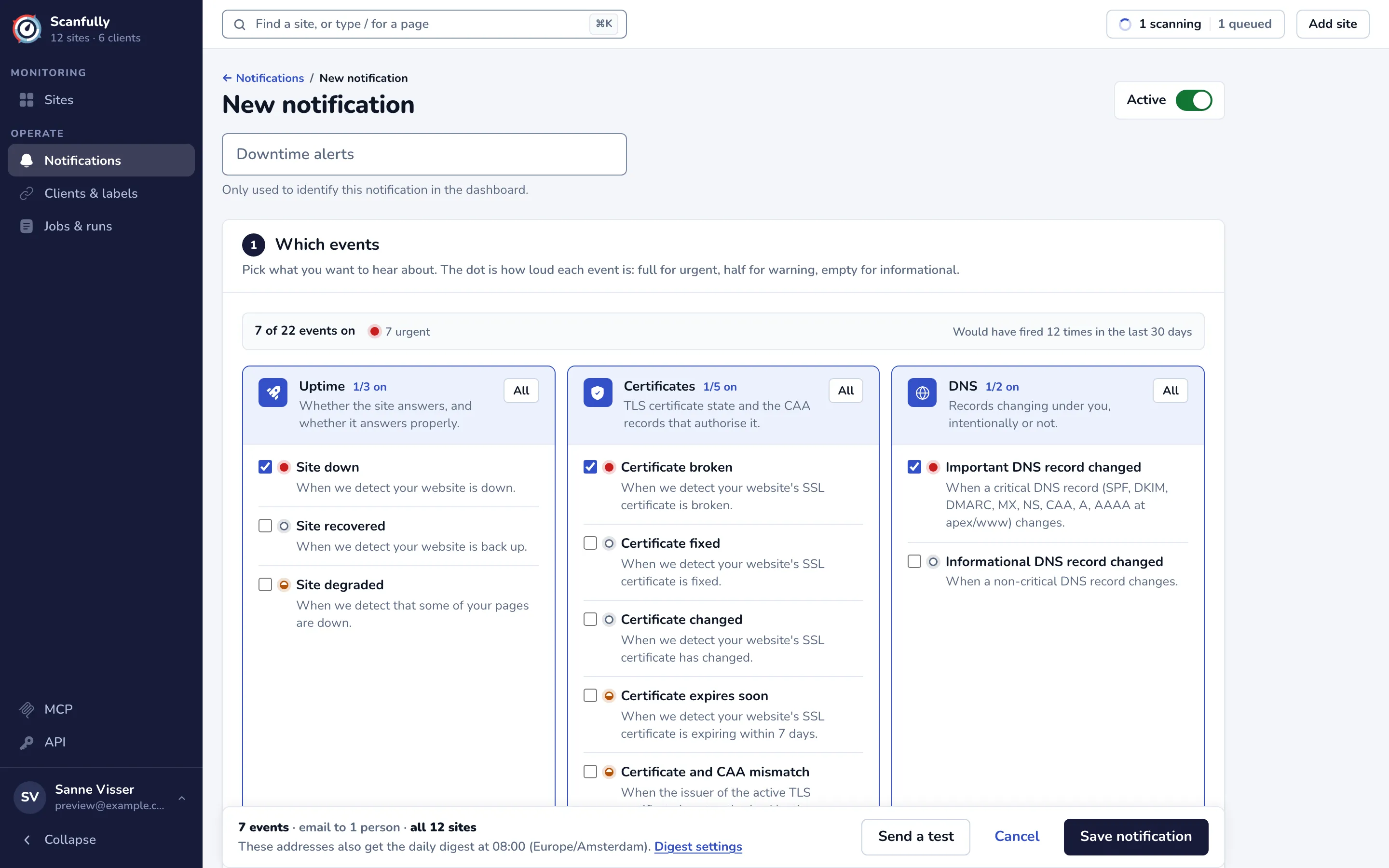
A new notification starts with the urgent events on, all sites, and one email channel to your account email. When you start it from a site, it covers only that site.
Name and Active
Section titled “Name and Active”Give the notification a name, such as “Downtime alerts”. It is only used to identify the notification in the dashboard (up to 100 characters).
The Active switch at the top turns the notification on or off. A notification that is off sends nothing, but keeps its setup.
1. Which events
Section titled “1. Which events”The events are grouped by category. Tick the events you want to hear about, or use All and None to turn a whole category on or off. Each category shows how many of its events are on.
The dot before each event is how loud it is: full for urgent, half for warning, empty for informational. The bar above the categories counts the events that are on by severity, and says how often this choice would have fired in the last 30 days.
An event marked Not sent yet can be chosen, but nothing sends it yet.
2. Where it goes
Section titled “2. Where it goes”Add one or more channels with the chips under Add a channel (or Add another): Email, Slack, Discord and Pushover. Two of the same type is fine, such as two Slack channels, or a client inbox and yours. A notification has at most 10 channels, and at least one must be switched on.
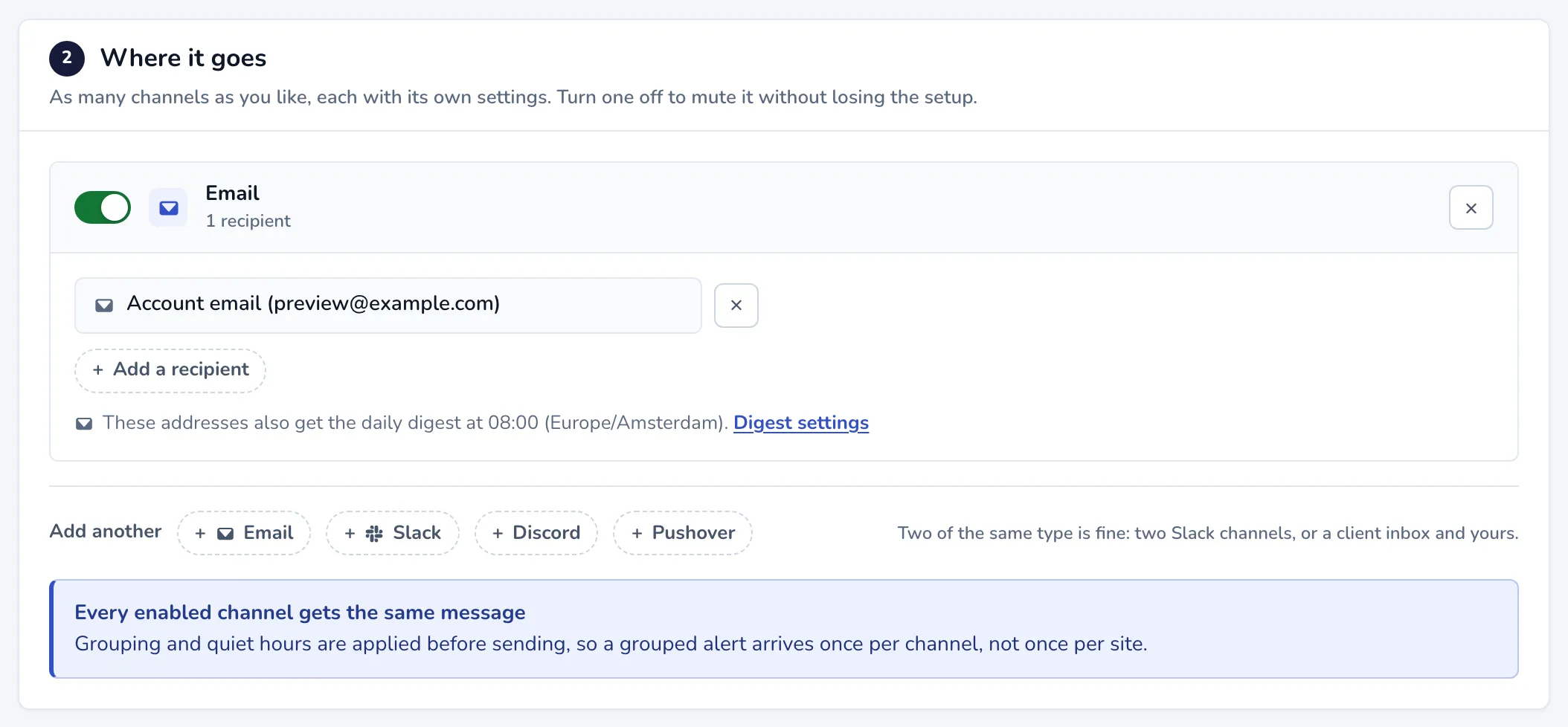
Each channel has its own card with a switch. Turn a channel off to mute it without losing its setup, or remove it with the cross. Every enabled channel gets the same message. How to set up each channel:
3. Which sites
Section titled “3. Which sites”Choose one of three ways to pick the sites:
- All sites: every site now and every site you add later. Use Except these sites to leave some out.
- Sites of a client or label: choose one or more clients or labels with + client or label. Membership follows the client or label, so a site added to one later is covered too. You can leave sites out here as well, or create a label with New label in the menu. See Clients & labels.
- Pick sites by hand: a fixed list. Sites you add later are never added for you.
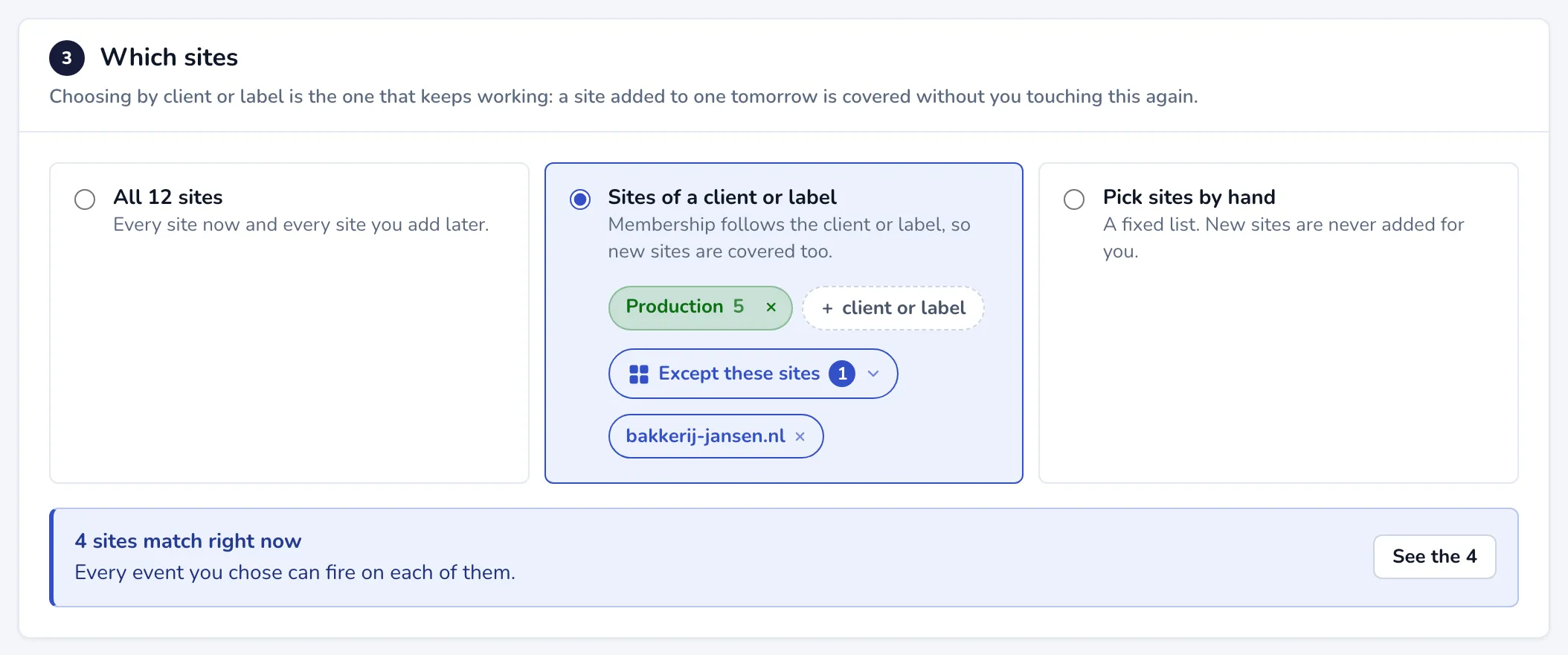
Below the choice, Scanfully says how many sites match right now. Click See the followed by the number to see the list. When one of the events you chose cannot fire on some of the sites, it says so, and the list names the reason, for example that the Scanfully plugin is not connected, the site is monitored over http without a certificate, or the email check is off.
4. Noise control
Section titled “4. Noise control”The noise settings (combining related alerts, skipping problems that fix themselves, holding alerts during heavy scans, quiet hours and the daily digest) are set once for the account, on the Notifications screen and in Account settings.
A notification has one setting of its own: Never hold this one back. Its alerts skip the daily digest and quiet hours, and the other waits as well (for problems that fix themselves, for heavy scans and for related alerts). A snooze still silences them. Use it for alerts you always want at once, such as a critical vulnerability. When you turn it on for a saved notification, anything it is holding back right now goes out when you save.
Test and save
Section titled “Test and save”The bar at the bottom sums up the notification, for example “7 events · email to 1 person · all 12 sites”, and says when its email addresses also get the daily digest.
- Send a test sends a test message to every switched-on channel right away, also before you save. The result shows under each channel card.
- Save notification saves it and returns you to the list.
- Cancel leaves without saving.
When several notifications cover the same site
Section titled “When several notifications cover the same site”Each notification sends its own alerts. When two notifications would send the same alert to the same address or channel, it arrives once; the notification log shows the second message as skipped.