
Plugins
The Plugins screen lists every plugin installed on the site and checks each one against a vulnerability database. It tells you which plugins have known vulnerabilities, how severe they are, whether a fix exists and which plugins have an update available.
Open it from Plugins under Manage in the site menu. The plugin list comes from the Scanfully plugin on the site, so this screen needs the site to be connected with the plugin.
The header
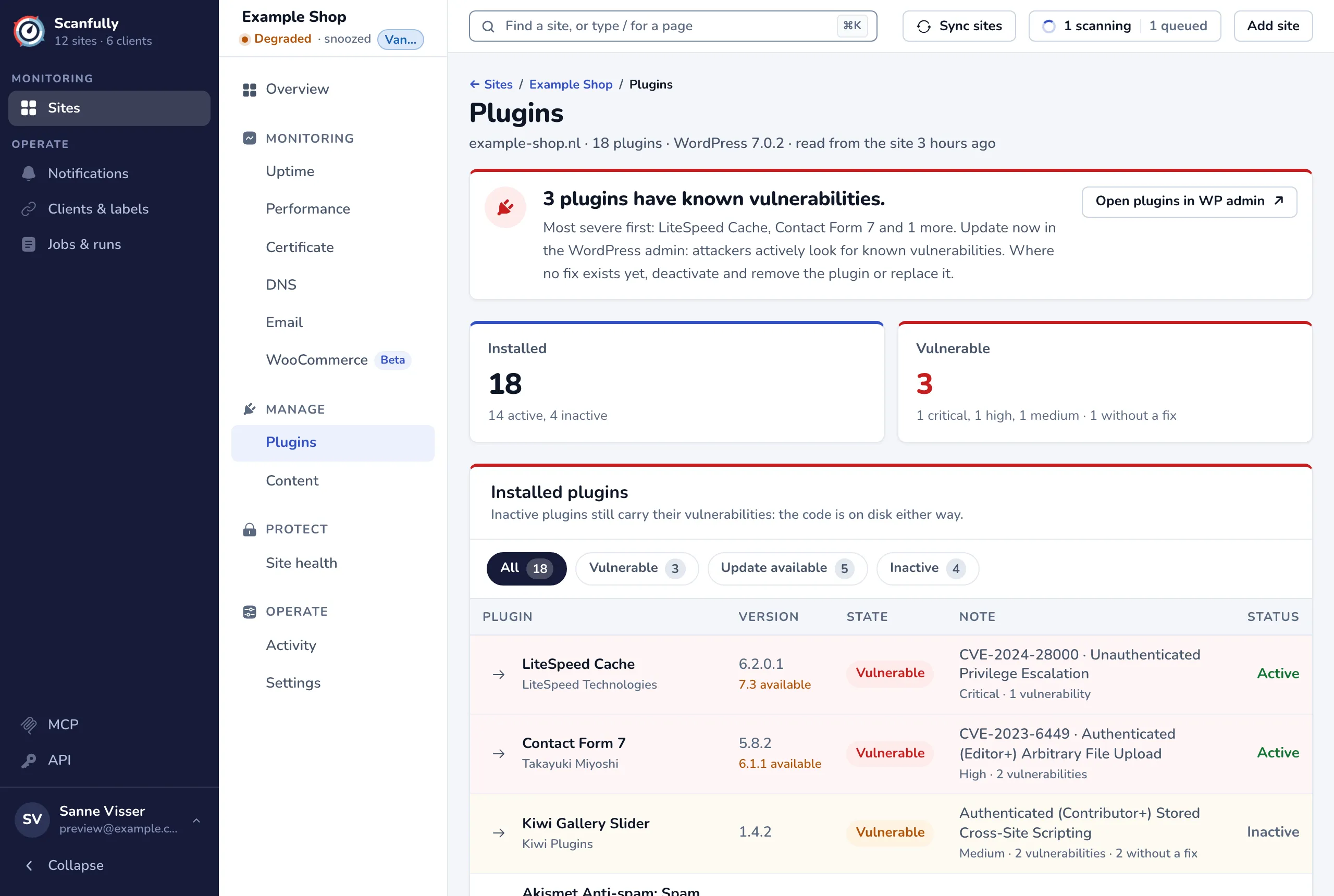
Section titled “The header”Under the title you see the domain, the number of plugins, the WordPress version and when the plugin list was last read from the site (“read from the site 3 hours ago”).
The headline
Section titled “The headline”The headline says what to do, based on the most severe vulnerability:
- No known vulnerabilities in your plugins. All installed plugins were checked against the vulnerability database. When plugins have an update available, the headline mentions how many.
- A plugin has a known vulnerability, or several plugins have known vulnerabilities, listed most severe first.
- For a Critical or High vulnerability: update now in the WordPress admin, because attackers actively look for known vulnerabilities.
- For Medium, Low or unscored ones: the risk is limited, so include the update in your next round of updates.
- When no fix exists yet: deactivate and remove the plugin, or replace it.
Open plugins in WP admin opens the plugins page of the site’s WordPress admin in a new tab, where you update, deactivate or remove plugins. Scanfully does not change plugins on your site itself.
The cards
Section titled “The cards”- Installed: the number of plugins, and how many are active and inactive.
- Vulnerable: the number of plugins with at least one known vulnerability, counted by their worst vulnerability (for example “1 critical, 1 high, 1 medium”), and how many have a vulnerability without a fix.
Installed plugins
Section titled “Installed plugins”The table lists the plugins with the vulnerable ones first. Use the tabs above it to show All plugins, only the Vulnerable ones, those with an Update available, or the Inactive ones. The first 10 plugins are shown; Show all at the bottom shows the rest.
- Plugin: the plugin name and its author.
- Version: the installed version. When a newer version exists, it shows below it, for example “6.1.1 available”.
- State: Vulnerable when the plugin has a known vulnerability.
- Note: for a vulnerable plugin, its worst vulnerability (the CVE number and the type, such as “Unauthenticated Privilege Escalation”), the severity, the number of vulnerabilities and how many have no fix.
- Status: Active or Inactive in WordPress.
Inactive plugins still carry their vulnerabilities: the code is on disk either way. Deactivating a vulnerable plugin is not enough; remove it if you don’t use it.
Where the latest version comes from
Section titled “Where the latest version comes from”The Scanfully plugin reports the latest version of each plugin as WordPress’s own update check knows it, the same check behind the updates in your WordPress admin. That includes premium plugins that update through their own license, such as ACF Pro or Gravity Forms. WordPress checks for updates about twice a day, and Scanfully reads the result whenever the plugin sends the site data.
Sites on an older version of the Scanfully plugin do not report it yet. For those, Scanfully looks up the latest version on WordPress.org, about every 12 hours. Premium and custom plugins are not on WordPress.org, so they show no latest version until you update the Scanfully plugin.
Vulnerability details
Section titled “Vulnerability details”Click a vulnerable plugin’s row, or the arrow in front of it, to see all its vulnerabilities, grouped by severity.
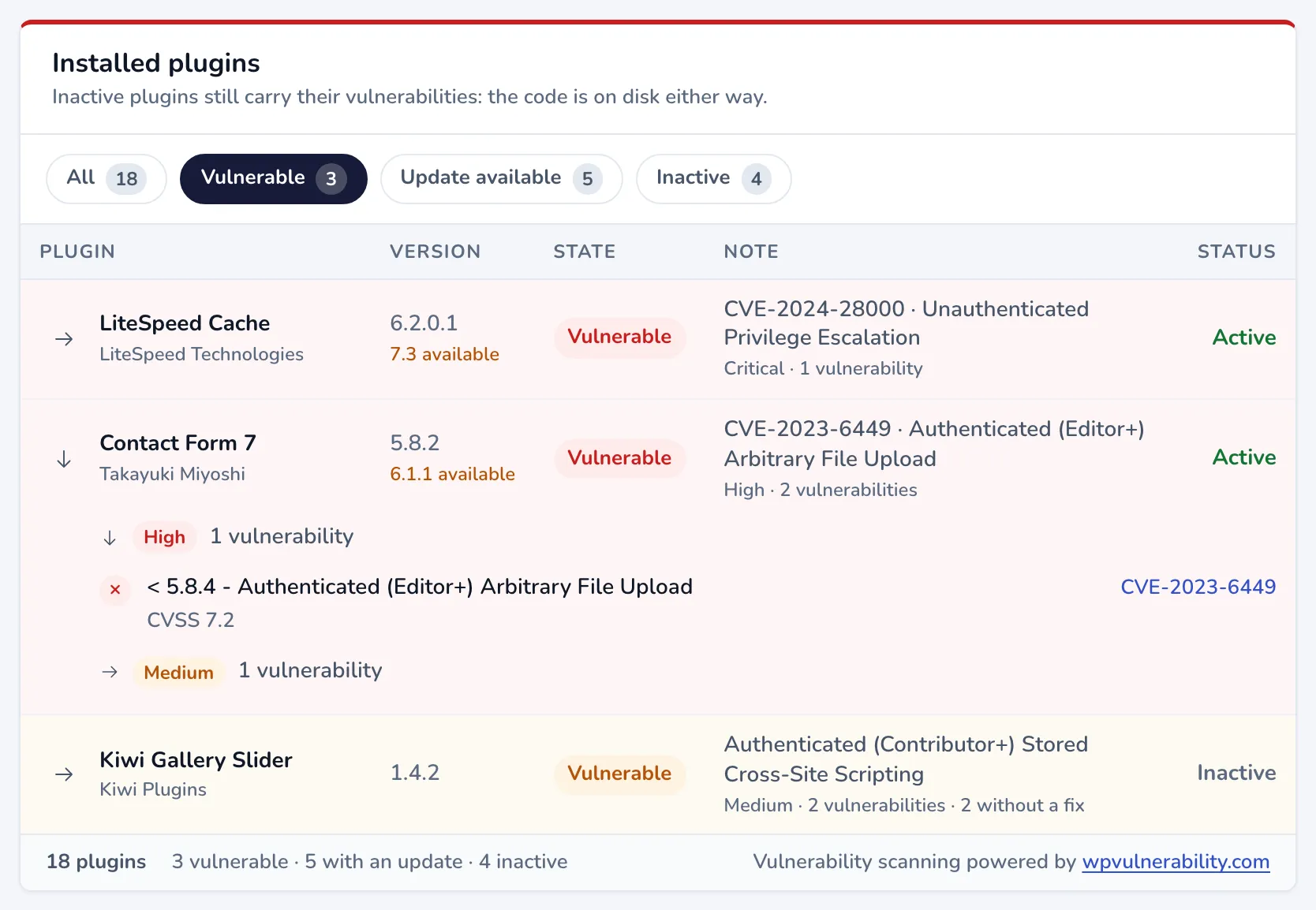
- Each group shows a severity (Critical, High, Medium or Low) and how many vulnerabilities it has. Critical and high groups are open; click a group to open or close it.
- Each vulnerability shows its title (usually the affected versions and the type, such as “< 5.8.4 - Authenticated (Editor+) Arbitrary File Upload”), its CVSS score, No fix available when no fixed version exists yet, and a link to its CVE record on cve.org.
- Vulnerabilities without a CVSS score are folded away under Show 1 more without a CVSS score (or Show N more).
What the severities mean
Section titled “What the severities mean”The severity comes from the vulnerability’s CVSS score, the standard 0 to 10 rating of how serious a vulnerability is. Critical and High vulnerabilities are often easy to exploit or let an attacker take over the site, so update those plugins first. Medium and Low ones usually need special conditions, such as a signed-in user with a certain role. A vulnerability with No CVSS score has not been rated yet; it still needs a look.
Vulnerability data comes from wpvulnerability.com.
Get notified
Section titled “Get notified”To hear about new vulnerabilities in your plugins, turn on the Plugin vulnerability detected event in a notification. See Notifications.
When the list is empty
Section titled “When the list is empty”No plugins reported yet means the Scanfully plugin has not sent the site data yet. Check that the Scanfully plugin is installed and active on the site.