
Site health
The Site health screen checks how your WordPress site is set up: the WordPress, PHP, database and web server versions, and the PHP and WordPress settings that affect security, reliability and performance. The Scanfully plugin on your site collects this data and sends it to Scanfully; Scanfully compares it with its recommendations and lists everything that falls short, each with what to do about it.
To open it, choose a site and then Site health in the site menu, under Protect.
What the screen shows
Section titled “What the screen shows”Header and headline
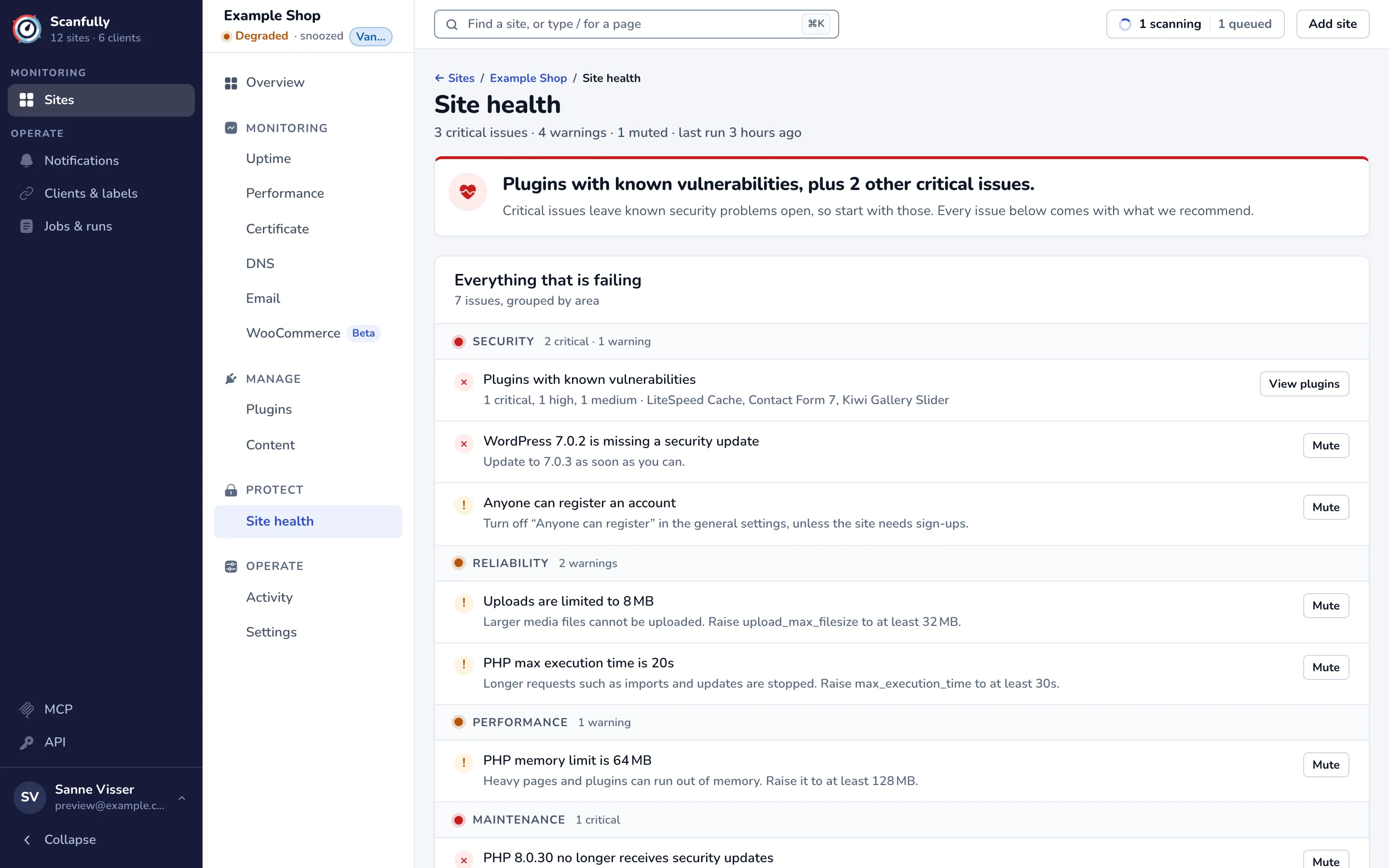
Section titled “Header and headline”The line under the title counts the issues, for example “3 critical issues · 4 warnings · 1 muted · last run 3 hours ago”. last run is when the plugin last sent its data.
The headline names the critical issues, as they leave known security problems open. Without critical issues it counts the warnings, and when nothing fails it says Nothing in this report needs your attention.
Everything that is failing
Section titled “Everything that is failing”This panel lists every issue, grouped by area: Security, Reliability, Performance and Maintenance. Each group says how many critical issues and warnings it has.
- A red cross marks a critical issue. A critical issue also puts the site in Needs attention in your sites list.
- An exclamation mark marks a warning.
Each issue says what is wrong, such as “PHP memory limit is 64 MB”, and what we recommend, such as “Raise it to at least 128 MB.” On the right:
- View plugins opens the Plugins screen, for plugins with known vulnerabilities.
- Mute stops an issue from counting. See Mute an issue.
Issues you muted are listed under Muted. They don’t count toward the site’s health. Each one says whether it was critical or a warning, when it was muted (and “by Scanfully support” when support muted it for you), and when the mute ends. Unmute puts it back with the other issues.

Details
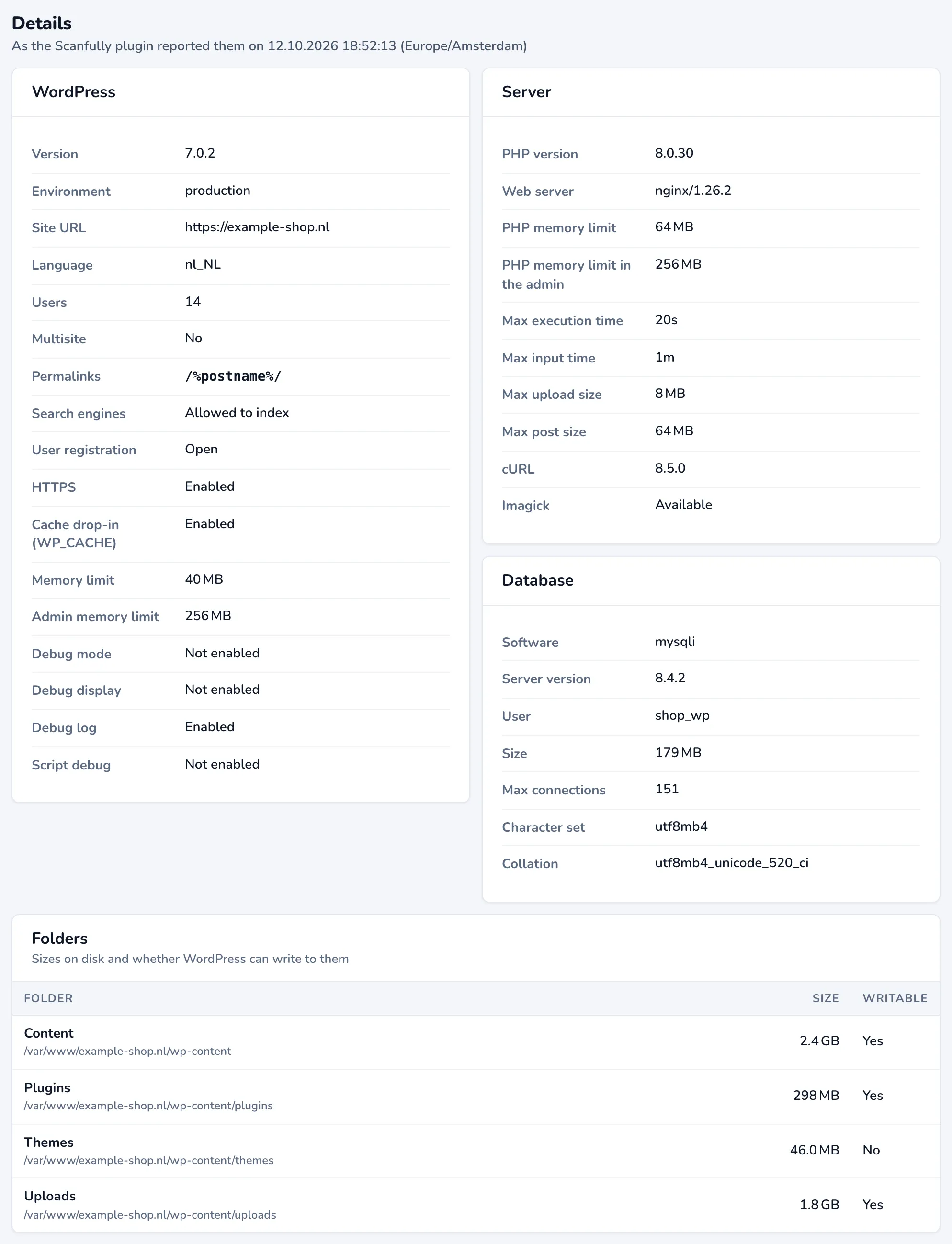
Section titled “Details”Below the issues, Details shows everything the plugin reported, with the date it did. These are the values the checks use.
- WordPress: Version, Environment (
WP_ENVIRONMENT_TYPE), Site URL, Language, Users, Multisite, Permalinks, Search engines, User registration, HTTPS, Cache drop-in (WP_CACHE) (aboutWP_CACHE), Memory limit (WP_MEMORY_LIMIT), Admin memory limit (WP_MAX_MEMORY_LIMIT), and Debug mode, Debug display, Debug log and Script debug (debugging constants). - Server: PHP version, Web server, PHP memory limit, PHP memory limit in the admin, Max execution time and Max input time (max_execution_time), Max upload size (upload_max_filesize), Max post size (post_max_size), cURL (cURL in WordPress) and Imagick. A PHP setting without a limit shows as Unlimited.
- Database: Software, Server version, User, Size, Max connections, Character set and Collation (Database versions for WordPress).
- Folders: the content, plugins, themes and uploads folders, with their path, their size on disk and whether WordPress can write to them.
What Scanfully checks
Section titled “What Scanfully checks”| Issue | When it shows | Level | Area |
|---|---|---|---|
| Plugins with known vulnerabilities | A plugin on the site has a known vulnerability. See Plugins. | Critical when one has a critical or high severity vulnerability, a warning otherwise | Security |
| WordPress is missing a security update | A newer release of the same WordPress branch exists, for example 7.0.2 while 7.0.3 is out. WordPress version | Critical | Security |
| WordPress no longer receives security updates | The branch is no longer supported and had no release in the last year. | Critical | Maintenance |
| WordPress is an older major version | The branch is no longer the current one, but still received a release in the last year. | Warning | Maintenance |
| PHP, the database or the web server no longer receives security updates | The version has reached its end of life. Database versions | Critical | Maintenance |
| PHP, the database or the web server is out of active support | The version only receives security fixes now. | Warning | Maintenance |
| PHP, the database or the web server is not the latest release | A newer release of the same branch exists. | Warning | Maintenance |
| Anyone can register an account | Anyone can register is on in the WordPress general settings. Anyone can register setting | Warning | Security |
| The database connection uses the root user | WordPress connects to the database as root. Database versions for WordPress |
Warning | Security |
| The site is not served over HTTPS | WordPress does not run over HTTPS. | Warning | Security |
| PHP max execution time | max_execution_time is below 30 seconds. max_execution_time |
Warning | Reliability |
| PHP max input time | max_input_time is below 60 seconds. max_input_time |
Warning | Reliability |
| Uploads are limited | upload_max_filesize is below 32 MB. upload_max_filesize |
Warning | Reliability |
| Form posts are limited | post_max_size is below 32 MB. post_max_size |
Warning | Reliability |
| PHP memory limit | PHP’s memory_limit on a normal page load is below 128 MB. WP_MEMORY_LIMIT |
Warning | Performance |
| PHP memory limit in the admin | memory_limit in the WordPress admin is below 128 MB. WP_MAX_MEMORY_LIMIT |
Warning | Performance |
| Search engines are asked not to index the site | Discourage search engines from indexing this site is on in the WordPress reading settings. Discourage search engines setting | Warning | Maintenance |
A PHP setting without a limit never counts as too low.
For versions, Scanfully uses the release and support dates published on endoflife.date. It checks PHP, WordPress, MySQL or MariaDB, and nginx or Apache when the web server reports its version. On Linux distributions that backport security fixes, such as Debian, Ubuntu and Red Hat, the database and web server are not flagged for an end of life or the end of active support: the distribution keeps patching them. More about database versions in Database versions for WordPress.
Mute an issue
Section titled “Mute an issue”Some issues are known and accepted: a staging site that should stay hidden from search engines, or a PHP release your host has not offered yet. Mute them so they stop counting.
- Click Mute next to the issue.
- Read when the mute ends, for example “It ends when the site updates, or when a security release newer than 7.0.3 comes out.”
- If your other sites have the same issue, they are listed under Also mute it on these sites, which have the same issue, all ticked. Untick the ones to leave alone.
- Click Mute, or Mute on 3 sites when you mute it on more than one site.
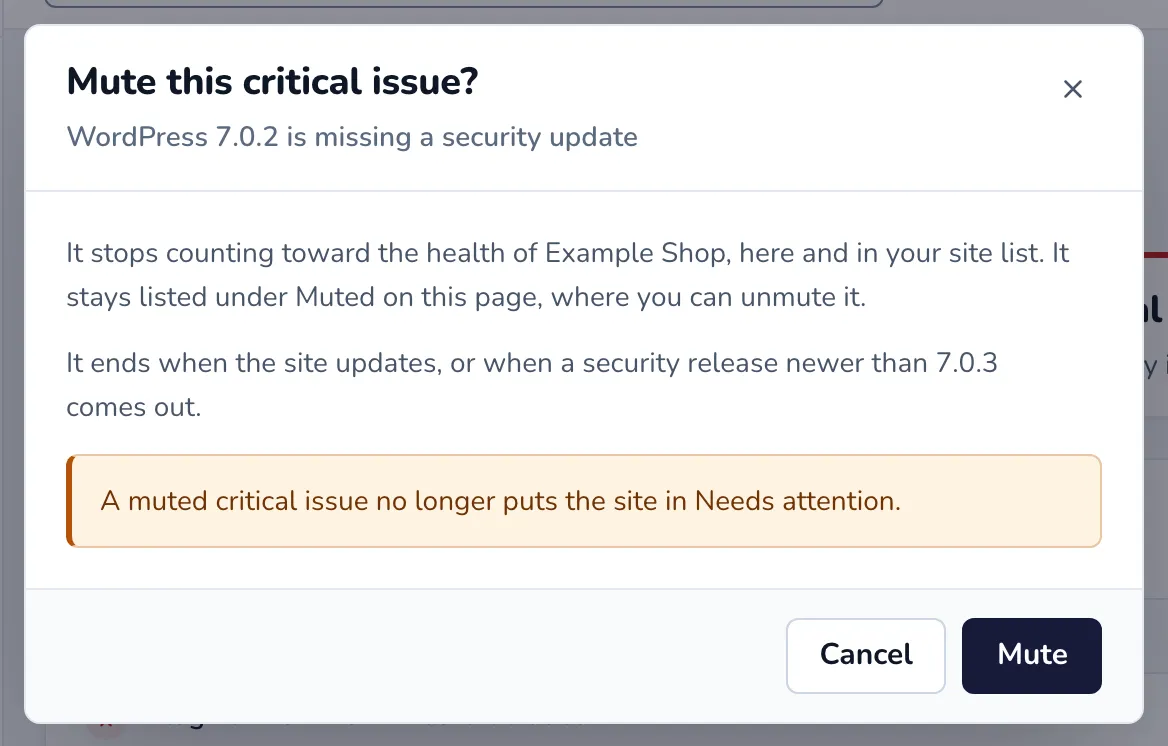
A muted issue stops counting toward the site’s health, on this screen and in your sites list. A muted critical issue no longer puts the site in Needs attention. The issue moves to the Muted list, where you can unmute it.
A mute does not last forever. It ends once the issue is fixed or turns into a different issue. For example, a muted “not the latest release” for PHP 8.4 stays muted while newer 8.4 releases come out, and ends when the site moves off 8.4 or 8.4 leaves active support. A muted setting ends once the setting meets the recommendation.
Plugins with known vulnerabilities cannot be muted here; manage them on the Plugins screen.
How often the data updates
Section titled “How often the data updates”The Scanfully plugin sends the site health data every 3 hours, and about a minute after you install, activate, deactivate, update or delete a plugin. Folder sizes are sent once a day. The plugin uses WordPress’s scheduled tasks for this, so the data only arrives when those run.
After you change a setting, such as the PHP memory limit, the screen shows the new value after the next sync.
No health report yet
Section titled “No health report yet”Until the plugin sends its first data, the screen says No health report yet. Make sure the Scanfully plugin is installed and connected on the site. If the plugin is connected and the data still doesn’t arrive, see Site health data is not showing.