
What the activity log records
The activity log records what happens in WordPress. The Scanfully plugin reports each change as it happens, and Scanfully adds a few changes it sees itself. This page lists all of them, grouped by the tabs of the Activity screen.
Updates
Section titled “Updates”- Plugin, theme and WordPress updates, with the version before and after.
- Updates that failed, with the error WordPress gave, such as a download that failed or a folder that could not be written. This covers plugin and theme updates you start yourself, from WP-CLI and automatic updates. For WordPress itself only automatic updates are covered, because WordPress does not report a failed manual update to other plugins.
Plugins and themes
Section titled “Plugins and themes”- Plugins activated or deactivated.
- Plugins and themes installed or deleted. Uploading a zip over an installed plugin or theme shows as an install.
- Theme switched, with the theme before and after.
- Files changed in the plugin or theme file editor (Plugin File Editor and Theme File Editor, under Plugins and Appearance, or under Tools with a block theme), with the file, the plugin or theme, and the lines added and removed. This is a classic way to hide code on a site, so these rows are marked as a warning and count as possible causes when a downtime looks for what changed before it. An edit WordPress undid because it broke the site is not recorded. A site with
DISALLOW_FILE_EDITinwp-config.phphas no file editors, and files changed over SFTP or by a deployment don’t go through WordPress, so they aren’t recorded here.
Changes Scanfully detects
Section titled “Changes Scanfully detects”Plugins installed, deleted or updated without the WordPress updater, for example by a deployment, Composer or FTP, do not reach the plugin’s own events. Scanfully compares the list of plugins the site sends with the previous one and adds these changes itself. They show as Detected by Scanfully. When the plugin reports the same change, it shows once.
Must-use plugins and drop-ins
Section titled “Must-use plugins and drop-ins”Must-use plugins, the folders next to them in wp-content/mu-plugins and drop-ins such as object-cache.php change outside WordPress: over SFTP, with a deployment or by your host. Scanfully compares them with what the site sent before and records, as Detected by Scanfully:
- added, with the kind and the version from the plugin header;
- changed, when the content of the file changed, with the version before and after, the size before and after and, for a folder, the number of files before and after;
- removed.
The first time a site reports them, nothing is recorded: that list is the starting point. A change shows up within the hour; a change deeper inside a folder in mu-plugins shows up with the next regular sync, within 3 hours. Added and changed must-use plugins also count as possible causes when a downtime looks for what changed before it. See Plugins for the list itself.
Content
Section titled “Content”- Posts, pages and other content that was created, updated, published, set to draft, made private or moved to the trash, with the post type, the status before and after, and what changed. This covers every post type with a screen in the WordPress admin, such as WooCommerce products.
- Posts deleted permanently, with the post type and the status the post had. This covers Delete Permanently and Empty Trash in WordPress, deletes from WP-CLI or the REST API, and WordPress emptying the trash by itself after 30 days (or the number of days set with
EMPTY_TRASH_DAYSinwp-config.php). - Categories, tags and other terms created, changed or deleted. A new term shows its parent, a change shows the name, slug, parent or description before and after, and a delete shows how many posts had the term. This covers every taxonomy with a screen in the WordPress admin, such as WooCommerce product categories. A new tag or category you add while saving a post, in the classic editor, Quick Edit or Bulk Edit, shows on the post’s event as added to the post. The block editor saves a new tag or category as soon as you add it, so there it also gets an event of its own.
Left out:
- autosaves, revisions and the drafts WordPress opens for a new post;
- custom fields that plugins keep for their own use, whose names start with an underscore (apart from the ones listed under What changed in a post), and custom fields that change without the post being saved, such as a view counter;
- custom fields of terms, such as the SEO fields of a category or the image of a WooCommerce product category;
- custom field definitions (menus, templates and template parts are on the Appearance tab);
- WooCommerce orders and the placeholder posts WooCommerce creates for them;
- imports.
What changed in a post
Section titled “What changed in a post”When a post is saved, the event says what changed in it:
- the title, the slug and the URL, before and after;
- the content, as a short diff: the lines that changed (a line is a paragraph or a block), with one line around each change, and how many lines were added and removed;
- the excerpt, the author, the parent and the publish date, before and after;
- the order, whether comments are open, and whether the post has a password (the password itself is never sent);
- custom fields, with the value before and after: the fields in the Custom Fields box of the editor, ACF fields (by their label), the SEO title, meta description, focus keyphrase, canonical URL and indexing setting of Yoast SEO and Rank Math, Elementor, Beaver Builder and Bricks content, and the prices and SKU of a WooCommerce product. A value longer than 200 characters shows as changed, without the value;
- the featured image, by its file name, and the page template;
- categories, tags and other terms added to the post or removed from it.
The row says what changed, such as ““About us” renamed from “About””, “URL of “About us” changed”, or ““About us” updated” with “Page, title, content and 2 fields changed”. Details shows every change, with the added and removed lines of the content. A long change shows its first lines. When the content is too large to compare, or only its markup changed (such as formatting or block settings), it says so instead of showing lines.
Private, draft and password-protected posts are reported the same way. Only what changed is sent, never the whole post. The plugin works the changes out after the save, so saving a post does not get slower.
A save that changes none of the above is not reported, such as saving a post without changing anything, or a plugin that saves posts again in the background. Older versions of the plugin report every save, without what changed.
Many posts or terms at once
Section titled “Many posts or terms at once”When more than 10 posts of the same type get the same action at once, for example 200 posts moved to the trash with a bulk action, the trash emptied, or a Bulk Edit that adds a category, they show as one event, such as “200 posts moved to the trash” with “About us, Contact and 198 more”. For a Bulk Edit the event says what changed, such as “Categories: added News”. The same goes for more than 10 categories, tags or other terms of one taxonomy created, changed or deleted at once, such as “50 tags deleted”.
The plugin reports up to 30 changes to posts a minute, and 30 to terms. Changes over that, for example from a tool that works through posts in batches, are not dropped: a minute later they arrive combined in the same way, such as “45 posts updated”, and Details says they were reported together.
Every post or term is part of the event. Details lists the first 10, and Show all 200 shows every one. Search finds the event by the title or name of any post or term in it. One event holds up to 2,000 posts or terms; more are split over several events, such as “2,000 posts moved to the trash (part 1 of 3)”.
Files in the media library, whatever added them: the Media Library, the block editor, the REST API, WP-CLI or a plugin.
- Files uploaded, with the file name, the format, the size, the dimensions (and the length of a video or sound file) and the post or page the file was uploaded to. When you crop or rotate an image in the block editor, WordPress saves an edited copy; the event names the original.
- Files changed, with what changed:
- the title, alt text, caption, description or slug, with the text before and after;
- an edit in the WordPress image editor (cropped, rotated, flipped or scaled), or the original image restored;
- the file replaced with a plugin such as Enable Media Replace, or renamed or converted, for example from PNG to WebP;
- the file attached to a post or page, or detached from it.
- Files moved to the trash or restored. WordPress deletes media straight away, without a trash, unless the site turned on the media trash with the
MEDIA_TRASHsetting inwp-config.php. - Files deleted permanently, with how many posts had the file as their featured image. WordPress takes the file off those posts when it deletes it.
The plugin reports media about a minute after the change, so it can put together what happens to a file in that minute. The alt text you type right after an upload is part of the upload. Filling in the title, alt text and caption one after the other is one change. A file uploaded and deleted again within the minute is not reported.
When one person uploads, changes or deletes more than 10 files within a minute, for example by dragging a folder of photos into the Media Library, they show as one event, such as “24 files uploaded”, with every file in its details. Search finds that event by the name or title of any file in it.
Left out:
- new thumbnails and other image sizes, for example from a plugin that regenerates thumbnails;
- images an optimization plugin compresses without changing the file name (a conversion that changes the file name is recorded);
- media folders and categories that plugins add;
- files changed over FTP or SFTP, outside WordPress;
- imports.
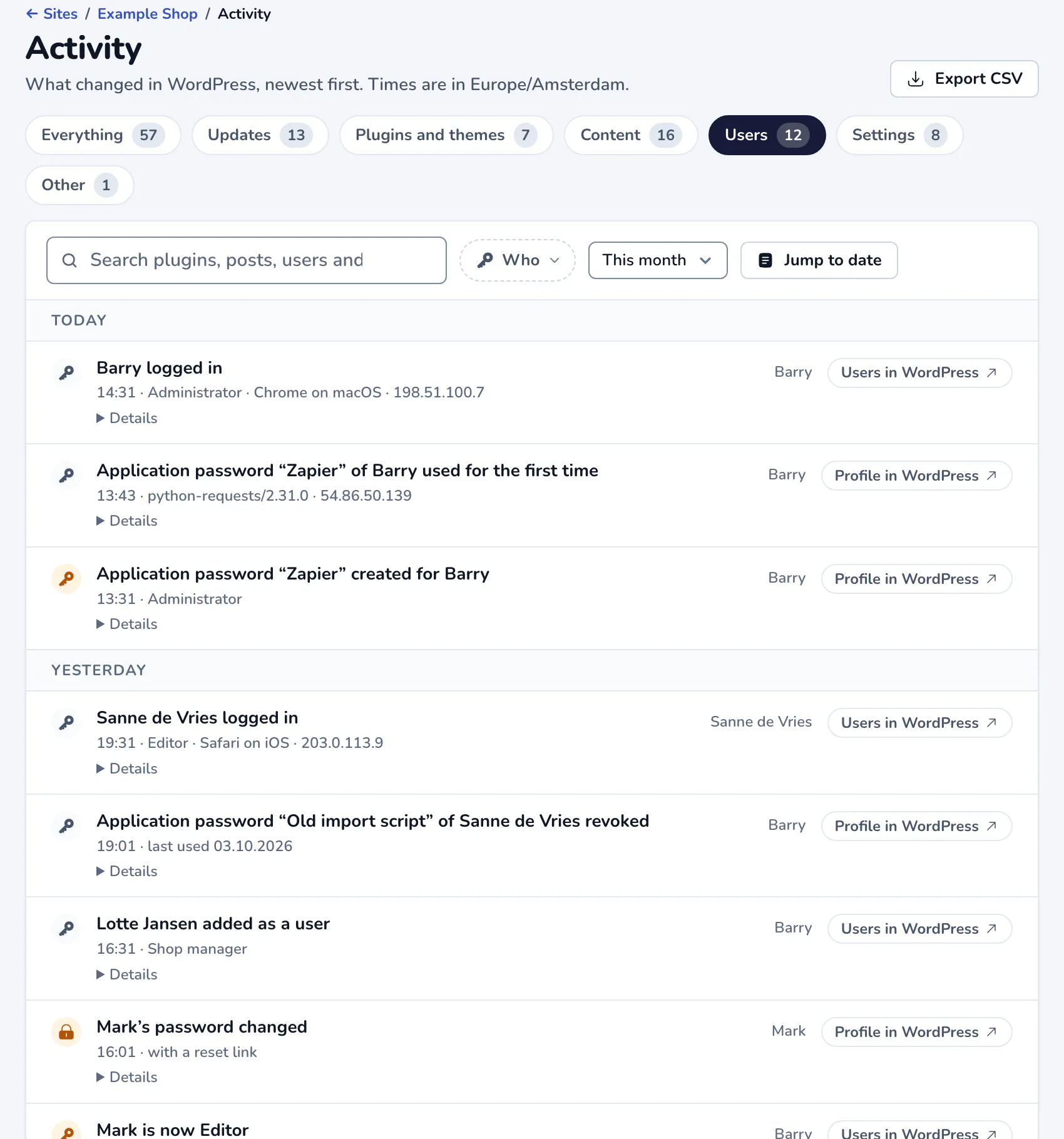
- Users added, with their role. People who sign up themselves as a customer or subscriber are not recorded; a sign-up that gets more rights, such as an administrator, always is.
- Users deleted.
- Role changes, with the roles before and after.
Accounts with elevated rights
Section titled “Accounts with elevated rights”The events below are recorded for accounts that can edit content, manage users or settings, or install plugins, such as administrators, editors and shop managers. They help you spot an account being taken over:
- Logins, with the IP address, the address a proxy such as Cloudflare passed on, and the browser and operating system. Only logins with a username and password count, on the WordPress login screen or a login form such as the WooCommerce account page. Requests to the REST API or XML-RPC are not logins. When wrong passwords were tried on the account in the hour before, the login says how many (after 14 failed attempts) and is marked for attention: it may be someone who guessed the password.
- Application password created, with the name it got. An application password gives an app or script access to the REST API and XML-RPC as that user, without the normal login.
- Application password revoked, with when it was last used.
- Application password used for the first time, with the IP address and the client, such as an app or a script. Later uses are not recorded.
- Password changed, and whether it was changed on the profile screen or with a reset link. WordPress updating how it stores a password during a login is not a change.
- Email address changed, with the old and the new address.
- Super admin granted or revoked, on a multisite network.
For these accounts the events include the account’s email address. Passwords and application passwords themselves are never sent to Scanfully.
Failed logins
Section titled “Failed logins”Bots try to log in to almost every WordPress site, often thousands of times a day, so a failed login is not recorded as an event of its own. The Scanfully plugin counts them per hour instead and sends the counts once an hour:
- how many logins failed;
- why: a wrong password, an account that does not exist, or blocked by a security plugin;
- how they came in: the login page, XML-RPC, an application password, or another login form such as the WooCommerce account page;
- for a wrong password on an account with elevated rights, which account.
The usernames that were tried and the IP addresses they came from are not kept. Logins with an empty username or password are not counted, because WordPress does not report them, and neither are attempts a firewall (at your host, Cloudflare or a security plugin’s firewall) stops before they reach WordPress.
At the top of the Users tab, Failed logins shows the last 30 days: the failed logins per day, how the last 24 hours compare with normal, why they failed, how they came in and the accounts with elevated rights that were tried.
Scanfully compares the last 24 hours with the normal level of the site, the middle day of the 28 days before. Two moments get an event of their own, marked Detected by Scanfully:
- Failed logins at 8.3× the normal rate: the last 24 hours had at least 3 times the normal number of failed logins, and at least 100 more. One event per attack; the attack ends after 24 hours below twice the normal level. Scanfully needs a week of counts before it calls something an attack.
- 14 wrong passwords for Barry in an hour: 10 or more wrong passwords on one account with elevated rights within an hour, at most once a day per account.
Appearance
Section titled “Appearance”Navigation menus, both the classic menus of Appearance, Menus and the Customizer and the navigation menus of block themes (the Navigation block and Navigation in the Site Editor). Changes from the REST API and WP-CLI are recorded too.
- Menus created, with how many items they have and the theme locations they show in.
- Menus changed, with what changed:
- the name, before and after;
- items added, removed, renamed, linked somewhere else, or moved to another place or under another item. An item that WordPress takes off the menu because its page, post or category was deleted says so;
- other details of an item, such as its CSS classes or whether it opens in a new tab (without the values);
- the theme locations the menu now shows in, or no longer shows in;
- whether new top-level pages are added to the menu automatically;
- a block theme menu moved to the trash or restored.
- Menus deleted, with how many items they had and where they showed.
Saving a menu without changes is not reported. Moving one item shows as that one move, not as every item below it getting a new place.
Left out:
- the menu the Navigation block makes by itself when a site has none;
- which menu a header or footer shows in a block theme, which is part of the template (it shows as a change to the template under Site Editor);
- menus WordPress assigns to the locations of a new theme when you switch themes (the theme switch is recorded under Plugins and themes).
Widgets
Section titled “Widgets”Widgets added, changed, moved to another widget area, removed (kept under Inactive widgets) or deleted, in the block widget editor, the classic Widgets screen, the Customizer or with WP-CLI. Block themes have no widgets.
- A save is one event, such as ““Opening hours” changed” or “3 widgets changed in Footer”.
- A changed widget shows which settings changed and its title before and after. A setting of up to 200 characters shows its value before and after; a longer one shows as changed. The text of a text, HTML or block widget shows as the lines that changed, as the content of a post does.
- A new order of the widgets in an area is recorded once for that area.
The classic Widgets screen saves every widget on its own, so changes by the same person within half an hour show as one row.
Left out: widgets WordPress moves to Inactive widgets by itself, for example after a theme switch.
Theme settings
Section titled “Theme settings”What you change in the Customizer (Appearance, Customize): the logo, colours, the header image and video, the background image and its options, Additional CSS, and the theme’s own Customizer settings, such as those of Astra or GeneratePress. Theme settings changed another way are recorded too: with WP-CLI, on the older Header and Background screens, by an importer, or the logo in the Site Logo block of a block theme.
- A save is one event, such as “Background colour changed”, or “Theme settings changed” with what changed: “background colour, logo and Additional CSS changed”.
- Each setting shows its value before and after: colours with a swatch of the colour, images and videos by their file name. A value longer than 200 characters shows as changed. A theme’s own setting shows under the name the Customizer gives it, such as “Footer Builder › Copyright”.
- Additional CSS shows as the lines that changed, as the content of a post does.
- A change you schedule in the Customizer is recorded when it is published, under the name of the person who made it, and marked as a scheduled change.
- Each event links to the Customizer in WordPress.
The older Header and Background screens save one thing at a time, so changes by the same person within 10 minutes show as one row.
The site title, tagline, site icon and homepage settings you change in the Customizer show under Settings, and menus and widgets as described above.
Left out:
- Customizer drafts, and changes you preview but don’t publish;
- theme settings a theme writes by itself while a page loads;
- the settings of a theme that isn’t active.
The styles, templates and fonts of block themes are under Site Editor.
Site Editor
Section titled “Site Editor”What you change in the Site Editor of a block theme (Appearance, Editor), such as Twenty Twenty-Five:
- Styles: colours, typography, layout and spacing, for the whole site, for elements such as links, headings and buttons, and for each kind of block. A save is one event, such as “Background changed”, or “Styles of Twenty Twenty-Five changed” with what changed. Each setting shows its value before and after: colours with a swatch of the colour, and the theme’s colours, fonts and sizes by their name, such as “Accent 1”. A colour palette or a list of fonts shows as changed. Additional CSS in the styles shows as the lines that changed. Picking a style variation shows its name, and resetting the styles shows as “Styles reset to the theme’s styles”.
- Templates and template parts: a template or part you change, with the blocks added and removed. The first time you change a template that comes with the theme, it is compared with the theme’s own version and shows as customized. Resetting it to the theme’s version shows what it loses. A new template you make, such as one for a single page, shows how many blocks it has, and a template you delete shows by its name. A template part also shows its area, such as Header or Footer.
- Fonts: a font you install in the Font Library, uploaded or from a collection such as Google Fonts, with its variants (Regular, Italic, Bold), and a font or variant you remove. Choosing a font for the site is a change to the styles.
Each event links to the Site Editor in WordPress. The Site Editor saves the styles, each template and each part one by one, so changes by the same person within 10 minutes show as one row. Saved patterns are recorded under Content, as patterns.
Left out:
- the empty styles WordPress creates the first time the Site Editor opens;
- autosaves and drafts;
- changes that come with a theme update (the update itself is recorded under Updates);
- fonts a theme brings itself.
Settings
Section titled “Settings”Every setting on the WordPress settings screens (General, Writing, Reading, Discussion, Media, Permalinks and Privacy), whether it was changed there, in the Customizer, with WP-CLI, over the REST API or by a plugin.
- Settings changed, with the value before and after, in the words of the settings screen: pages and categories by their name, a date or time format with an example, the site language by its name and the timezone as WordPress shows it. Each event links to the settings screen in WordPress.
- Permalinks changed, with the structure before and after. Older plugin versions report every rewrite rule update instead, shown as Rewrite rules updated.
- Administration email change requested. WordPress changes the administration email only after someone opens the confirmation link it emails to the new address. The request is recorded straight away, so a request nobody on your team made stands out. A request that is withdrawn is recorded too, and a confirmed one shows as the administration email changing.
The WordPress address and site address, the administration email, whether anyone can register, the role new users get and search engine visibility are marked to deserve a second look.
A save of a settings screen that changes several settings shows as one row, such as “Discussion settings changed”, and Show the 3 events lists each setting. The settings that deserve a second look always keep a row of their own, such as “Search engines discouraged”.
Some values are never sent to Scanfully: the login and password of Post via email (the event only says they changed) and the words of the comment moderation and disallowed comment lists (the event says how many lines were added and removed).
Left out: the settings WordPress changes itself when it updates its database after a WordPress update, and the settings of other plugins, such as WooCommerce or an SEO plugin.
Who did it
Section titled “Who did it”Every event records who made the change: the display name of the signed-in WordPress user, WordPress when nobody was signed in (automatic updates, scheduled tasks, WP-CLI), or Detected by Scanfully. Email addresses are never used as the name.
What is not recorded
Section titled “What is not recorded”Some things are left out on purpose, because they happen too often to be useful in a log or say little on their own:
- individual REST API and XML-RPC requests;
- each failed login on its own (they are counted per hour instead);
- password reset requests (the reset itself is recorded);
- logouts;
- comments;
- the settings of other plugins, such as WooCommerce or an SEO plugin.
Scanfully’s own events, such as downtime, certificate changes and the alerts it sent, are not part of the activity log. They are on their own screens, such as Uptime and Notifications.
How long it is kept
Section titled “How long it is kept”Events are kept for 18 months, including the IP addresses and email addresses in them, and are then removed automatically. See Is Scanfully GDPR compliant? for what this means for the people on your sites.